
Checking people in with QR codes
How to check in ticket-holders and RSVPs on the day, using a camera or a USB/HID scanner, and what the attendance and gender-breakdown numbers show you afterwards.
Every attendee who registers for or buys a ticket to your event gets a QR-coded ticket — free RSVPs included. On the day, whoever is staffing the door scans that code to check people in. This is usually a Moderator, though anyone with event-management access can do it.
This guide covers how scanning works, where you do it from, and what you get to look at once the event is over.
Every attendee gets a QR code
The moment someone registers or buys a ticket, YeahApp issues them a ticket with a unique QR code — even for a free event with no paid ticket tiers. Members find it in their tickets wallet or in their confirmation email, and either works at the door.
Heads up. QR check-in only applies to in-person events. Virtual events don't have a door to staff, so there's nothing to scan.
Two ways to scan
The scanner supports two input methods, and you can switch between them at any time.
Camera
Point a phone, tablet, or laptop camera at the attendee's QR code and it scans automatically. If your device has more than one camera, a picker lets you choose which one to use. You also get on-screen controls for the flash and zoom, which help in low light or with a code shown on a small phone screen.
USB or HID hardware scanner
If you're using a dedicated barcode scanner — the handheld kind you'd find at a till — plug it in. It acts like a keyboard: point it at the code, it "types" the scanned value in, and the check happens automatically. This is the better option for a busy door with a lot of people to get through quickly.
Where you check people in
Check-in happens from the event itself. There's a single place to do it, so there's nothing to choose between and no way to end up on the wrong event by mistake.
Open the Check-in area from the event you're managing, and the scanner is already locked to that event. This view also shows you live numbers — how many people are registered versus already checked in — so you can see the queue clear in real time as you and anyone else scanning update the same count.
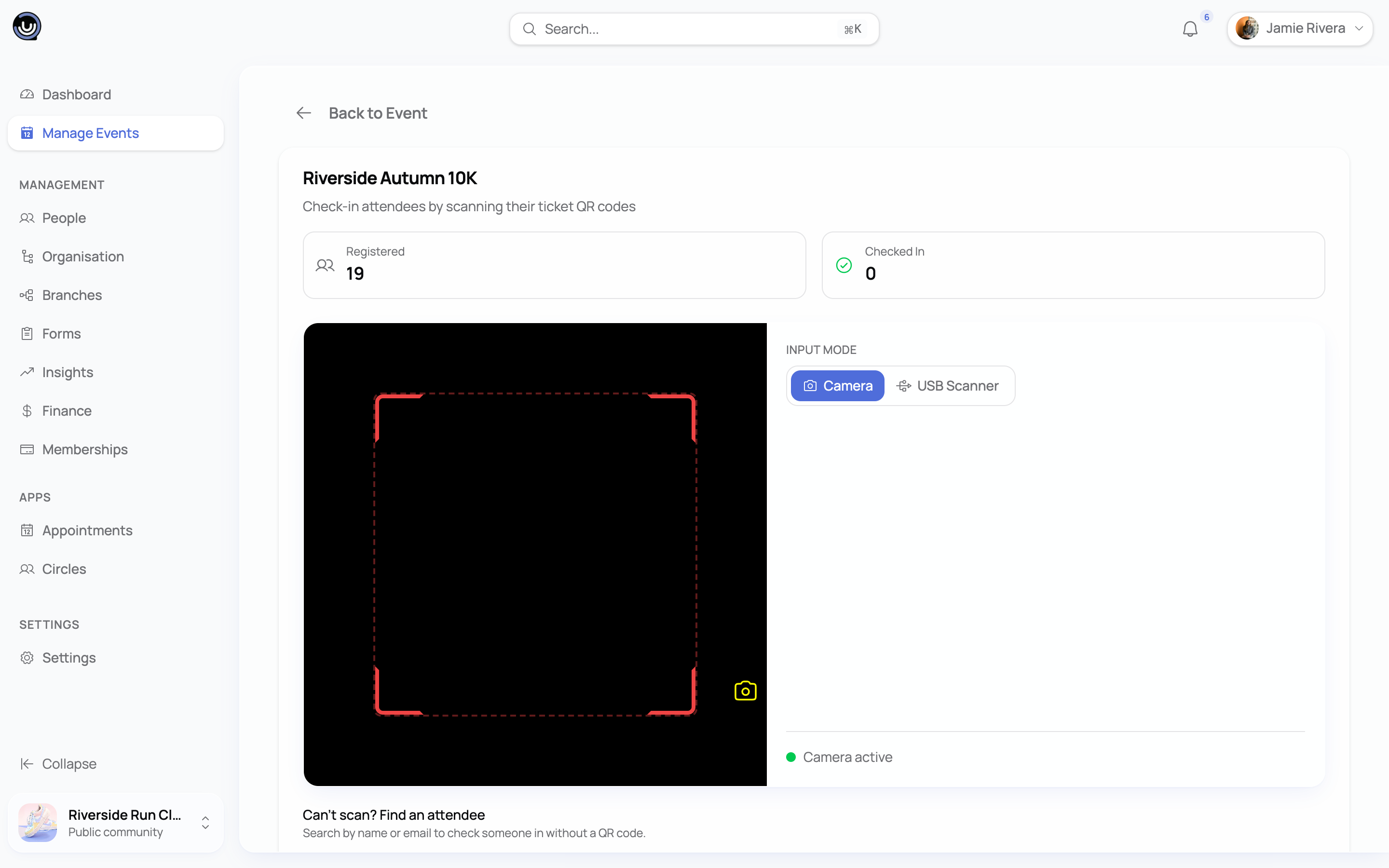
If you're covering the door for more than one event in a day, go back to the event you're working and open its Check-in area again.
What happens when you scan
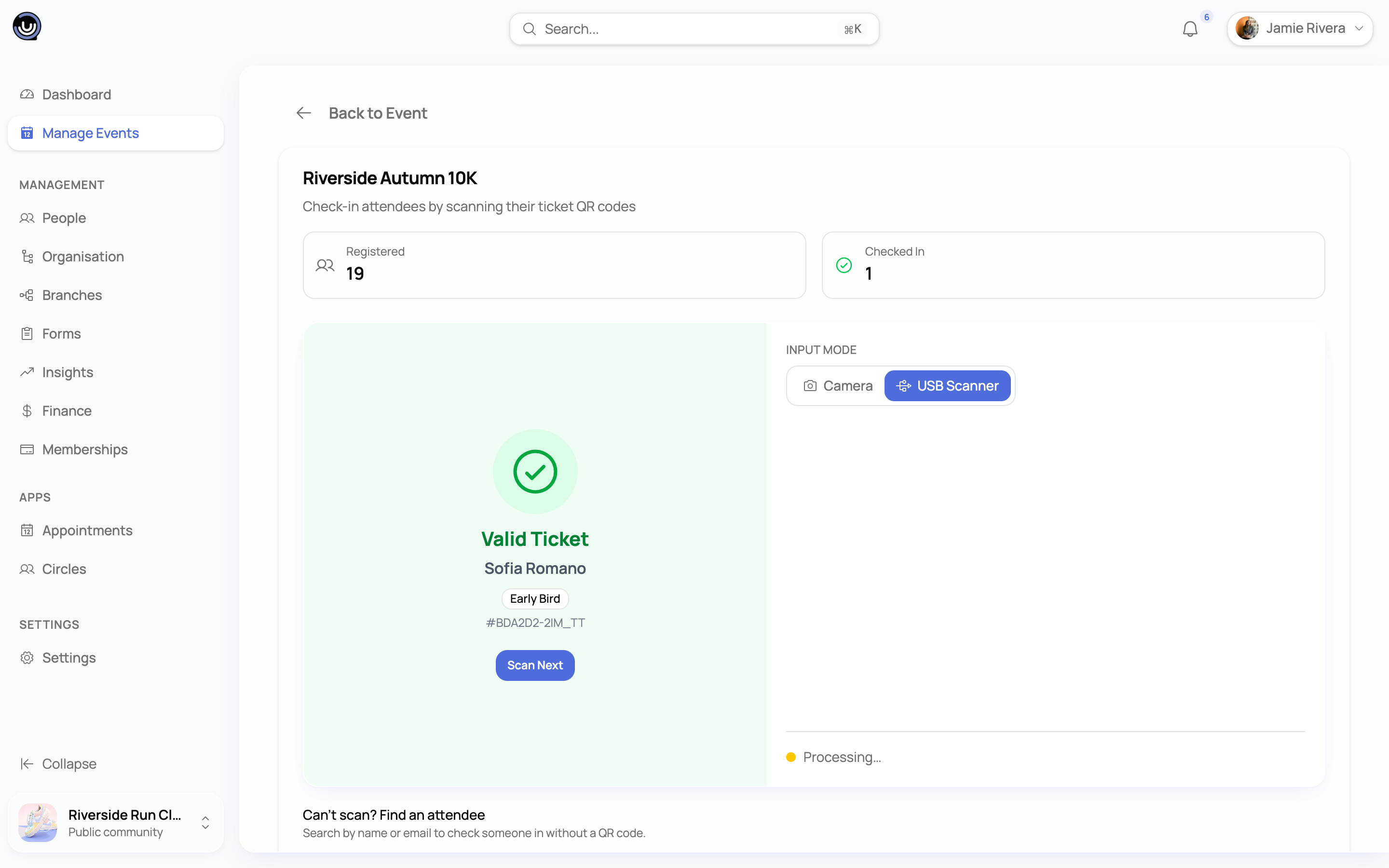
A valid scan shows a green confirmation with the attendee's name, their ticket type, and their ticket number, along with a short confirmation tone. It clears itself after a few seconds so you can go straight to the next person.
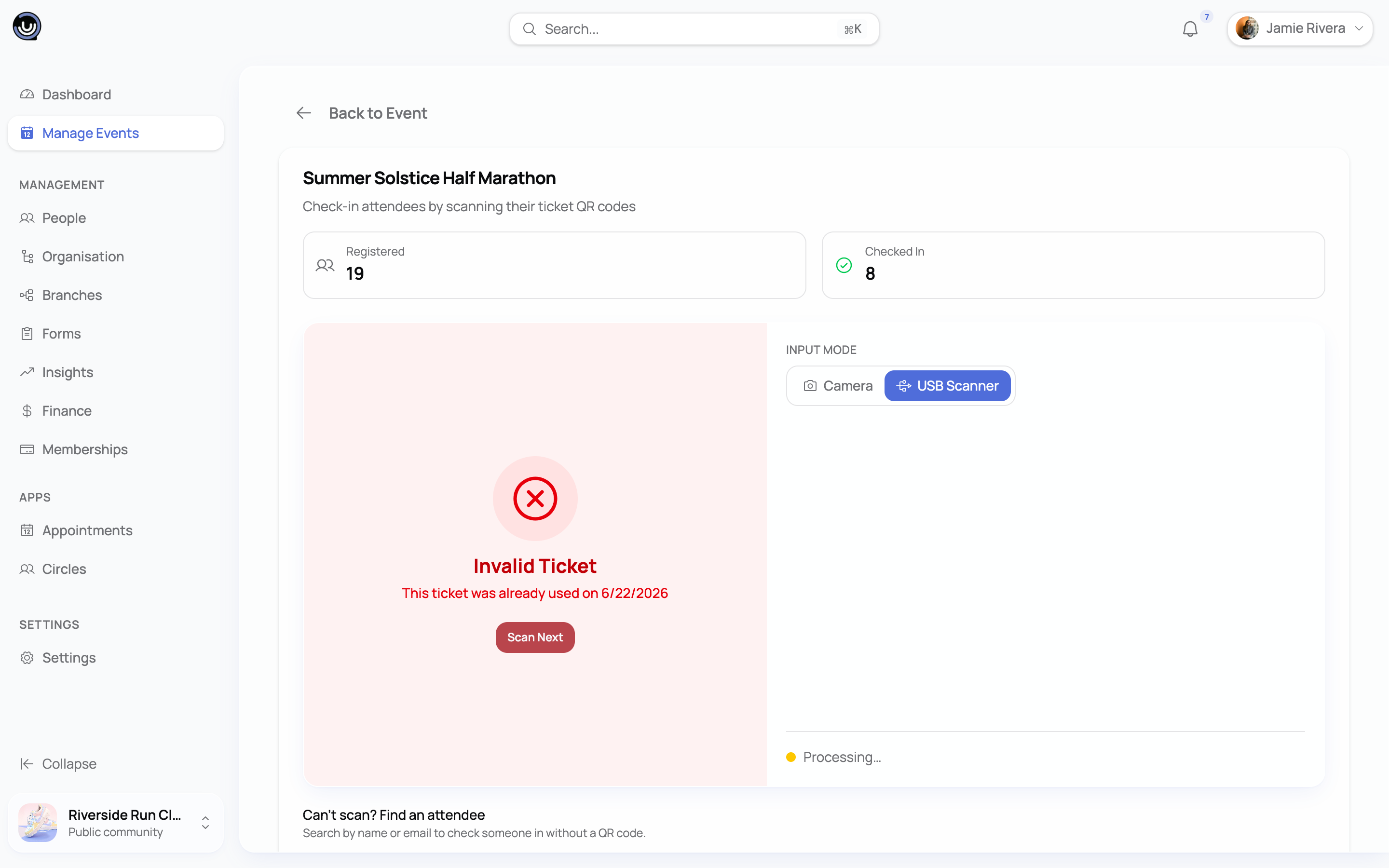
An invalid scan shows a red error explaining why, with its own tone so you don't have to read the screen to know something's off:
| What you'll see | What it means |
|---|---|
| Invalid ticket QR code | The code doesn't match any ticket in the system |
| Not valid for this event | The ticket is real, but it's for a different event |
| Already used | Someone already checked in with this code — the message includes when |
| Ticket is cancelled / refunded / expired | The ticket exists but is no longer valid |
| Payment not completed | The ticket hasn't been paid for yet, so it can't be used to enter |
Scanning the same code twice in a row while it's still processing is ignored rather than double-submitted, so you don't need to worry about a slow connection causing a duplicate check-in.
Heads up. Once a ticket has been used to check someone in, scanning it again always shows "already used" — there's no way to check the same ticket in twice.
Checking someone in without scanning
If a code won't scan, or someone genuinely can't produce one, you don't have to turn them away. Open the event's attendee list and mark them as checked in directly. It's a manual alternative to scanning, not a replacement for it, but it's there for exactly this situation.
Who can staff the door
Owners, Admins, and Moderators with event-management access can all check people in, whether by scanning or from the attendee list. For a co-hosted event, the accepted co-host's Owners, Admins, and Moderators can check people in too — check-in access follows the same permissions as managing the event day-to-day.
The check-in flow, visualised
The diagram below focuses on what happens at the door: a scan — from the camera or a USB/HID scanner — is sent to YeahApp for validation, and the result comes back to the scanner straight away, whether that's a valid check-in or an error to resolve.
After the event: attendance and gender breakdown
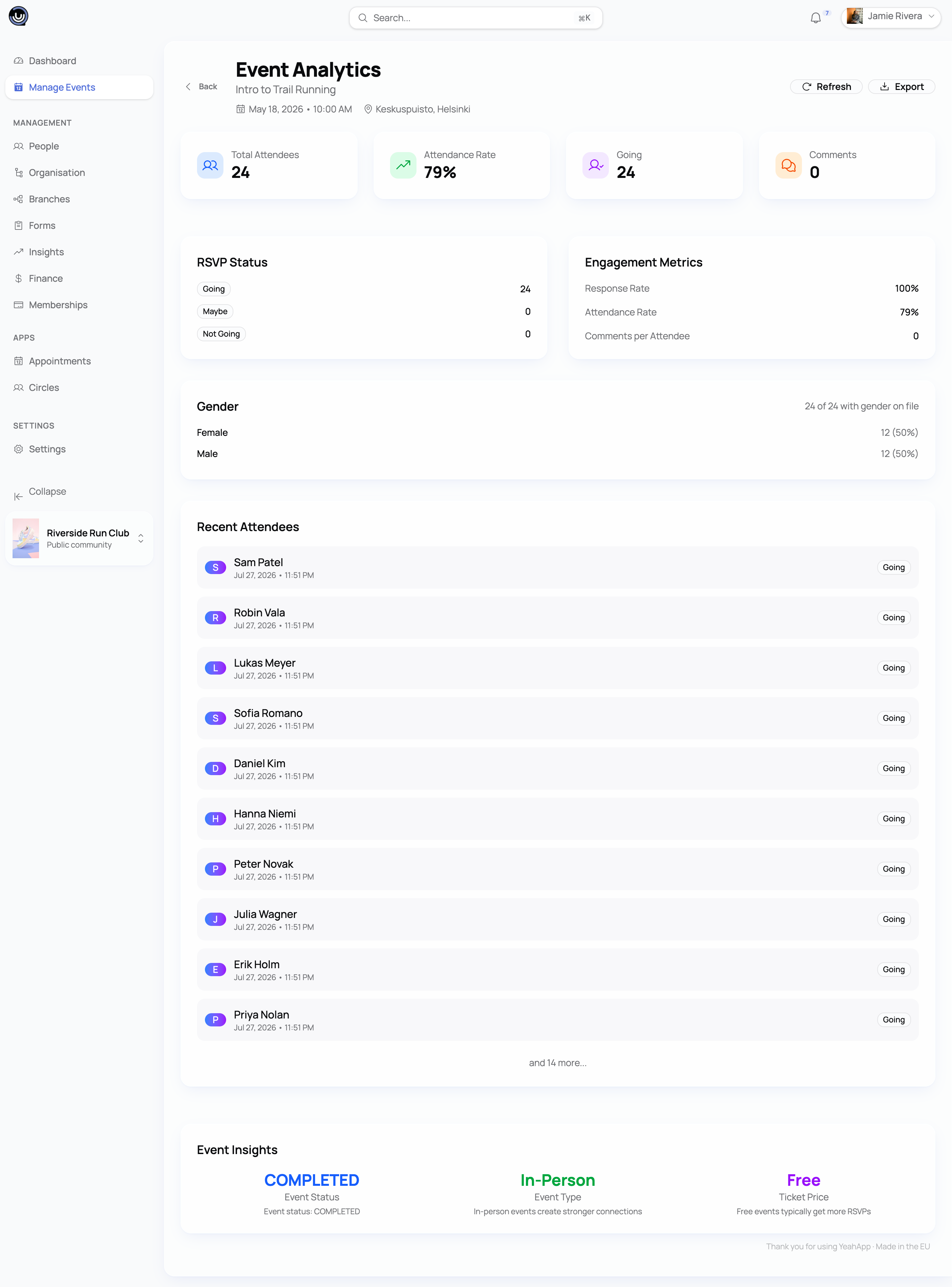
Once your event has wrapped up, its attendance numbers are ready to look at. Anyone who could check people in during the event can also see these numbers afterwards, so your door staff aren't locked out of the results. You'll see:
- Total attendees, split by RSVP status (going, maybe, not going)
- How many were actually checked in, and the check-in rate
- A gender breakdown — male, female, and unknown — shown as a proportional bar. It's built from each attendee's gender on file; anyone without one recorded lands in "unknown" rather than being left out
- A list of your most recent attendees
Checking people in — and the numbers you get afterwards — works the same on every paid plan: Starter, Pro, and Business. On the Business plan, you can also export the full attendee list, including any custom registration-form answers, as a CSV.
Related guides
- Selling tickets for your event — how tickets are set up and sold in the first place
- Creating and organising an event — the full walkthrough from creation to check-in day
- Insights and analytics — your community's wider growth and engagement numbers
- Community Roles & Permissions — what Owners, Admins, and Moderators can each do