
Building forms for registration and events
How to use YeahApp's drag-and-drop form builder to collect registrations, event RSVPs, surveys and feedback — including field types, submission settings, embedding, and reviewing responses.
Forms are how you collect information from members and the public — joining your community, registering for an event, running a survey, or gathering feedback afterwards. YeahApp gives you one drag-and-drop builder for all of it. The form's type is what decides what happens the moment someone hits submit.
You need Admin access (or be the community Owner) to build and edit forms. Moderators can view forms and their responses, but can't change them.
What forms are for
Forms are available on every paid plan — there's no separate feature to unlock. Every community gets the same builder, the same 16 field types, and the same public form page. What does change by tier is how many custom fields you can add to your community's Registration form — see the limits further down.
Form types and what happens on submit
When you create a form, you choose one of five types. The builder looks identical either way — the type only affects what happens after submission.
| Type | What it's for | What happens on submit |
|---|---|---|
| General | General-purpose data collection | The response is stored. Nothing else happens. |
| Registration | Joining your community | See "Registration forms" below. |
| Event RSVP | Registering for an event | See "Event RSVP forms" below. |
| Survey | Open-ended surveys | The response is stored. Nothing else happens. |
| Feedback | Post-event or general feedback | The response is stored. Nothing else happens. |
Heads up. Whatever the form type, an answer is also used to fill in the member's profile automatically when its field label matches something recognisable — bio, phone number, address, date of birth, website, and so on. This isn't limited to Registration forms.
Registration forms: joining a community
Your community has a Registration form — YeahApp creates it for you automatically, with a starter set of fields. Make sure it's Published before you rely on it, since a form built through a different route (for example, created the first time you add a custom field during a spreadsheet import) can start out as a draft.
What happens when someone submits it depends on how your community is set up:
- Approval required. If your community requires admin approval to join, the submission creates a join request that sits pending until an Admin approves or rejects it.
- Paid membership. If joining requires a paid membership plan, submitting the form doesn't create a member — it sends the person to checkout to choose and pay for a plan. The member record is created once payment goes through.
- Open community. If neither applies, the person becomes a member immediately.
If the person submitting is already an active member, nothing changes — the submission is simply recorded.
Event RSVP forms: registering for an event
Attach an Event RSVP form to an event, and what happens on submit depends on whether the event is free or paid:
- Free events. Submitting registers the person as attending and issues them a free ticket automatically, with a confirmation and QR code sent by email.
- Paid events. No attendee or ticket is created yet — the person is sent to checkout, and the ticket is issued once payment completes.
Heads up. RSVPing to an event does not make someone a member of your community. The two are separate — an Event RSVP form only ever affects attendance for that one event.
Building your form
Open a form from your community's Forms section and use the builder to add and arrange fields.
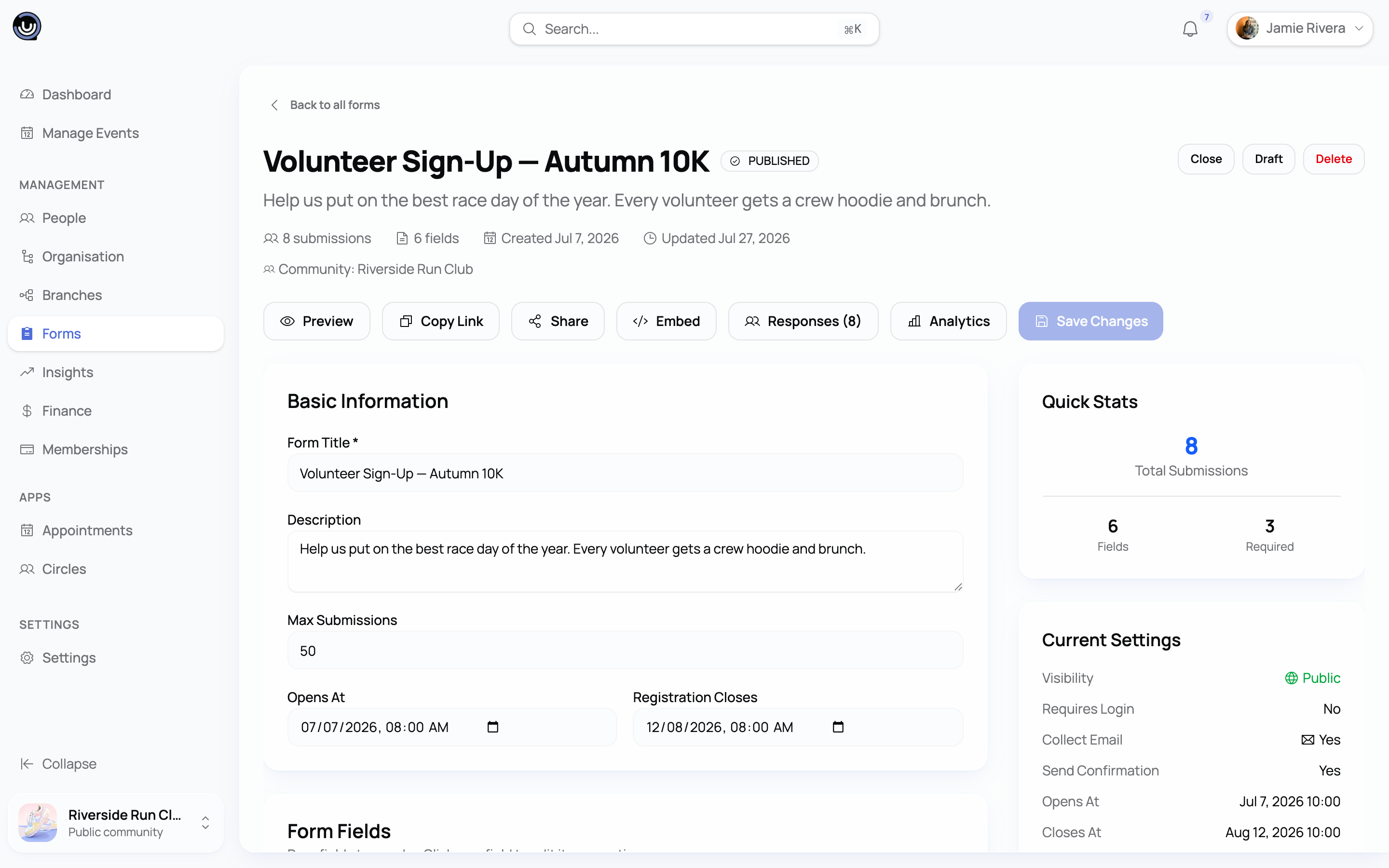
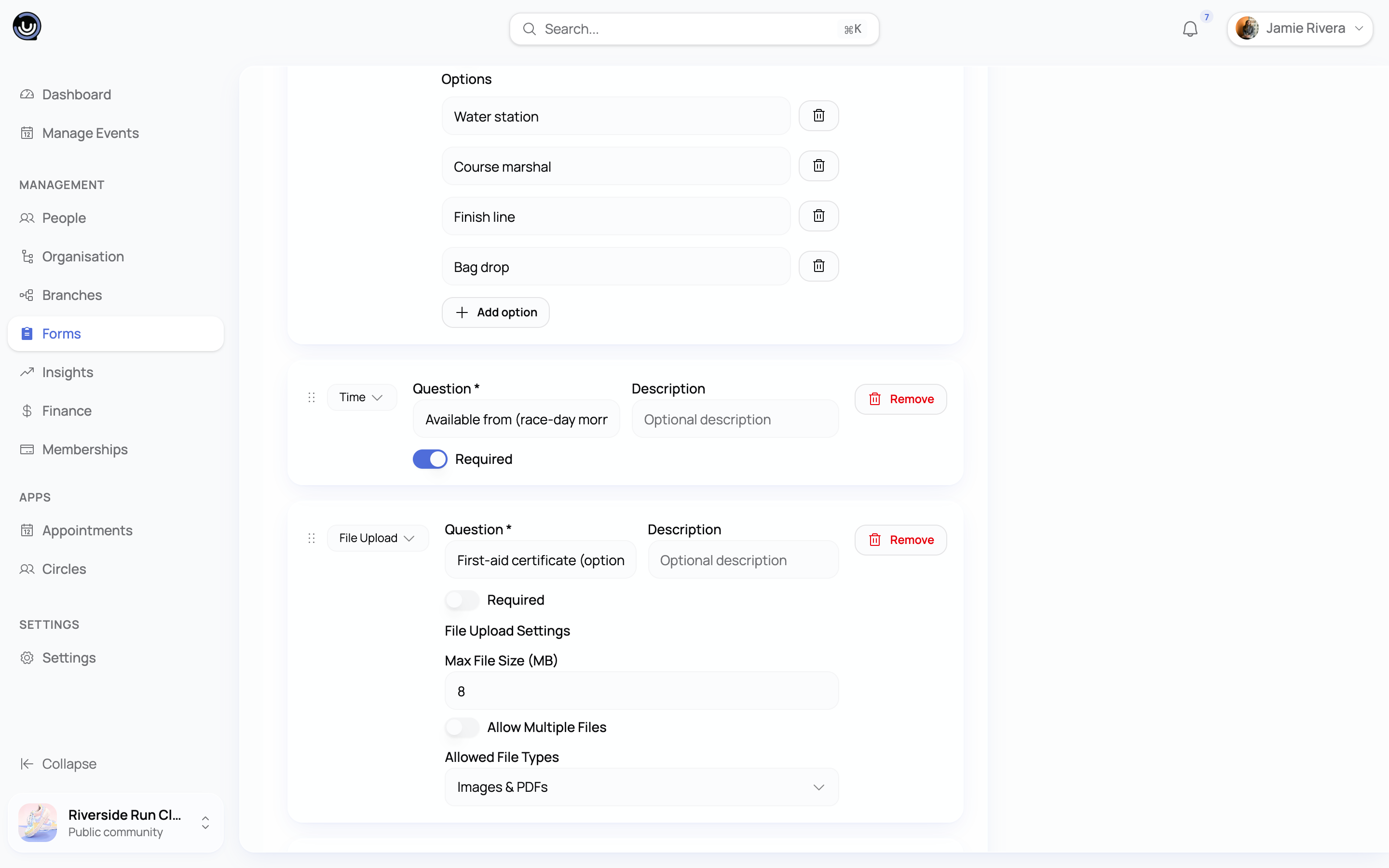
- Add fields from a list of 16 types, then drag each one into place using its handle to set the order.
- Field types available:
- Text Input, Long Text, Email, Phone, Number, URL — freeform inputs
- Dropdown, Multiple Choice, Radio Buttons, Checkboxes — pick from options you define (Checkboxes with no options set becomes a single yes/no tick box)
- Date, Time, Date & Time — date and time pickers
- File Upload — members attach a file up to a size limit you set (8MB by default)
- Rating — a row of numeric buttons from 1 up to a scale you choose, not star icons
- Signature — members draw a signature that's captured as an image
- Mark any field Required to block submission until it's filled in.
- A form can hold up to 50 fields.
- For a signed-in member, the Email field is automatically filled with their account email and can't be edited — this stops someone submitting under a different identity. The Phone field is pre-filled the same way but can be changed.
Heads up. If someone fills in a public form anonymously and uses an email address that already belongs to a YeahApp account, they'll be asked to sign in rather than continue as a guest.
Publishing, submission windows and confirmations
A form only accepts submissions while it's Published.
| Status | What it means |
|---|---|
| Draft | Not visible to anyone outside your team — you're still building it |
| Published | Live and accepting submissions, subject to the settings below |
| Closed | No longer accepting submissions; existing responses stay visible to you |
| Archived | Read-only and removed from public listings |
Heads up. A form must be Published to appear on an event page or to accept a public submission. A Draft form is invisible to everyone except you and your fellow admins.
In the form's settings you can also configure:
- Opens / closes dates — a window outside of which the form won't accept submissions. Not available for Registration or Event RSVP forms, which follow your community's or event's own timing instead.
- Maximum submissions — a hard cap; once it's reached, the form stops accepting new responses.
- Allow multiple submissions — by default, each signed-in member can submit a given form once; turn this on if the same person should be able to submit more than once.
- Confirmation message — shown on the thank-you screen after submitting, and included in the confirmation email if email confirmations are turned on. Links you write into the message become clickable automatically.
- Require login / Collect email / Public form — control whether a submitter needs a YeahApp account, whether an email address is captured, and whether the form is publicly reachable at all. These are hidden for Registration forms, which are always public and don't require login.
Sharing your form: public page and embed
Every form gets its own public page. From the builder, use Share to get the link, or Embed to get an <iframe> snippet you can drop into another website — the embedded version strips out YeahApp's header and navigation so it sits cleanly inside someone else's page.
Embedding isn't available for your community's Registration form; every other form type can be shared and embedded this way.
On submission, members see a thank-you screen with your confirmation message. Registration forms show a next step too — "Choose Membership" if a paid plan is required, or "Visit Community" otherwise.
Reviewing responses
Each form's Responses page lists every submission: submitter name, email, status, when it was submitted, and a preview of their answers. Search filters the list by name, email or response content.
- Paid events. If the form is attached to a paid event, each row also shows a payment status (Paid, Pending, Needs attention, Refunded or Free), with summary cards at the top of the page.
- View details opens the full set of answers for a single submission, read-only.
- Editing answers. Only the community Owner or an Admin can correct a submitted response's answers directly — useful for fixing a typo in someone's registration details.
- Export to CSV downloads everything currently loaded on the page — submitter details, status, timestamps, payment status where relevant, and one column per field. This export is available on every plan; it isn't limited to Business like some other reporting exports.
Heads up. Admin-only fields don't show up here. Nobody ever answers them on the public form, so they'd only ever be empty columns — the responses table, the preview of answers in each row, the CSV export and the View details panel all stick to your public questions. You'll still find those private fields, and whatever you've filled in, on each member's profile and in the member roster export.
Registration field limits by tier
Every community has one Registration form, and how many custom fields you can add to it depends on your plan:
| Tier | Custom field limit |
|---|---|
| No subscription | 0 |
| Starter | 5 |
| Pro | Unlimited |
| Business | Unlimited |
This limit applies only to the Registration form — General, Event RSVP, Survey and Feedback forms aren't affected, and you can add as many fields to those as the 50-field builder limit allows.
On Pro and Business, a custom field can be public — shown on the live join form — or private, visible only to your team as a profile field on the member's record. Starter doesn't get that choice: every field it adds is public.
You make that choice when the field is created, not afterwards: either on the Manage Profile Fields page, using its Admin Only Fields section, or while mapping columns during a spreadsheet import. The drag-and-drop builder on this page has no public/private switch — everything you add here is a question people answer.
Adding custom fields while importing members from a spreadsheet counts against the same limit, however the field was created.
Related guides
- Creating and organising an event — build the event an Event RSVP form attaches to
- Creating a membership plan on YeahApp — set up the paid plan a Registration form can route people into
- Importing members from a spreadsheet — how CSV import extends your Registration form
- Selling tickets for your event — what happens for paid events instead of a free ticket