
Transferring community ownership
How to hand your community over to an existing Admin — starting the transfer, what your recipient needs to do, and what happens to your Stripe account.
Every community has exactly one Owner. If you need to hand that role to someone else — you're stepping back, someone else is taking over day-to-day running, whatever the reason — you do it through a formal ownership transfer, not by changing someone's role in the members list.
The short answer. You can hand ownership to any existing Admin in your community. They get an email and an in-app notification, and have 7 days to accept or decline. What happens to your Stripe account is worked out automatically as part of the transfer.
Ownership transfer isn't a paid feature — it's available on every plan, including if your community's subscription has lapsed. This is about who runs the community, not what plan you're on.
How the transfer flows
Who you can transfer to
You can only transfer ownership to someone who is already an Admin of your community, and who's an active member — not someone who has left.
If the person you want to hand over to isn't an Admin yet, promote them to Admin first from your member list. The recipient picker on the transfer screen only shows existing Admins; if there aren't any, it tells you to promote someone first.
Starting a transfer
- Go to Community Settings → Danger Zone.
- Choose the Admin you're transferring to.
- Review the summary of what will happen to your Stripe account (see below) — it's shown before you send anything.
- Type your community's name to confirm, then send the transfer.
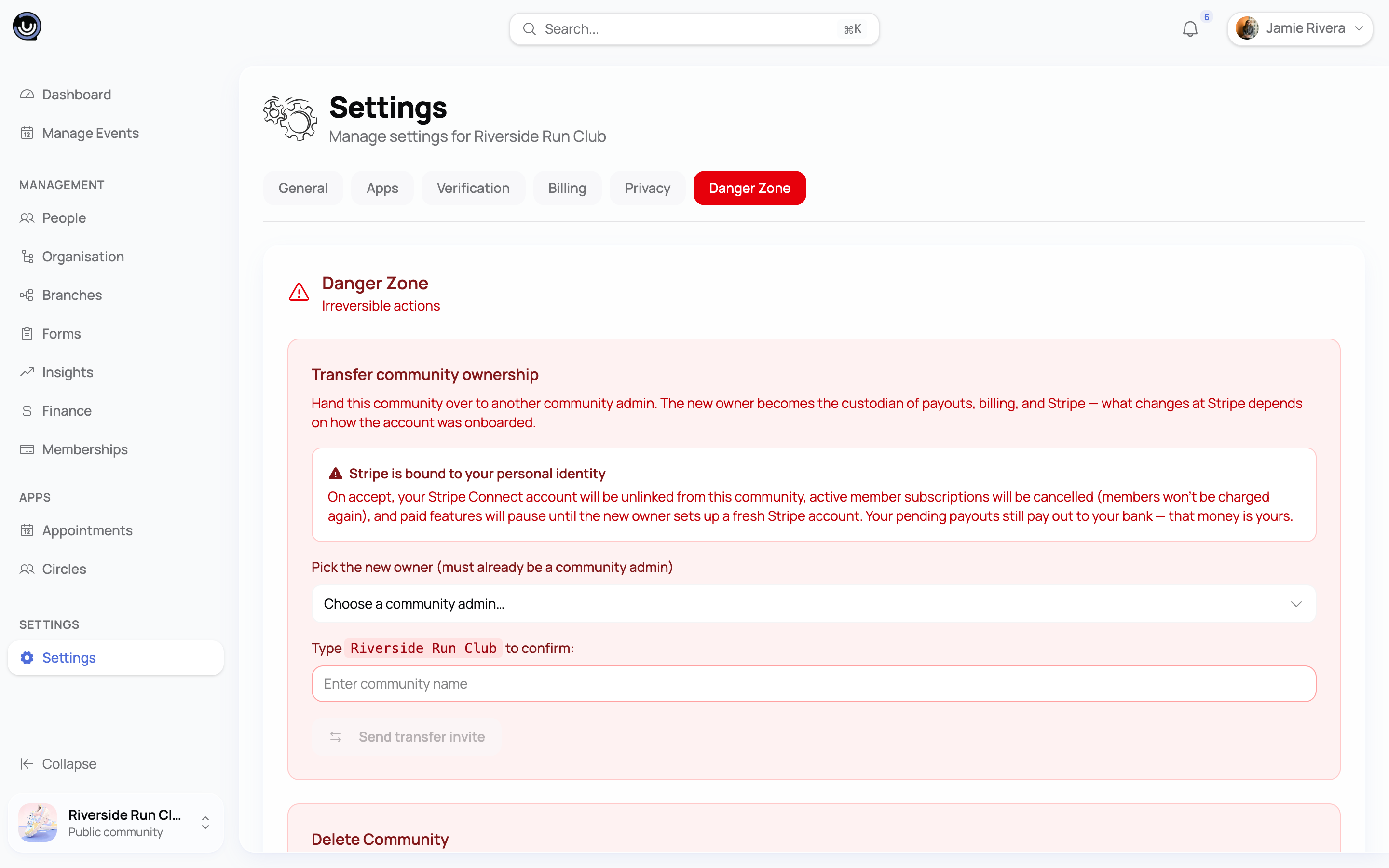
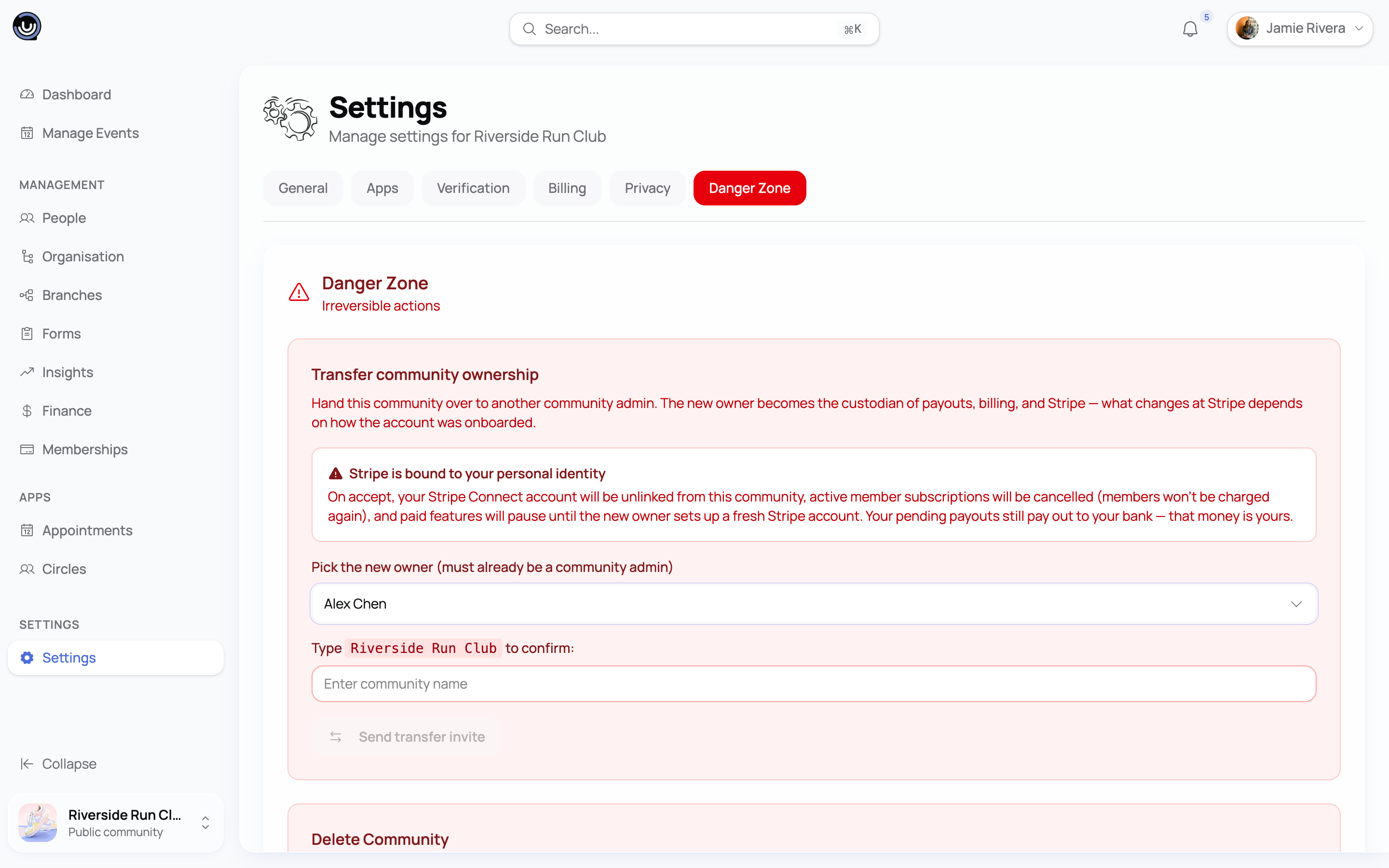
Only one transfer can be pending at a time. If you want to change who you're sending it to, cancel the pending transfer first, from the same Danger Zone screen, then start a new one.
Heads up. Cancelling a pending transfer doesn't notify your recipient — you're the one who cancelled it, so no extra email goes out.
What your recipient needs to do
Your recipient gets an email and an in-app notification telling them a transfer is waiting, with a link to a dedicated accept/decline page. They review what the transfer means for the community and type your community's name to confirm before the Accept button becomes available — the same confirm-by-typing step you went through to send it.
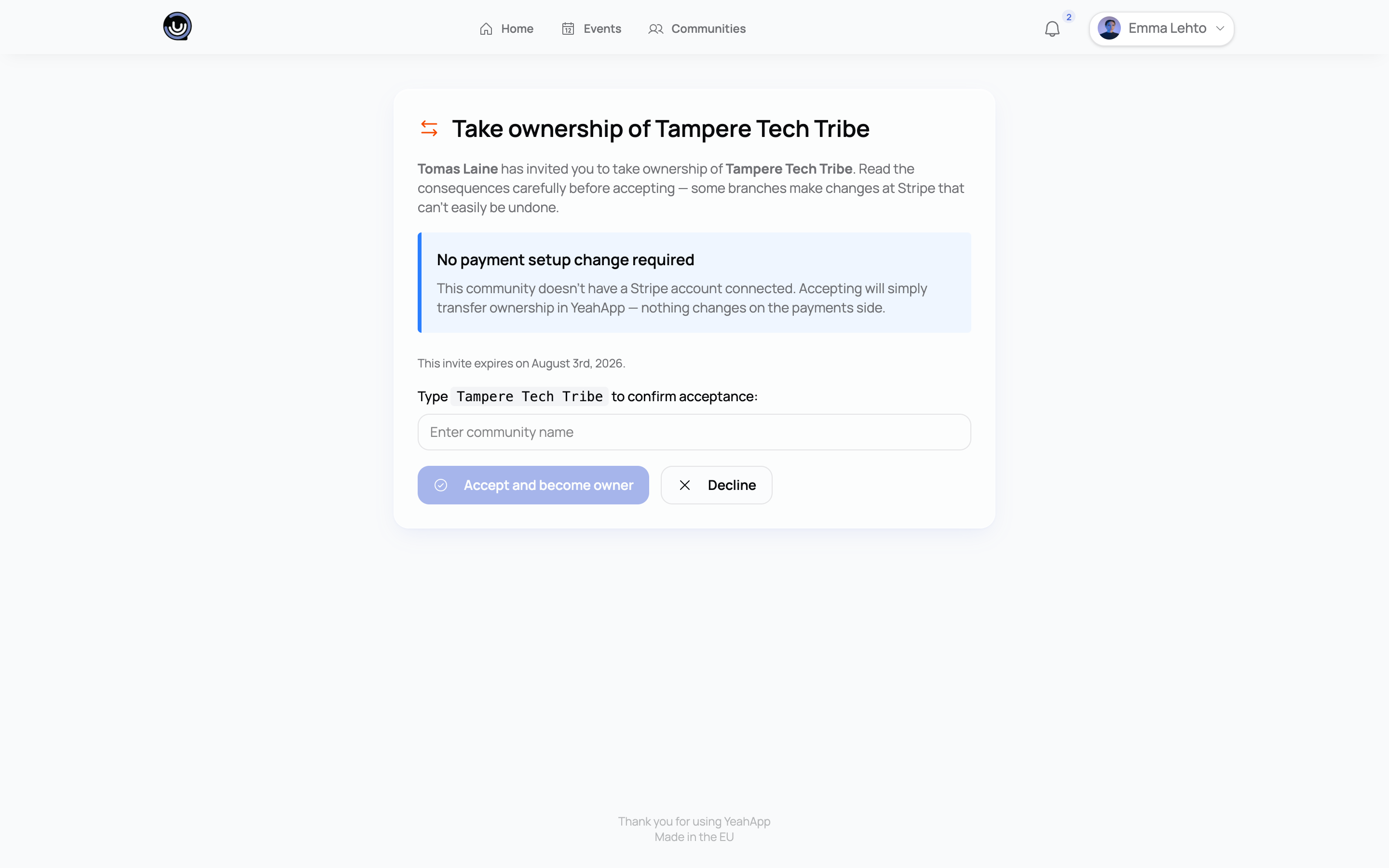
If you check the transfer's status yourself while it's pending, you'll see a read-only summary of where things stand.
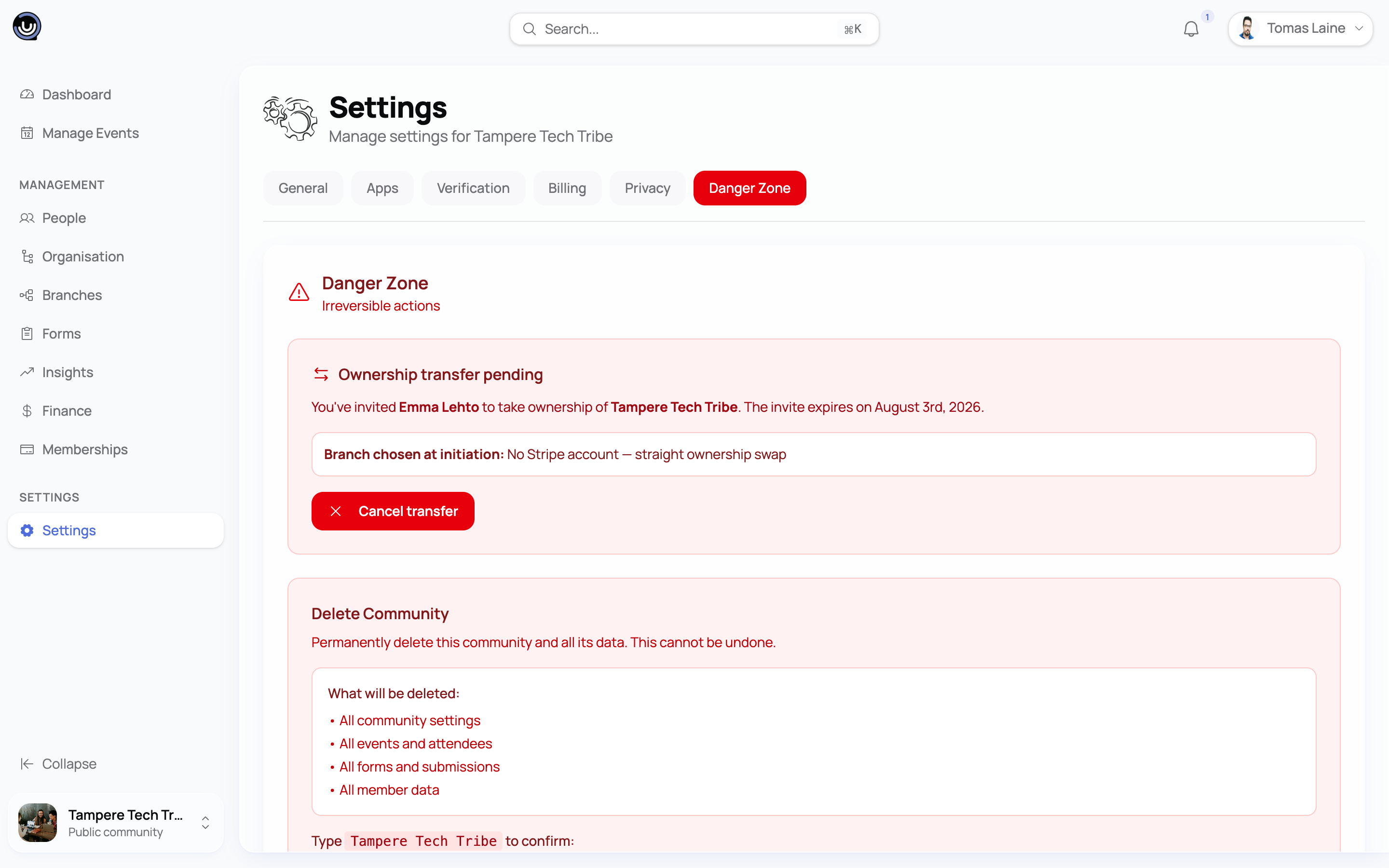
Your recipient can:
- Accept — ownership moves over immediately, along with anything Stripe-related (below).
- Decline — you get an email, and the community stays yours. You're free to start a new transfer to someone else.
The 7-day window
A transfer invitation is only valid for 7 days. If your recipient hasn't accepted or declined by then, it expires automatically and you get an email letting you know. Nothing changes about your community — you're still the Owner — and you can start a fresh transfer whenever you're ready.
What happens to your Stripe account
This is the part that needs a bit of care, because a community's Stripe account is tied to a real person or company, not just to YeahApp's records. Whatever your Stripe setup looks like, exactly one of three things happens — and it's decided by your Stripe status at the moment your recipient accepts, not when you sent the invite. So if your Stripe setup changes during the 7-day window, the outcome follows the current state, not the earlier preview.
- No Stripe account connected. Nothing to resolve — ownership just moves over.
- Individual account, or one that was never fully finished. Your Stripe account is disconnected as part of the transfer, any active paid member subscriptions are cancelled, and paid features pause for the community until your new owner connects and completes a fresh Stripe setup of their own.
- Company or non-profit account that's fully set up. The Stripe account stays exactly as it is — paid sales keep running without interruption. Your new owner will see a banner on the Finance page for the next 30 days, prompting them to update the account's representative details through a short Stripe-hosted form.
You'll see which of these applies before you send the transfer, so it shouldn't be a surprise on either end.
If your community has branches
Ownership transfer applies to your whole cluster — the root community and every branch underneath it move to the new owner together, in one step. You can't transfer a branch on its own; a branch always follows whoever owns its root community.
See Sub-communities and branches for how branches relate to their root community.
After the transfer is accepted
- Your recipient becomes the Owner.
- You keep your membership and move to the Admin role — you're not removed from the community.
- Your new owner is taken to the Finance page, which is where they'll pick up any Stripe follow-up described above.