
Co-hosting an event with another community
How to invite another community to co-host your event, what dual listing and the shared "organised by" block look like, and exactly what a co-host's managers can and can't do.
Co-hosting lets two communities run one event together — one main host and one co-host — sharing visibility and day-to-day event work without splitting the money. This guide covers how to invite a co-host, what changes once they accept, and where the line sits between what a co-host's managers can do and what stays with the main host.
The short answer. As the main host, you invite exactly one other community to co-host. Once they accept, the event appears on both community pages with both logos in the "organised by" block, and the co-host's managers get full operational access — attendees, check-in, form responses, communications, attendance stats. What they don't get is anything financial: no refunds, no payouts, no revenue numbers. Initiating a co-host invite requires the main host to be on the Business plan; being a co-host works on any plan.
One co-host, maximum
An event can have one main host and one co-host — never more. The main host is whichever community created the event, and it always owns the event's money: ticket revenue, refunds, and payouts all resolve to the main host's account, regardless of who else is attached to the event.
You can only invite a community to co-host if the event doesn't already have one pending or accepted. If your invite is declined, you're free to invite a different community — but you can't re-invite the exact same community that just declined for that event; pick a new one instead.
Heads up. Co-hosting and targeting a specific audience (a member group, individual members, or a membership plan) are mutually exclusive. Turning on co-hosting clears any audience targeting you'd set up, and a co-hosted event is visible to the public or to members of either community — not narrowed to a subset.
Who can initiate co-hosting
Inviting a co-host is a Business-plan feature for the main host. If your community is on Starter or Pro, you won't see the co-host option when creating an event.
Being invited to co-host, on the other hand, works on any plan — Starter, Pro, Business, or even a community with no active subscription. There's no tier requirement on the receiving side.
The co-host toggle lives on the first step of event creation. Turning it on replaces the audience-targeting options for that event with a community picker.
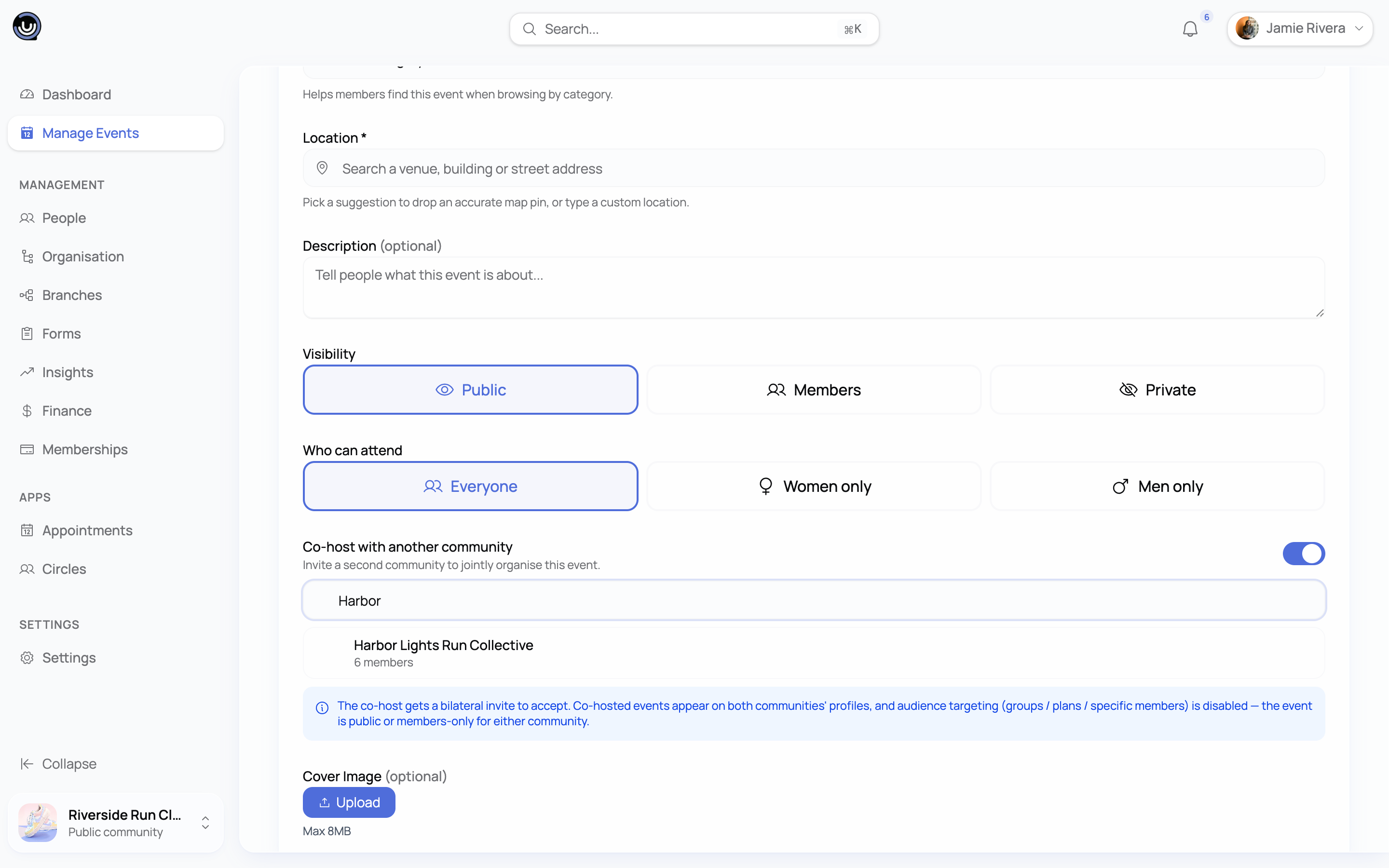
Inviting and responding
- While creating (or editing) an event, the main host's owner or an admin/moderator with event permissions turns on co-hosting and picks a community.
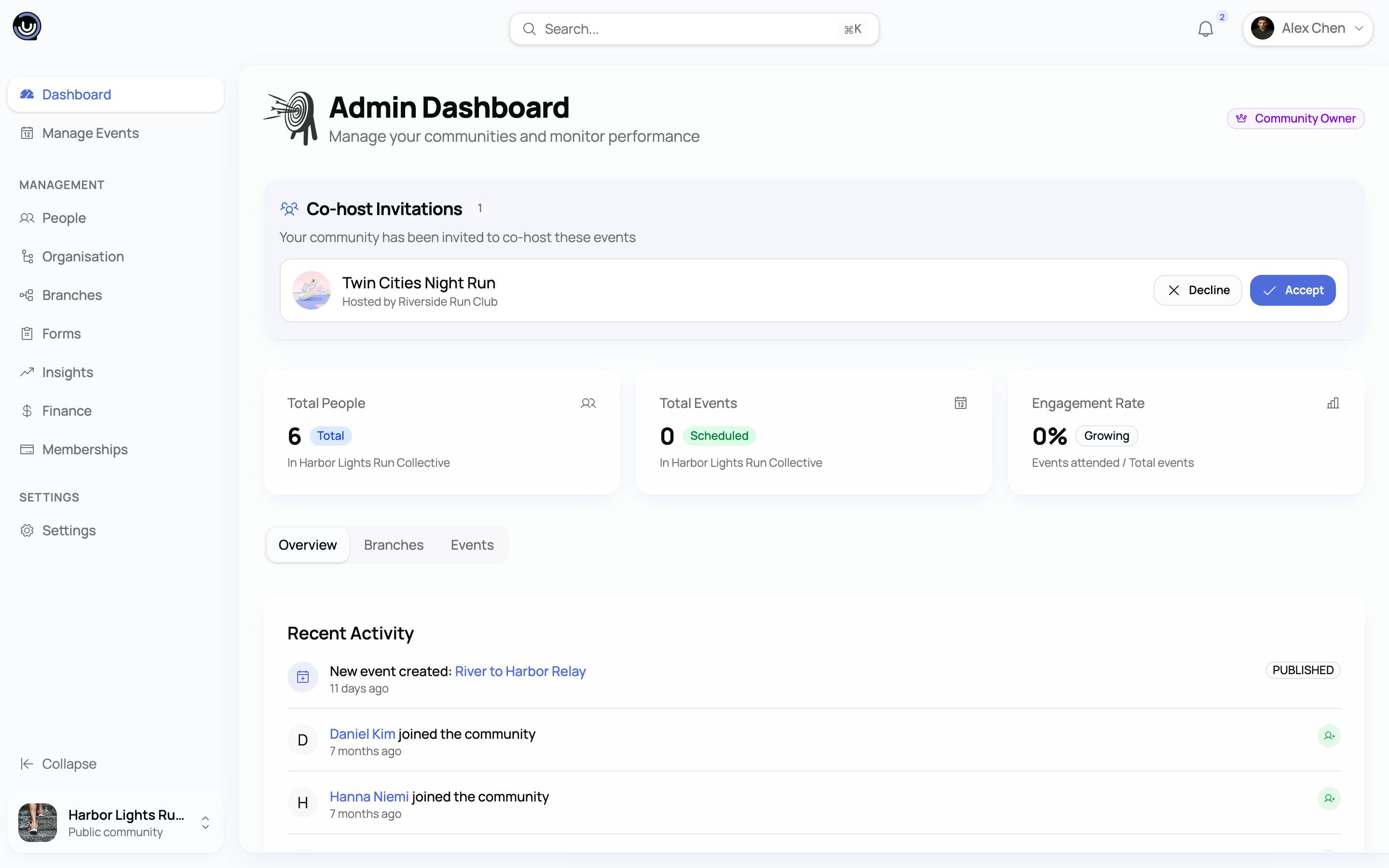
- The invited community's managers see the request as a notification and as a banner on their community page.
- A manager on the co-host side — owner, admin, or moderator with event permissions — accepts or declines.
- If accepted, the event is now co-hosted: dual listing and operational access kick in immediately. If declined, the main host is notified and can invite someone else.
There's no way to withdraw an accepted co-host relationship once it's in place. If plans change, cancelling the event is the only way to undo it.
Dual listing and "organised by"
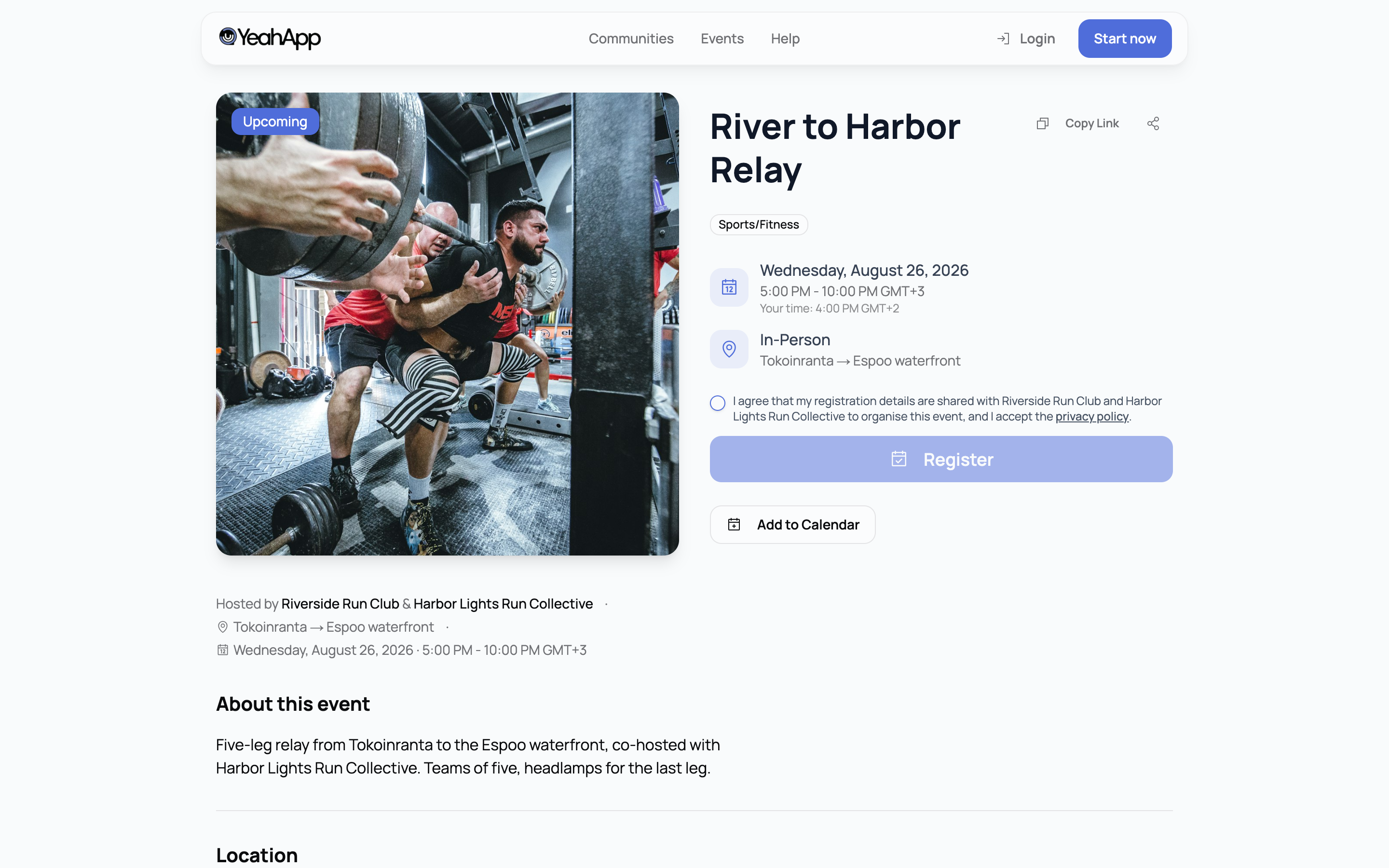
Once accepted, the event shows up on both communities' event listings — members of either community find it on their own community page, not just the main host's.
The event page itself displays an "organised by" block with both communities' logos and names, so it's clear at a glance that it's a joint event rather than one community's alone.
What co-host managers can and can't do
A co-host's owner, admins, and moderators with event permissions get operational access to the event — the day-to-day running of it — but not owner-level control, which stays with the main host.
| Area | Co-host managers | Main host only |
|---|---|---|
| Manage attendees, remove an RSVP | ✅ | |
| Check people in / scan QR codes | ✅ | |
| Read event form submissions | ✅ | |
| Send event communications | ✅ | |
| View attendance analytics (registered, attended, no-shows) | ✅ | |
| Edit core event details, publish, cancel, or complete the event | ✅ | |
| Issue refunds, view payouts, manage the Connect account | ✅ | |
| View revenue analytics | ✅ |
In short: a co-host's team can run the event on the ground, but they can't touch anything to do with the main host's money, and they can't change the event's core settings or its status.
Heads up. If your co-host attaches a registration form to the event, exporting form submissions as a CSV still depends on the co-host's own plan — the operational access to read submissions doesn't bypass that.
Can a co-host pay toward the event?
A co-host's community owner can additionally choose to sponsor the event — sending a one-off financial contribution to the main host through Stripe. This is a separate, optional step on top of co-hosting; accepting a co-host invite doesn't commit either side to any payment, and only the co-host's owner (not an admin or moderator) can authorise one.
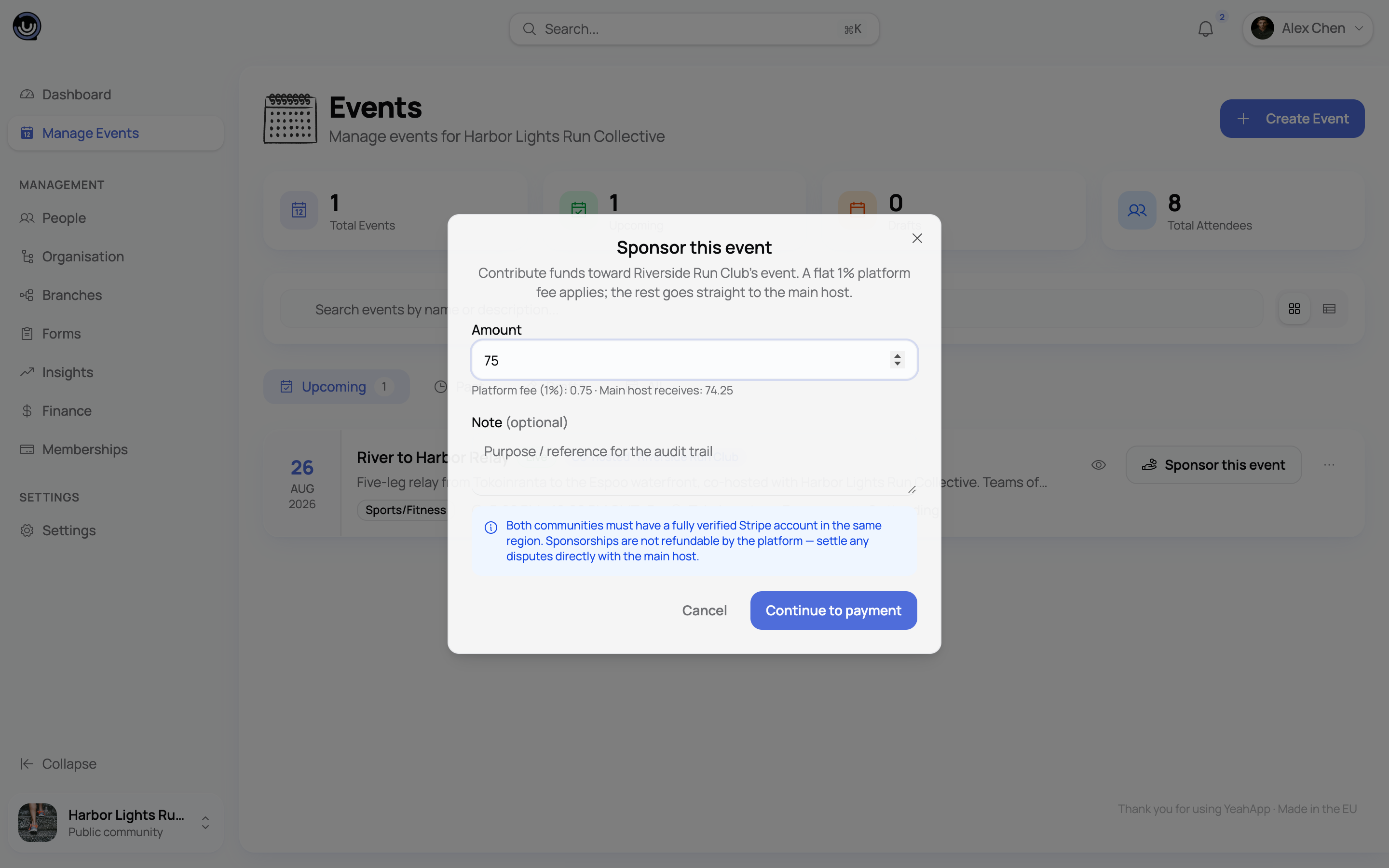
Sponsorship has its own eligibility rules (both Stripe accounts active and in a supported region, and so on) and a flat platform fee. See Sponsoring a co-hosted event: who can take part for the full flow.