
Importing members from a spreadsheet
How to bring an existing member list into YeahApp with the CSV import wizard — uploading a file, mapping columns to custom fields, previewing the result, and the two plan limits that apply.
If you're moving from a spreadsheet, a mailing list, or another platform, you don't need to add people one by one. YeahApp's CSV import wizard reads a member list from a file and creates the matching records in your community, including any custom profile fields you're already tracking — membership number, chapter, T-shirt size, whatever you use.
You need to be the community Owner or an Admin to import members. Moderators don't have access to this tool.
Before you start
- Import needs an active paid plan. Starter, Pro and Business can all import members — it isn't a separate add-on you have to unlock.
- Your file must be a .csv, up to 5 MB and 1,000 rows.
- Not sure how to lay out your columns? Use Download Template in the wizard — it generates a CSV with the right headers already in place, including any custom fields your community has already defined.
Heads up. If your community has no active subscription, its member cap is zero. The import wizard will still open, but nothing you upload will actually be added until you're on a paid plan — see the caps below.
The import wizard
Import runs as a four-step wizard. From your community's Members page, select Invite People, then switch to the CSV tab.
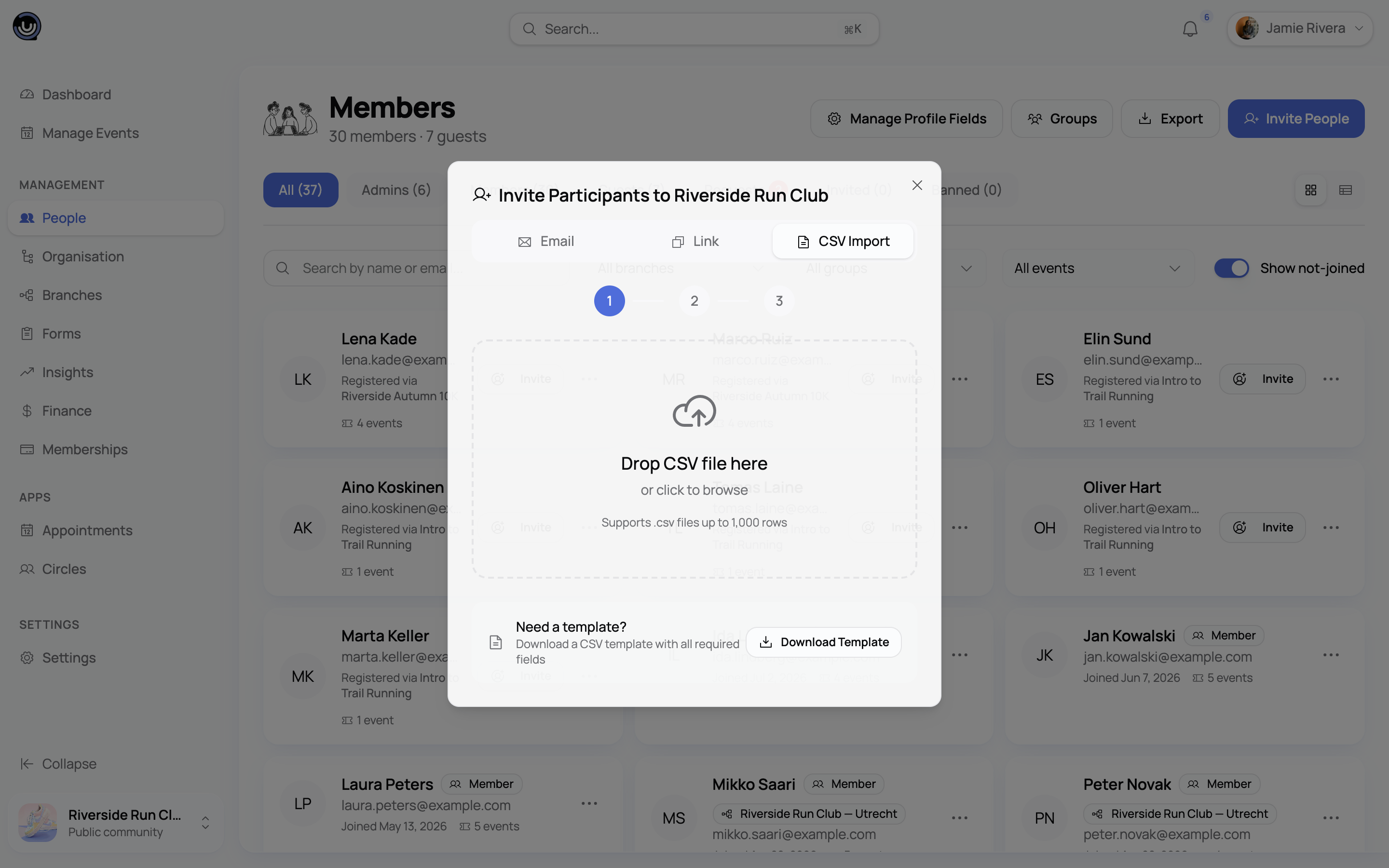
1. Upload
Drag your file in or browse for it. YeahApp checks the file size and row count before moving on.
2. Map your columns
YeahApp tries to match your spreadsheet's columns to the right fields automatically — check its guesses and fix anything it got wrong. Each column maps to one of:
- First name, Last name, Email — required. Every imported member needs these three.
- An existing custom field on your community.
- Create new field — turns this column into a brand-new custom field.
- Skip — leave the column out of the import entirely.
Creating a new field asks for a label and a type: Text, Email, Phone, Number, Date, Single select, Multi select, Checkbox (yes/no), URL or Long text. These are a shortlist of the same field types the form builder offers, listed here under the import wizard's own names — Single select is what the builder calls Dropdown, Multi select is Multiple Choice, and Checkbox (yes/no) is a single tick box. For Single select or Multi select, YeahApp reads the column's own values and suggests the options for you automatically (up to 20 distinct values — past that you'll get a warning, but it won't stop you).
A running counter shows how many custom fields you've used against your plan's limit. Once you reach it, "Create new field" is disabled and you're shown an upgrade prompt instead.
Heads up. On Pro and Business, each new field you create this way has a toggle: add it to your public Registration form, or keep it Admin only (visible to your team, not to whoever joins later). It defaults to Admin only. On Starter, there's no toggle — every field created during import goes onto the Registration form, since Starter's five-field limit doesn't leave room for a private/public split.
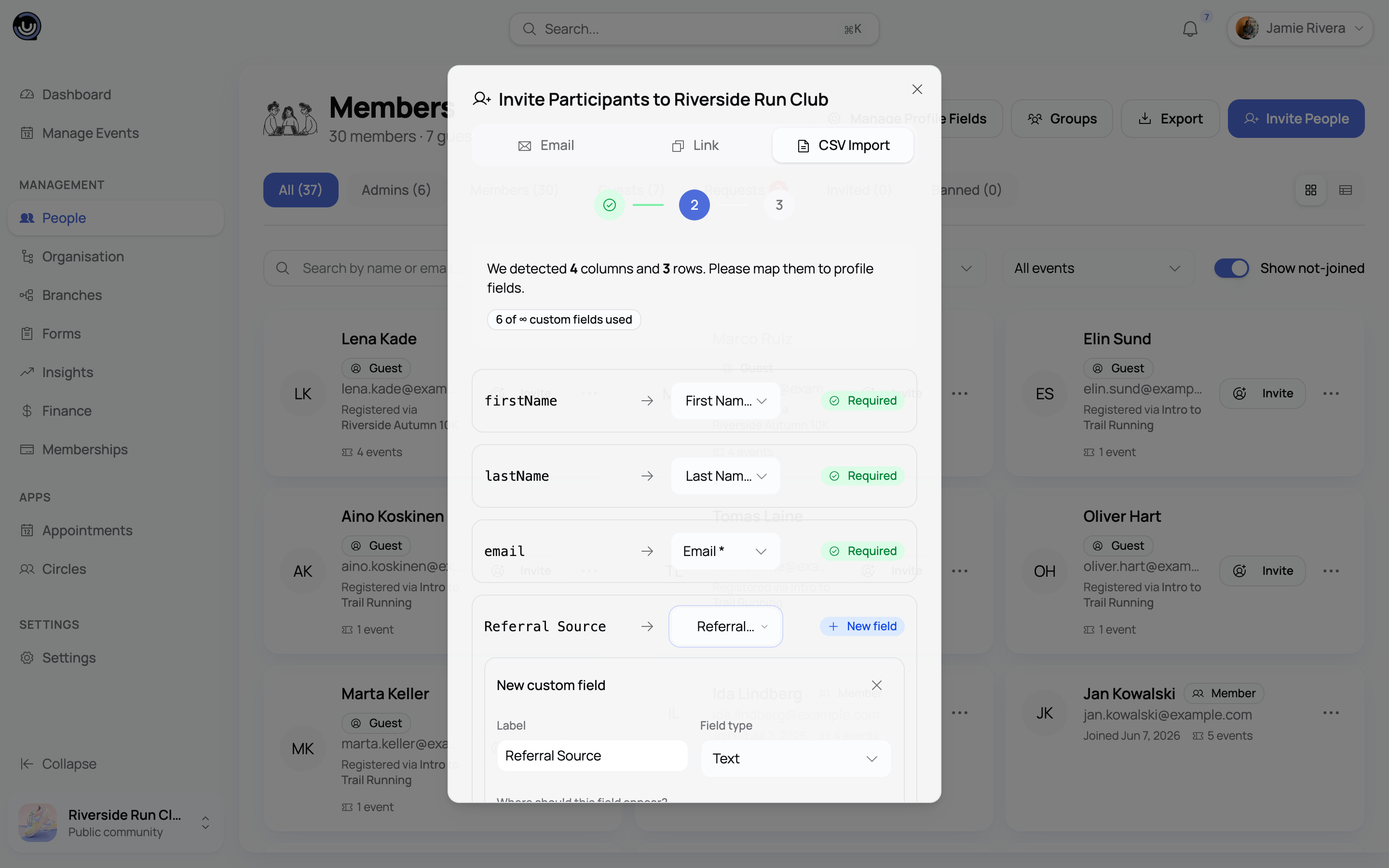
How your column values are read. Nothing is written to your community while you're mapping and previewing, so you can correct your spreadsheet and re-upload as many times as you like.
Column headers and every cell are trimmed of stray spaces, and blank lines are skipped. Auto-matching ignores capitalisation, spaces, underscores and dashes, so First Name, first_name and firstname are all read the same way. These headers are recognised for the three required columns:
| Column | Headers matched automatically |
|---|---|
| First name | first name, first, fname, given name, vorname |
| Last name | last name, last, lname, surname, family name, nachname |
email, email address, e-mail, mail, email addr |
A custom field matches automatically when your column header is the same as the field's label, again ignoring case and punctuation. Anything else is left for you to map by hand.
Once a column is mapped, how its value is read depends on the field type:
| Field type | How your column's value is read |
|---|---|
| Single select | Matched against your options, ignoring case. If nothing matches, the text is kept exactly as written — it'll show on the member's profile, but it may not line up with your filters. |
| Multi select | Split on commas, then each piece matched the same way, so Sailing, Chess becomes two selections. |
| Number | Read as a number; anything that isn't one is left blank. |
| Checkbox (yes/no) | true, yes or 1, in any capitalisation, tick the box. Everything else leaves it unticked. |
| Date, text and everything else | Kept exactly as written, with no reformatting. |
Email addresses are lowercased before they're compared to your existing members and before they're imported.
3. Preview
Before anything is written, YeahApp checks every row against your existing members and shows you counts for New, Already members, and Errors. If you're creating new fields, the preview also lists them and confirms whether each will sit on the Registration form or stay Admin only.
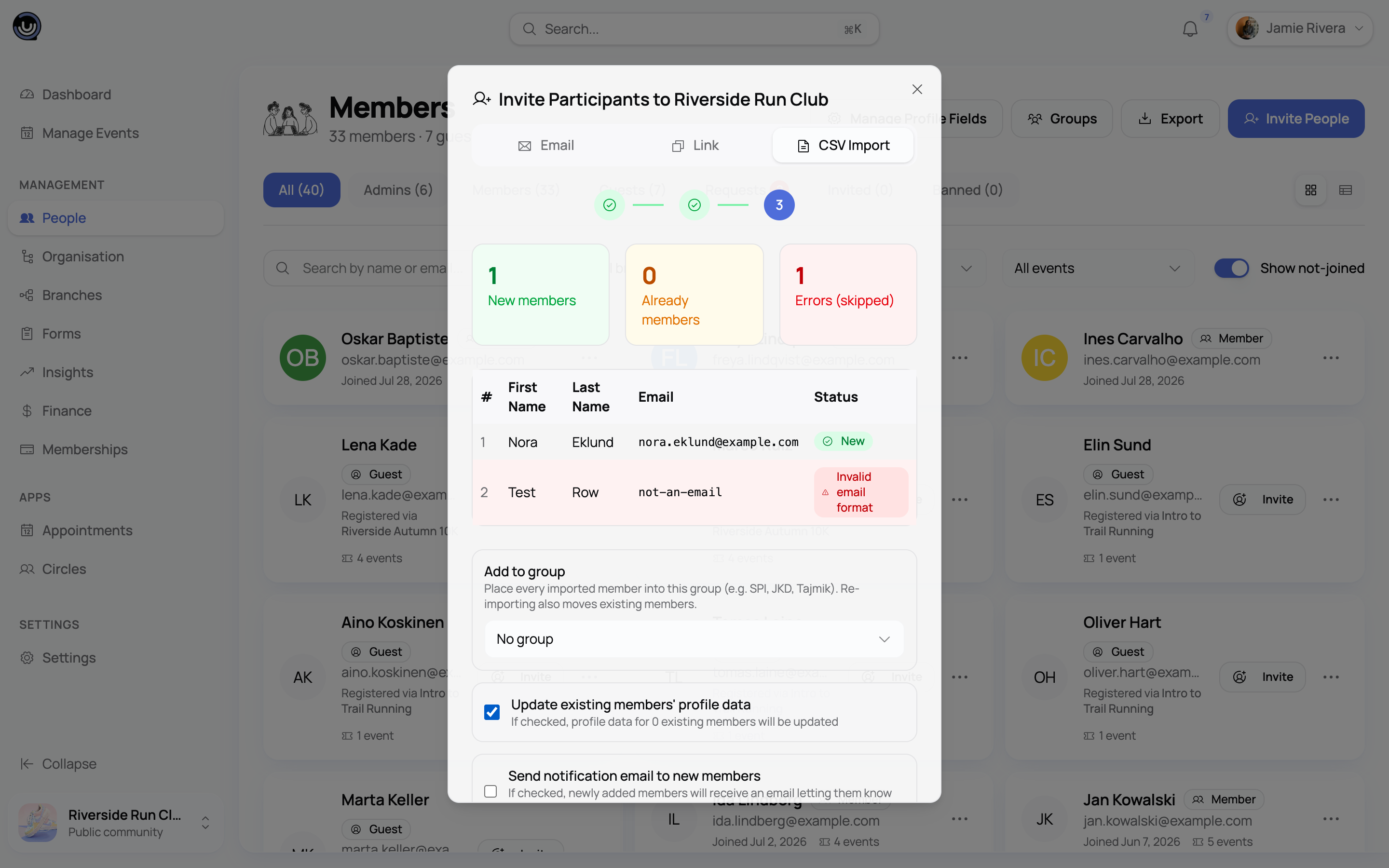
A row lands in Errors if the first name, last name or email is blank, if the email isn't a valid address, or if a custom field you've marked Required on your Registration form has been left empty. Nothing partly valid is imported — the whole row is left out, and it's the preview screen that tells you why, so fix these in your spreadsheet before you carry on. If the same email address appears twice in your file, the first one is kept and the later one is flagged as a duplicate and skipped. A row whose email already belongs to a member is counted under Already members, and is only touched if the update switch is on.
The table itself shows the first 100 rows of a large file, but the counts above it always cover every row.
What happens next is controlled by these options:
- Add to group — drops every member in this file into one of your member groups. This only appears if your community already has a group to pick from, which means it's a Business-plan option; the default is No group. New members go straight in. Existing members are moved into the group as well, but only when the update switch below is on and that row actually carries a mapped custom-field value — otherwise the row is skipped and the person keeps whatever group they were in. A member belongs to one group at a time, so importing into a group replaces their current one. See Member groups and access control for what groups do.
- Update existing members' profile data (on by default) — for rows that match someone already in your community, this fills in their profile with the new column values instead of leaving them untouched.
- Send notification email to new members (off by default) — emails everyone the import is about to add.
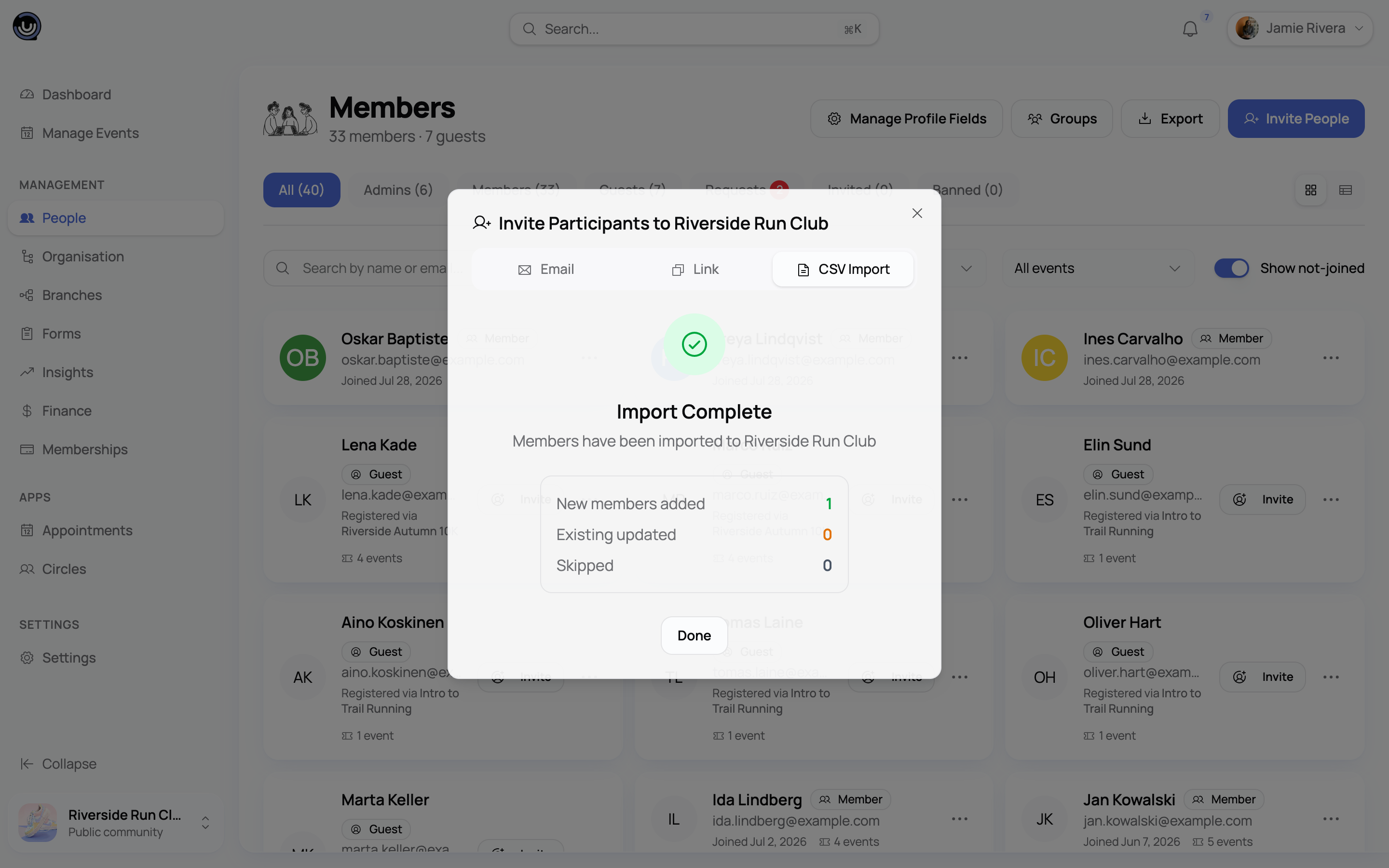
4. Import
Confirm, and YeahApp creates the members. Large files are processed in batches, and one bad row doesn't stop the rest — a row that can't be imported (a missing required field, or your member cap being full) gets its own error instead of failing the whole file. When it finishes, you'll see how many rows were added, updated and skipped. If any rows fail during the import itself — most often because your member cap filled up mid-import — you can download an error report, one line per email with the reason, and re-upload just those rows. Errors the preview already flagged aren't in that report; fix those in your spreadsheet from what the preview showed you.
If notification emails were on, new members without an existing account receive an email inviting them to sign up and claim it; anyone who already had a YeahApp account gets a link straight to the community.
What import doesn't do
Import is deliberately narrow: it creates and updates plain member records, and nothing else. Worth knowing before you build your spreadsheet around it:
- No roles. Everyone arrives as a Member. There's no role column and no role picker in the wizard — promote anyone who should be an Admin or Moderator from the Members list afterwards.
- No membership plans. Import never puts someone on a paid plan or starts a subscription for them. If you need people to land on a specific plan, use the Email invite or Invite link tab instead, where you can pick the plan. Imported people are members of your community, not paying members.
- No join request, no form submission. Imported answers are saved to the member's profile rather than recorded as a form response, so their profile data carries an Imported badge marking it as having come in from a spreadsheet, with an "Imported on" date instead of a "Submitted on" one.
- No gender. The only built-in columns are first name, last name and email, so the Gender column reads "Not set" for imported members. It's the member's own profile field — only they can fill it in, either from their profile or when they register for a men-only or women-only event.
- No in-app notifications. Nobody on your team or in your community gets a notification about an import. The only message that goes out is the optional welcome email you can switch on in the preview step, and if one of those emails fails to send, the import carries on regardless.
Members who haven't signed up yet
Someone you import who doesn't already have a YeahApp account isn't skipped — they're added as a placeholder record tied to their email address. They're a genuine member of your community from the moment the import finishes and they count toward your member cap. They show up in your Members list straight away, marked with a grey Hasn't joined badge so you can tell at a glance who still needs to claim their account. If you'd rather see only people who have signed up, flip the Show not-joined switch above the list off.
Once they sign up and claim the account — either from the invitation link or on their own — everything you imported for them, profile fields included, carries over, and the badge disappears.
The two limits that apply
Two separate caps govern what a CSV import can do, and both come from your community's plan.
Member cap
This is the same cap that applies everywhere members are added — join requests, invitations, and import all draw from it.
| Tier | Member cap |
|---|---|
| No subscription | 0 |
| Starter | 200 |
| Pro | 500 |
| Business | Unlimited |
The cap is shared across a community and any branches under it. Import fills it up to the limit and reports an error on any row past that — it won't fail the whole file. Updating an existing member's profile data never counts against the cap, only brand-new members do.
Custom field cap
This is the same cap the Registration form builder uses — it counts every custom field on your community's Registration form, however it was created.
| Tier | Custom field cap |
|---|---|
| No subscription | 0 |
| Starter | 5 |
| Pro | Unlimited |
| Business | Unlimited |
If you've already used part of your allowance in the form builder, import counts against what's left — the running counter in the mapping step reflects your total, not just what this file adds. The count is checked again the moment the import runs, so if a colleague added fields while you were mapping columns, you'll get a clear message rather than a half-applied import.
What happens to the fields import creates. Fields born during an import are always created optional — import never marks anything Required. If a field has to be mandatory, open the form builder afterwards and mark it there.
Matching is by label, ignoring capitalisation and stray spaces. If a field with that label already exists on your Registration form, import reuses it rather than creating a second one, and it never changes that field's type, options or public/admin-only setting. Re-uploading the same file twice therefore won't duplicate anything, and two columns with the same label in one file collapse into a single field.
If your community doesn't have a Registration form yet, import creates one for you — titled "Community Registration" — as a draft. It's never published automatically, so nobody sees it on your join flow until you review it and publish it from the Forms page.
Import isn't the same as export
Downloading your full member roster as a CSV is a separate capability from import, and it's available on Business plans only. Import doesn't need it — everything above works the same on Starter, Pro and Business. It's exporting your existing roster back out to a file that's limited to Business.
Related guides
- Building forms for registration and events — the Registration form your custom fields live on, and the field limit import shares with it
- Sub-communities and branches — how the member cap works across a community and its branches
- Community Roles & Permissions — who can invite, import and manage members
- Your member directory — where imported members and guests show up once they're in