
Posts, polls and announcements
How the community feed works — who can post what, how polls and pinning behave, and how to target updates to specific members.
Every community has a feed on its public page. Members post updates, admins post announcements and polls, and event organisers post event updates. This guide covers what each role can post, how polls and comments work, and how to target a post to a specific audience.
How posting and engaging works
What you can post
The feed supports four types of post:
| Post type | Who can create it |
|---|---|
| Discussion | Any member |
| Event update | Moderators and Admins |
| Poll | Admins only |
| Announcement | Admins only |
The Owner has the same posting rights as an Admin.
You post from your community's public page, not from the management dashboard — the "Create Post" button in the dashboard just opens that page for you. When you open the composer, you'll only see the post types you're allowed to create; a regular member sees just the general discussion option, while an Admin sees all four.
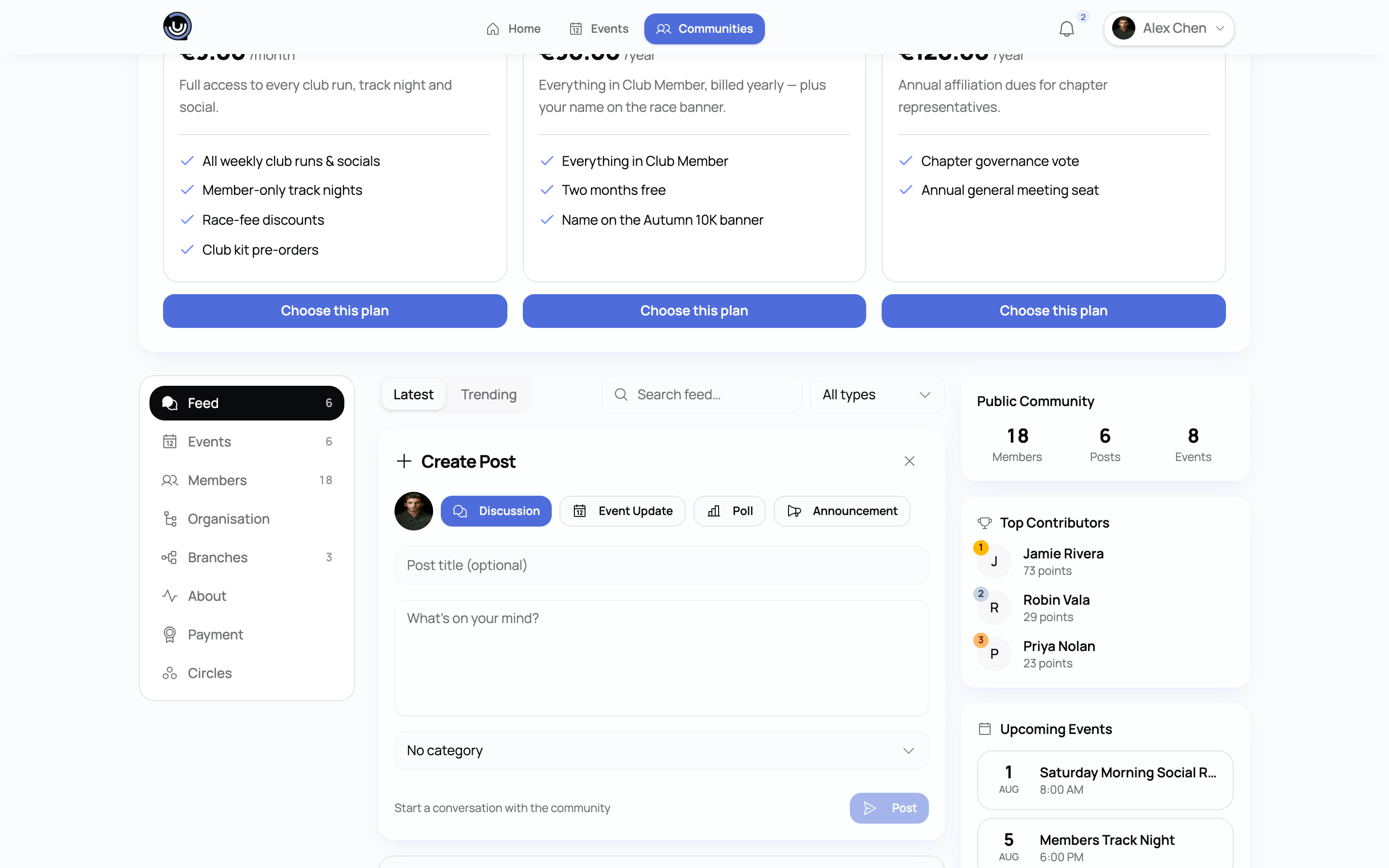
Announcements
Announcements are for community-wide updates — only Admins and the Owner can create them, and they're the one post type that requires a title as well as a body.
Publishing an event creates an announcement automatically. When you publish an event (or a draft event moves to Published), YeahApp posts an announcement to the feed for you, using the event's title, description and cover image. If the event is members-only and targeted to specific groups, plans or members, the announcement carries the same audience — so it's only visible to the people who can actually see that event. Fully private events don't get an announcement at all.
Event updates
Event updates are for organisers to post progress or logistics for an event — a schedule change, a reminder, a thank-you after it wraps up. Moderators and Admins can create them; regular members can't.
Polls
Polls are Admin-only. When you build one, you set:
- The question and any supporting text
- Between 2 and 10 answer options
- An optional close time
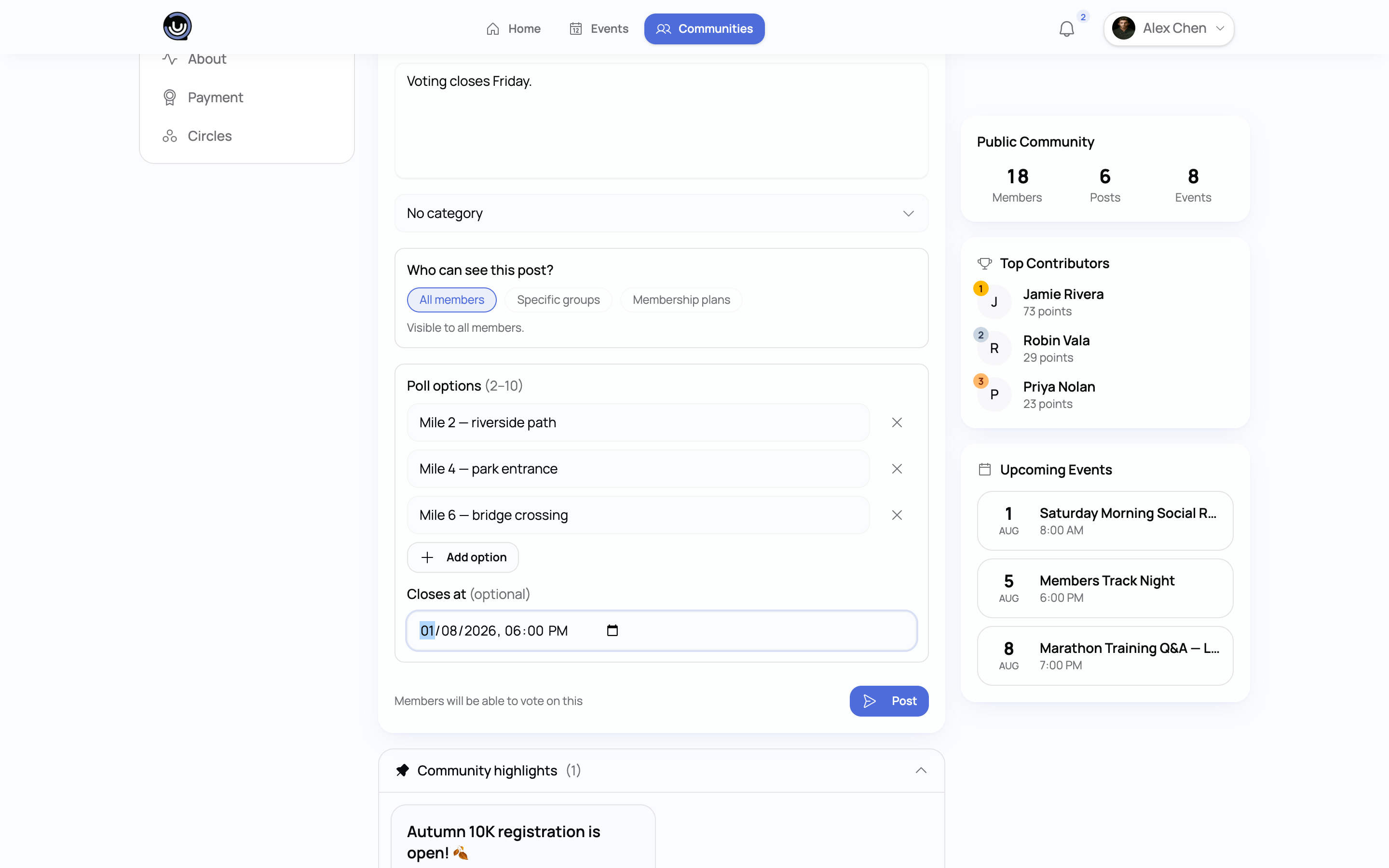
Every member can vote once choosing a single option — YeahApp doesn't support multiple-choice polls. A vote is final: there's no way to change it or take it back once it's cast, so it's worth reminding members of that before a poll goes out on anything contentious.
If you set a close time, voting stops automatically once it passes. Results become visible to a member as soon as they've voted, or once the poll closes — whichever comes first. If you don't set a close time, the poll simply stays open indefinitely.
Heads up. Because votes can't be changed, double-check your options before publishing a poll. If you need to correct a mistake, your best option is usually to delete the poll and post a new one.
Likes and comments
Any member can like a post and leave a comment. Comments support one level of replies — you can reply directly to a comment, but you can't reply to a reply. Both the post author and, for a reply, the comment's author get notified.
Editing and deleting a post
Editing your own post
Open the ⋯ menu in the corner of one of your own posts on your home feed and choose Edit. A small dialog opens with the post's title and body; change what you need and save, and the post updates in place for everyone who can see it. Posts that have been edited show an "(edited)" marker next to the timestamp, so members can tell the text has changed since it went out.
What you can change here is the title and the text. You can't turn a discussion into a poll or an announcement from this dialog, and you can't change who the post is targeted at. One thing to watch: if you clear the title field and save, the post's title is cleared too, so leave it filled in unless you actually want it gone.
Editing works from your home feed and from the management dashboard. On a community's own page the menu on your post lists Edit as well, but selecting it there doesn't open anything at the moment — deleting is what works, along with pinning if you're a Moderator or Admin. So if you want to fix a typo in something you wrote, go to your home feed.
Editing someone else's post
Admins and Moderators can edit any post in their community from the Discussions page in the management dashboard. That dialog goes a step further than the member one: it also lets you change the post's type.
Changing a type follows the same rules as creating a post in the first place. Only Admins and the Owner can turn a post into a poll or an announcement, and only Moderators and above can turn one into an event update. One extra rule applies to polls: a post can only become a poll if it already has at least two answer options. A plain discussion can't be converted, because there'd be nothing to vote on — post a new poll instead.
Deleting a post
The post's author can delete it, and so can any Moderator, Admin or the Owner. You'll be asked to confirm first, because deleting takes the post's likes, comments and any poll votes with it. It can't be undone.
Pinning a post
Pinning keeps a post at the top of the feed, ahead of everything else, regardless of when it was posted. Pinned posts are marked as such so members can tell them apart from the regular feed order.
Who can pin. Admins, Moderators and the Owner can all pin or unpin a post. Regular members can't.
Post images
Announcement posts that YeahApp creates automatically when you publish an event carry that event's cover image. You can't attach your own image when writing a post — the composer is title and text only.
Targeting your audience (Business tier)
By default, a post is visible to every member of the community. On the Business plan, Admins and Moderators can narrow that down and target a post to:
- Specific member groups, or
- Specific membership plans — members with an active, trialing, or in-grace-period subscription to that plan
You choose one or the other for a given post — groups and plans aren't combined on the same post. Communities on Starter or Pro see the general feed only; targeting isn't available below Business.
A few things worth knowing about how targeting plays out:
- Members outside the targeted audience simply don't see the post in their feed.
- The post's own author, and any Admin or Moderator in the community, can always see a targeted post — even if they're not part of the target audience — so they can review what's going out.
- If a member's plan lapses or is cancelled, they lose access to posts targeted at that plan.
See Member groups and access control for how groups are set up, and Building your committee (organisation chart) if you're looking for role assignment rather than feed targeting.
Managing posts from the dashboard
The management dashboard's Discussions page gives Admins and Moderators an overview of everything posted in the community: totals for posts, announcements, likes and comments, plus search and filters by type (All, Pinned, Announcements, Discussions). From there you can open a post, edit it, pin or unpin it, or delete it.
For members: posting and commenting
If you're a Member rather than an Admin or Moderator, here's what's available to you:
- Post a general discussion post to the feed
- Edit or delete your own posts
- Like any post you can see
- Comment on a post, and reply to one other comment
- Vote once in any poll you can see, before it closes
You won't see the options to post a poll, an announcement, or an event update — those are reserved for Moderators and Admins.