
Joining a community
The three ways to join a YeahApp community, what private and paid-membership communities look like from a member's side, and how the first-run setup wizard works.
Creating a YeahApp account is free, and so is joining a community. You never pay YeahApp directly to join — the only charges you might see come from a community's own paid membership plan, if it has one. This guide covers what happens when you join, from a member's point of view.
Finding a community
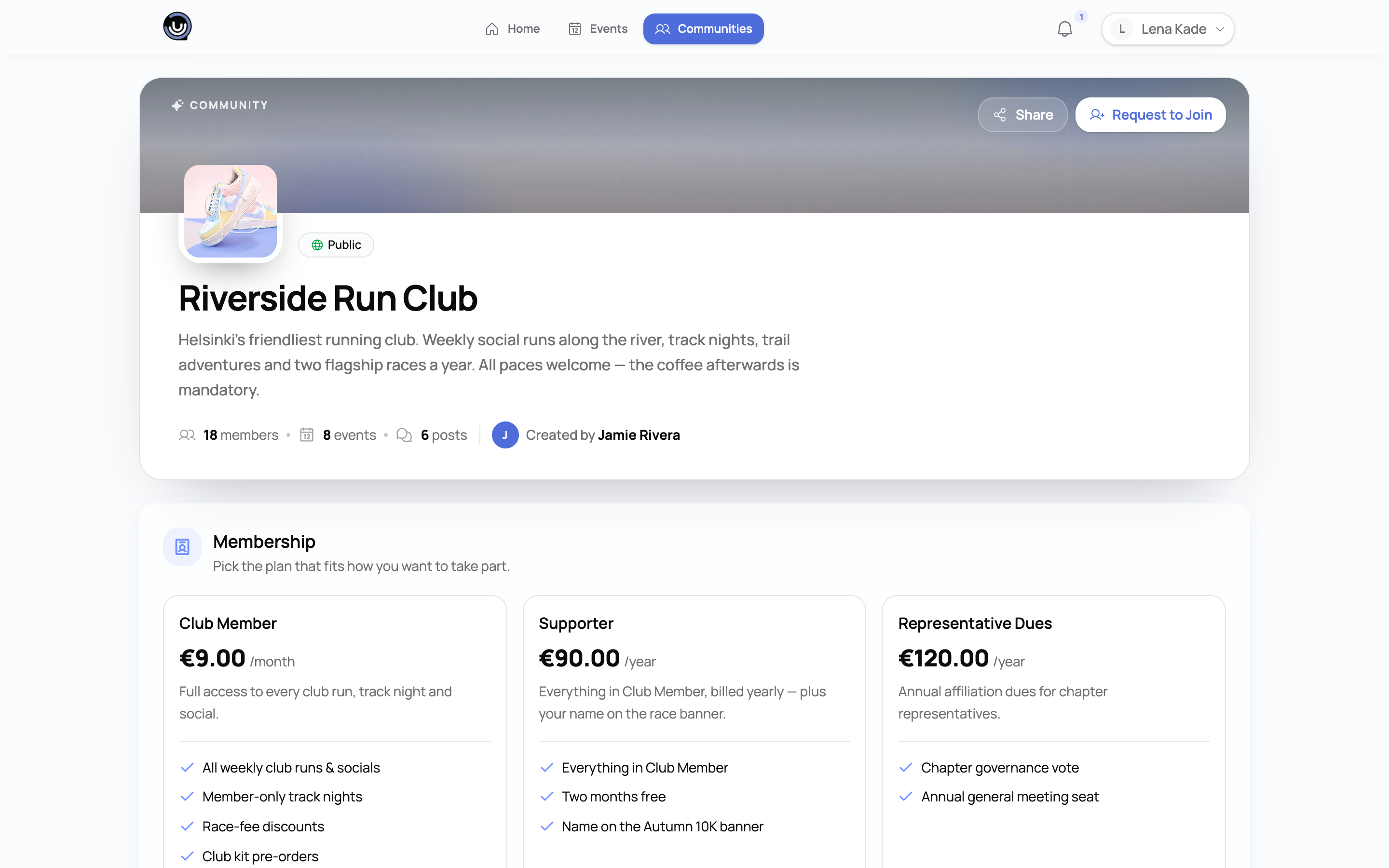
You can browse and search for communities from anywhere in the world — that part of YeahApp isn't restricted by region. Once you find one you're interested in, its page tells you most of what you need to know before you join: what it's about, whether it's public or private, and whether membership costs anything.
The three ways to join
What happens when you click Join depends on how the community's admin has set things up. There are three possible paths.
Direct join
If a community is public and hasn't set any extra conditions, joining is instant. Click Join, and you're a member straight away — no waiting, no form.
Request to join (needs approval)
Some communities review who joins. If you click Join on one of these, you're not added right away — instead, a join request is sent to the community's Admins and Moderators. You'll get a notification once someone reviews it:
- Approved — you're added as a member.
- Rejected — the request is closed. You can send a new request later if you want to try again.
While your request is pending, you can cancel it yourself if you change your mind.
Fill in a registration form
Some communities ask you to fill in a short form before you join — collecting things like your name, background, or why you want to join. If a community has one of these forms, you'll always be routed to it first, regardless of anything else the community has configured. What happens after you submit depends on the community:
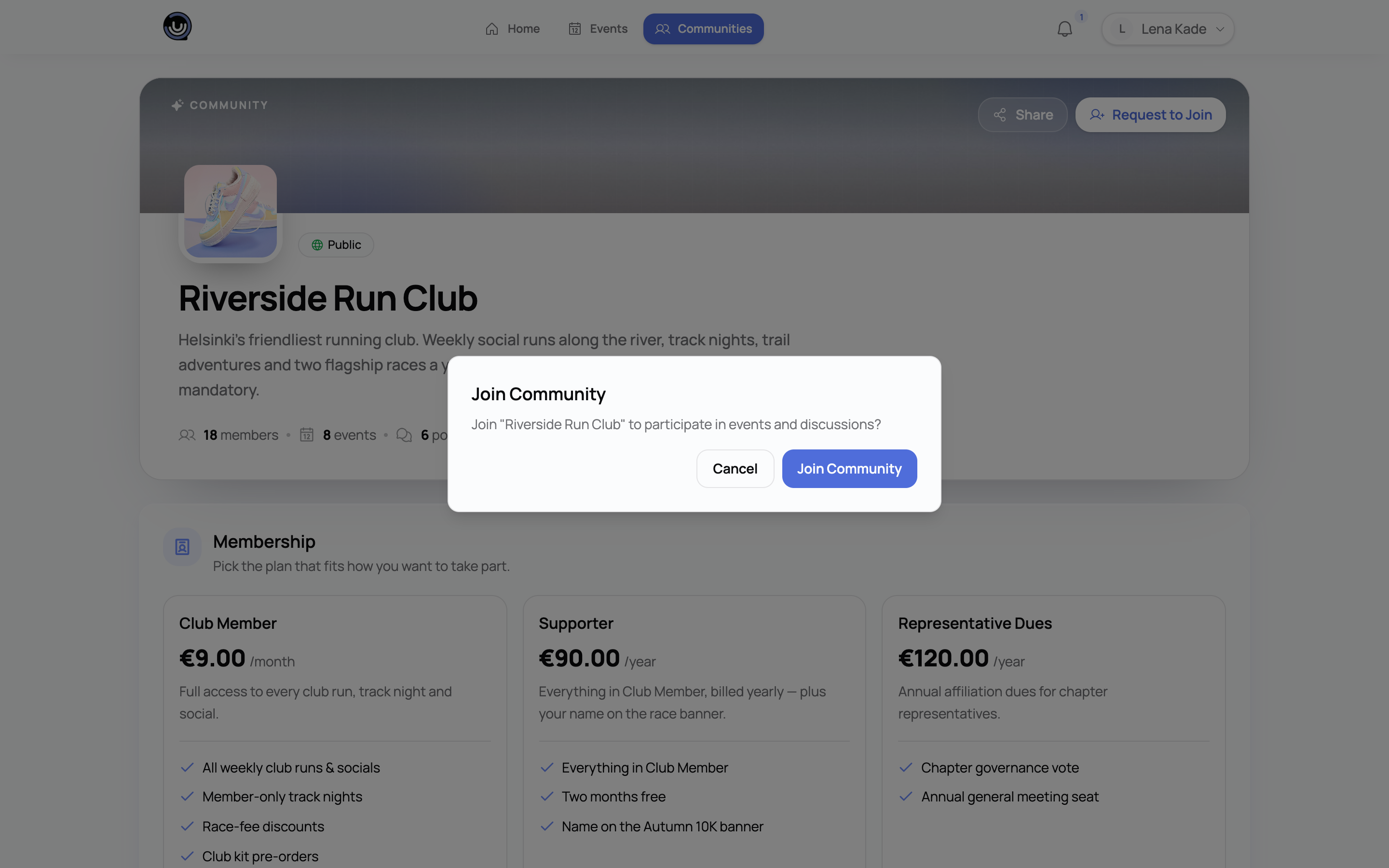
- If the community also requires approval, your submission becomes a join request, reviewed the same way as above.
- If the community requires a paid membership, you'll move on to picking and paying for a plan.
- Otherwise, you're added as a member as soon as you submit.
Heads up. Some communities combine approval and paid membership. In that case, you send a join request first. Once an Admin or Moderator approves it, you'll get a notification with a link to complete payment — you become a member once that's done.
Private communities
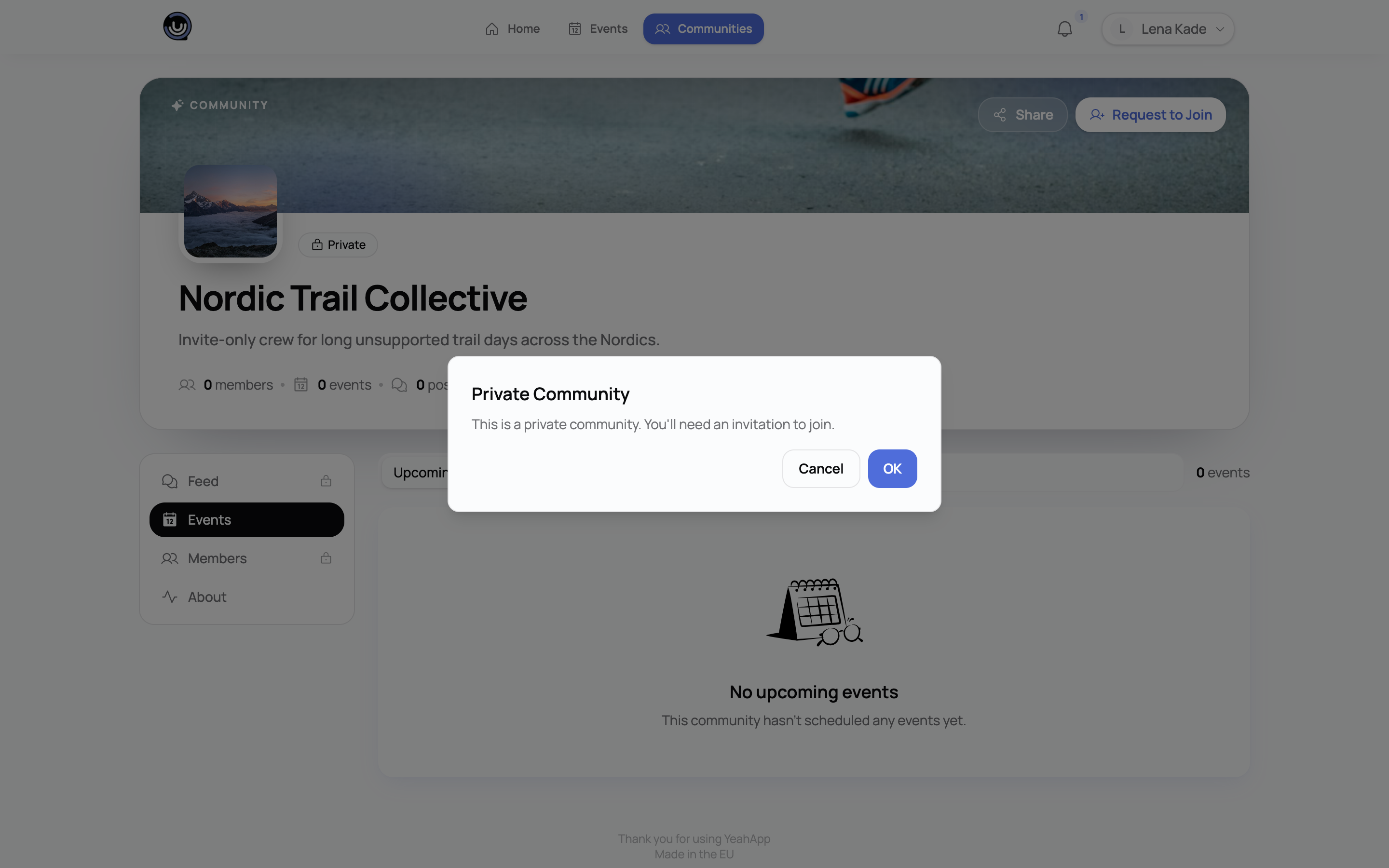
A community can be set to private, which means it doesn't accept join requests at all. If you try to join a private community, you'll see a message telling you it requires an invitation. The only way in is for someone already inside — an Admin, typically — to invite you directly.
Communities that require a paid membership
Some communities only let members in through a paid membership plan. If that's the case, joining routes you to the community's membership options instead of adding you right away. You'll pick a plan — plans can run monthly, quarterly, semi-annually, annually, or as a one-time lifetime payment — and complete checkout through Stripe before you become a member.
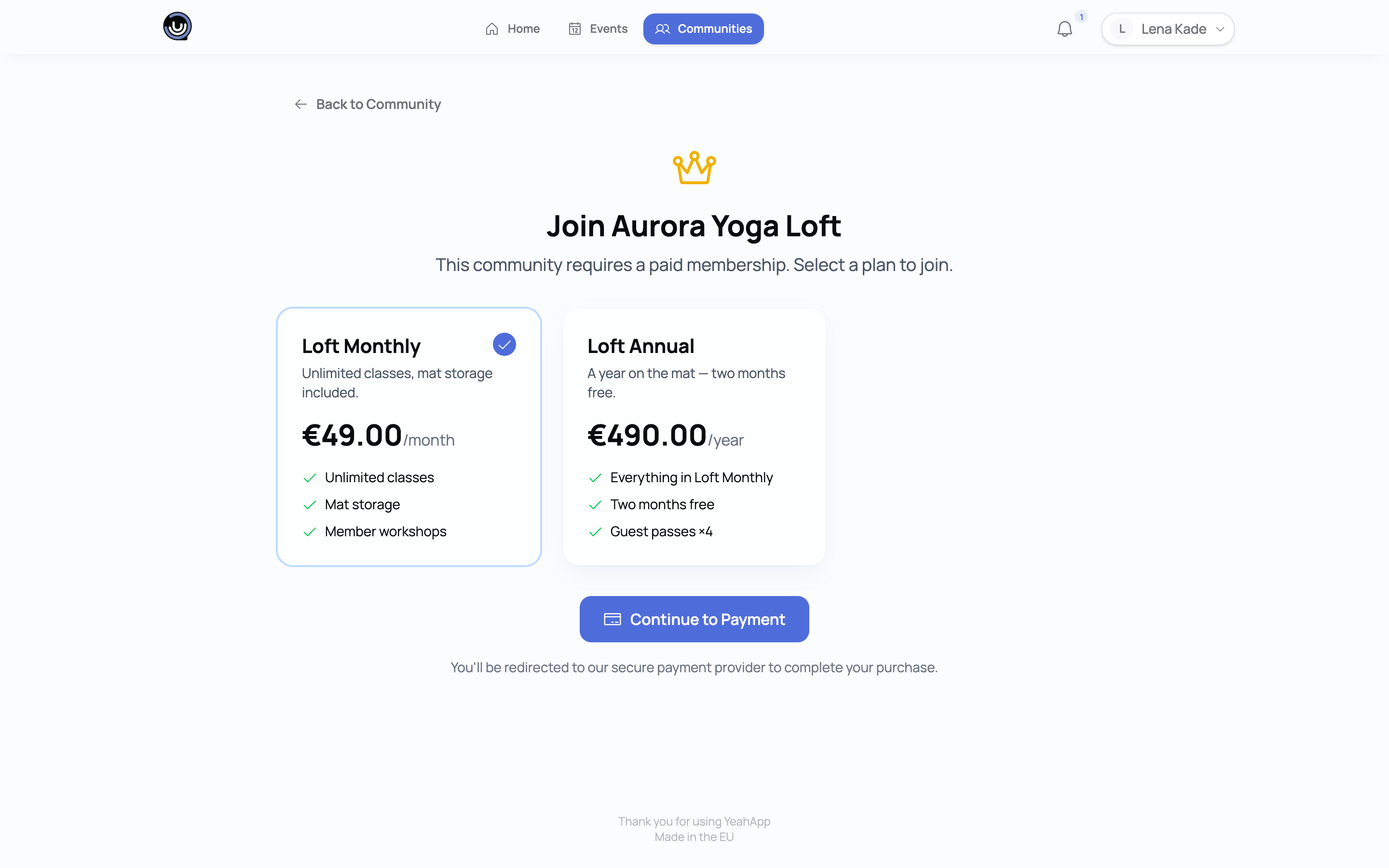
Not every plan on one of these communities has to cost money. An admin can set a plan's price to zero, in which case you still go through the same subscribe step, but you won't be asked for any payment details.
Joining from an invitation
If someone invites you to a community — by email or by sharing an invite link — accepting it gets you in right away, skipping any approval step:
- Open the invite link. If you already have a YeahApp account, you'll see the invitation with the community's details.
- If you don't have an account yet, you'll be taken to sign up first, then land back on the invitation.
- Choose Accept or Decline.
If the invitation comes with a paid membership plan attached, accepting it takes you through payment as part of joining. If the community has a registration form, you may still be asked to fill it in after you've joined, so the community has your details on file — but it won't hold up your access.
Invitations expire after 7 days, so if yours has gone stale, ask whoever sent it for a new one.
Your first sign-in: the setup wizard
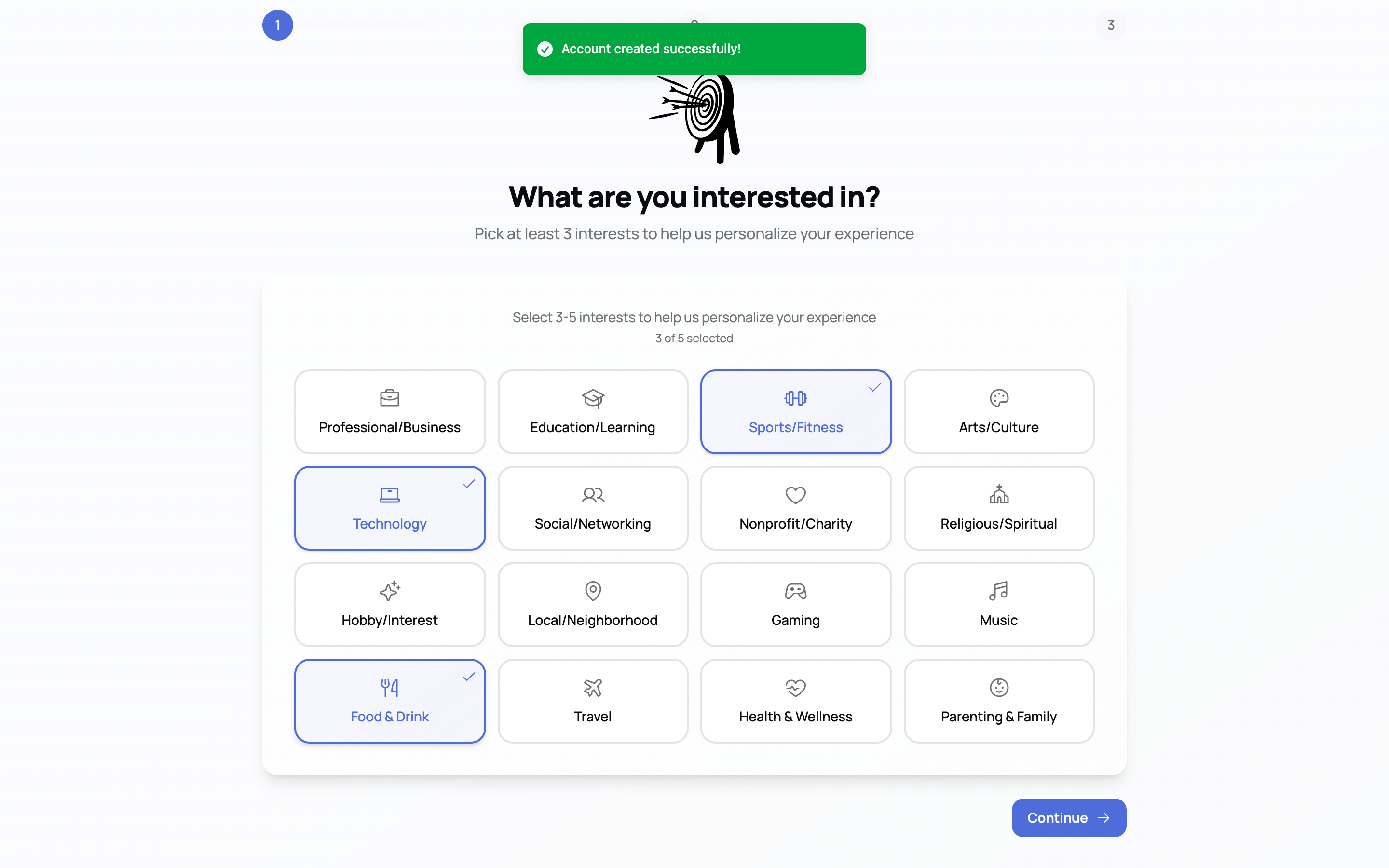
The first time you sign up for YeahApp, you're guided through a short setup before you land in the app:
- Pick your interests — choose at least 3 (up to 5) from a fixed list of categories. This is the only required step.
- Add your location — your country and city. This step is optional; you can continue without filling it in.
- Choose what to do next — join a community or create one.
If you choose to join, you'll see a shortlist of public communities plus a search box, so you can look for a specific one by name. Select one or more, confirm, and you're added to each. If a community you pick turns out to be private, require approval, or need a paid membership, you may need to finish that step from the community's own page rather than from the wizard.
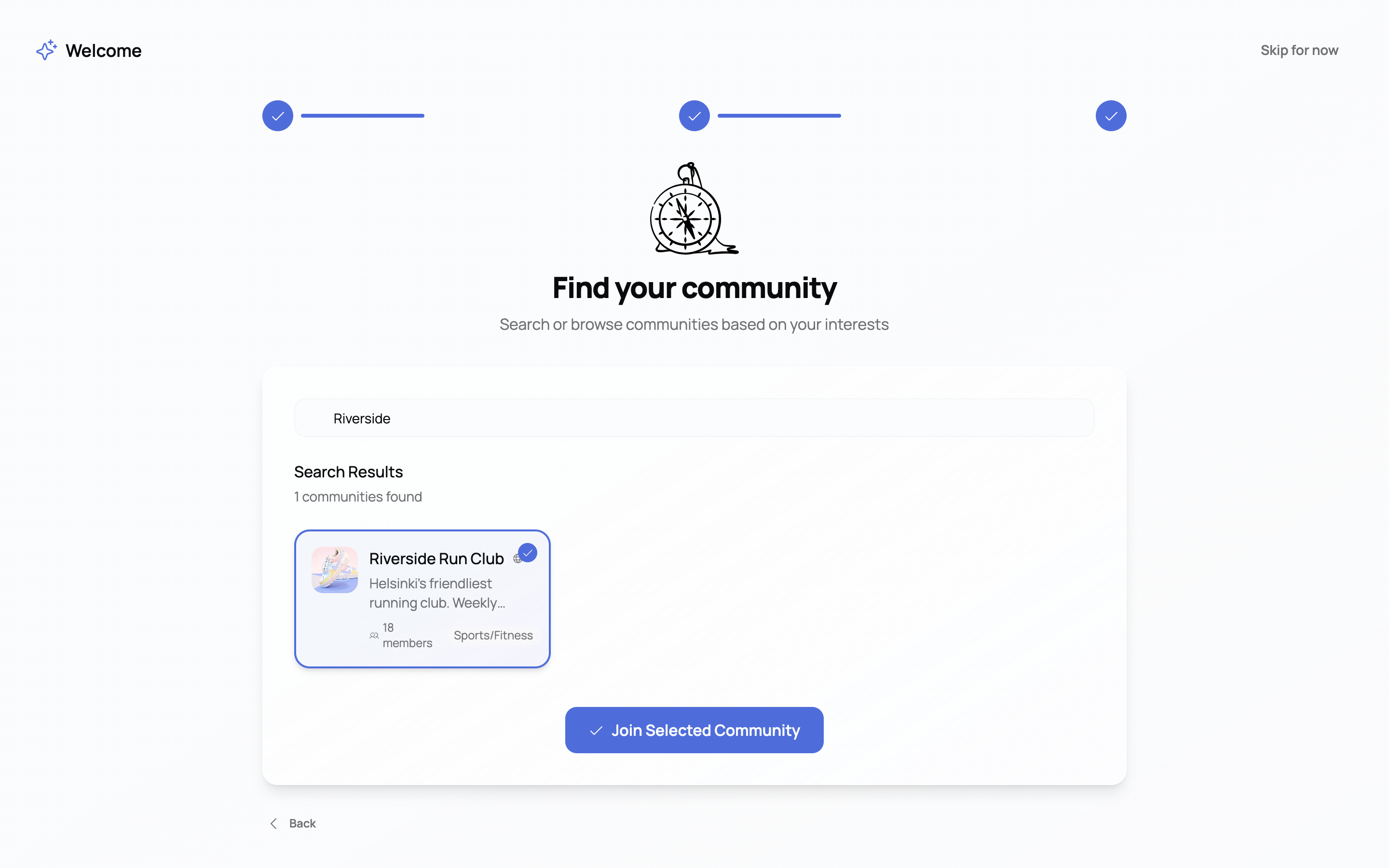
At any point in the wizard you can select Skip for now and come back to searching for communities later — there's no minimum you have to complete.