
Appointments: one-to-one booking
How to install the Appointments marketplace app, set up bookable hosts with weekly availability and date overrides, and what the public booking, cancellation and reschedule experience looks like.
Appointments is a Calendly-style booking app for your community. You designate certain members as hosts, each host publishes their availability, and anyone with the booking link can grab a slot — no YeahApp account required on their end. This guide covers setting hosts up as a community manager, and what the person booking a slot sees.
Installing Appointments
Appointments is a marketplace app, not a feature bundled into a specific tier. That means it works differently from things like events or forms, which come with every paid plan: you install Appointments separately from your community's app marketplace, and only the Owner or an Admin can do that.
- On Pro and Business, Appointments is included at no extra cost — install it and start using it straight away.
- On Starter, Appointments is available as a paid add-on.
Heads up. If your community's billing lapses — a failed payment, a cancelled subscription, or a plan you haven't finished setting up — Appointments switches to read-only. Existing bookings, hosts and availability stay intact, but nobody can create new bookings or change settings until billing is active again.
Adding hosts
From Management → Apps → Appointments, an Owner or Admin can add any active member of the community as a host. Each member can only be an active host once — if you remove someone as a host, you can always add them back later.
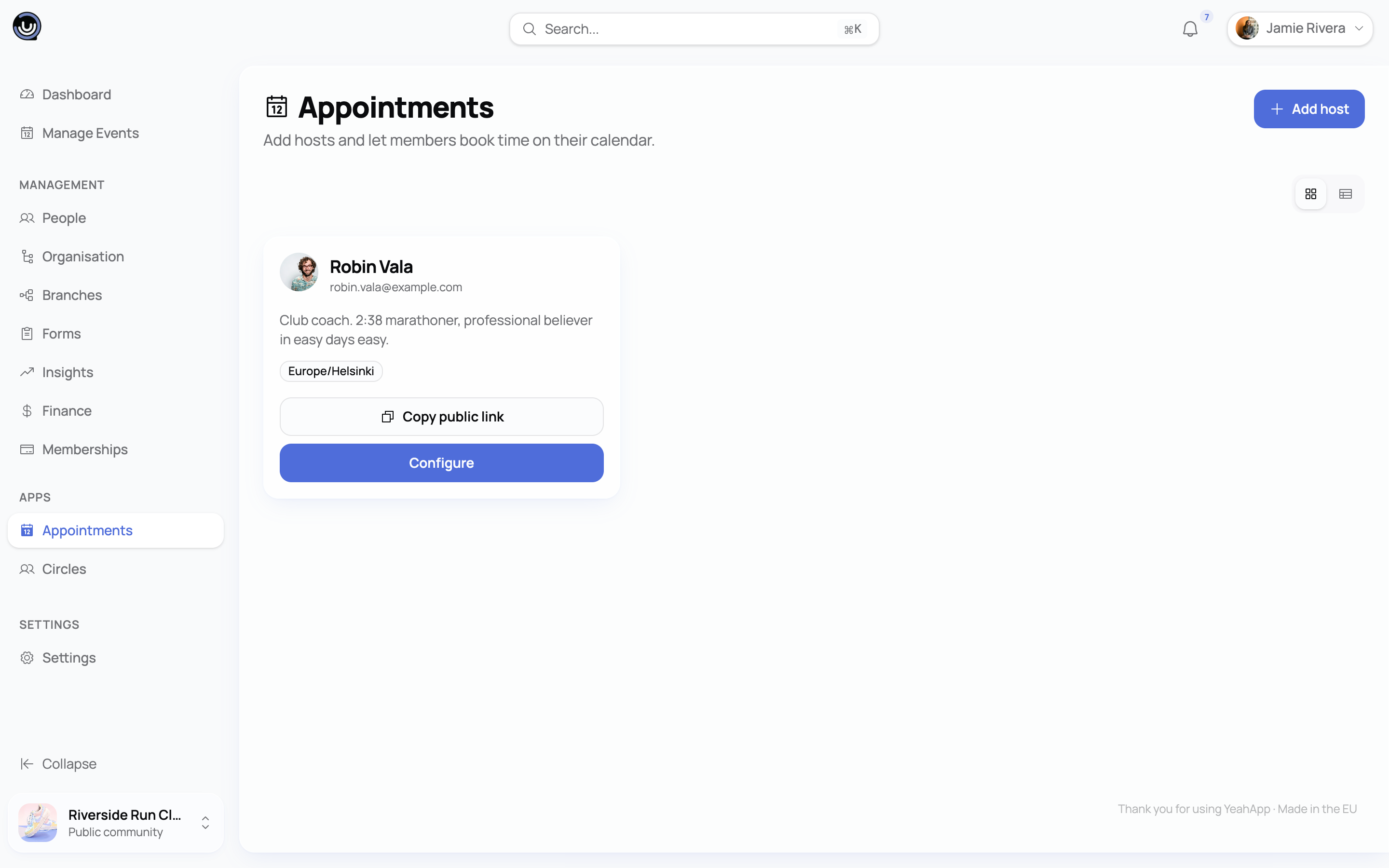
A host gets their own profile:
- Display name, bio and avatar — shown on their public booking page.
- Slug — the part of the booking link that identifies them (letters, numbers and hyphens only).
- Timezone — all of their availability is set in this timezone, and converts automatically for whoever's booking.
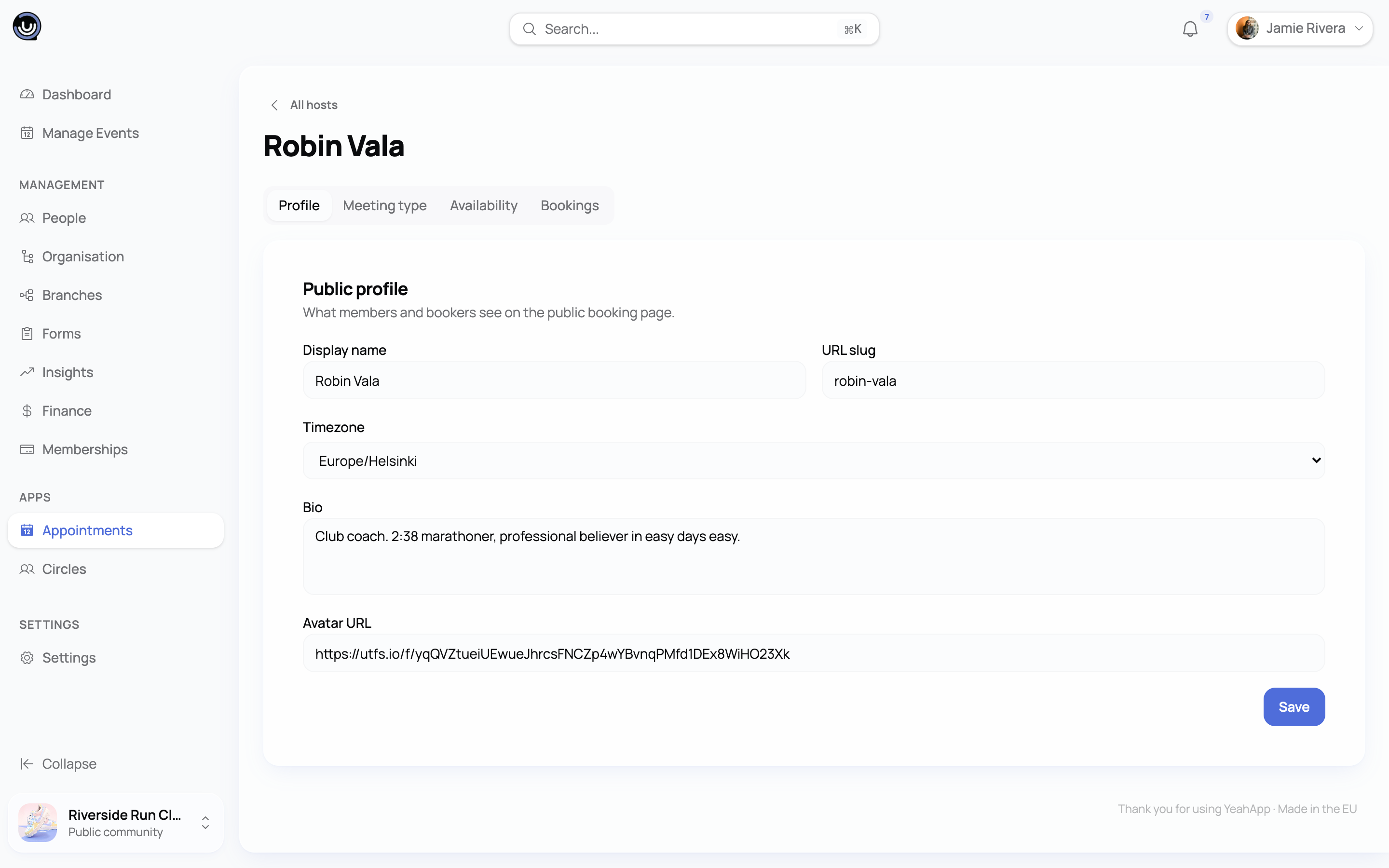
Hosts can edit their own profile, meeting type, availability and bookings without needing an Admin every time. The one thing only an Owner or Admin can do is deactivate a host — a host can't switch themself off.
Setting up a meeting type
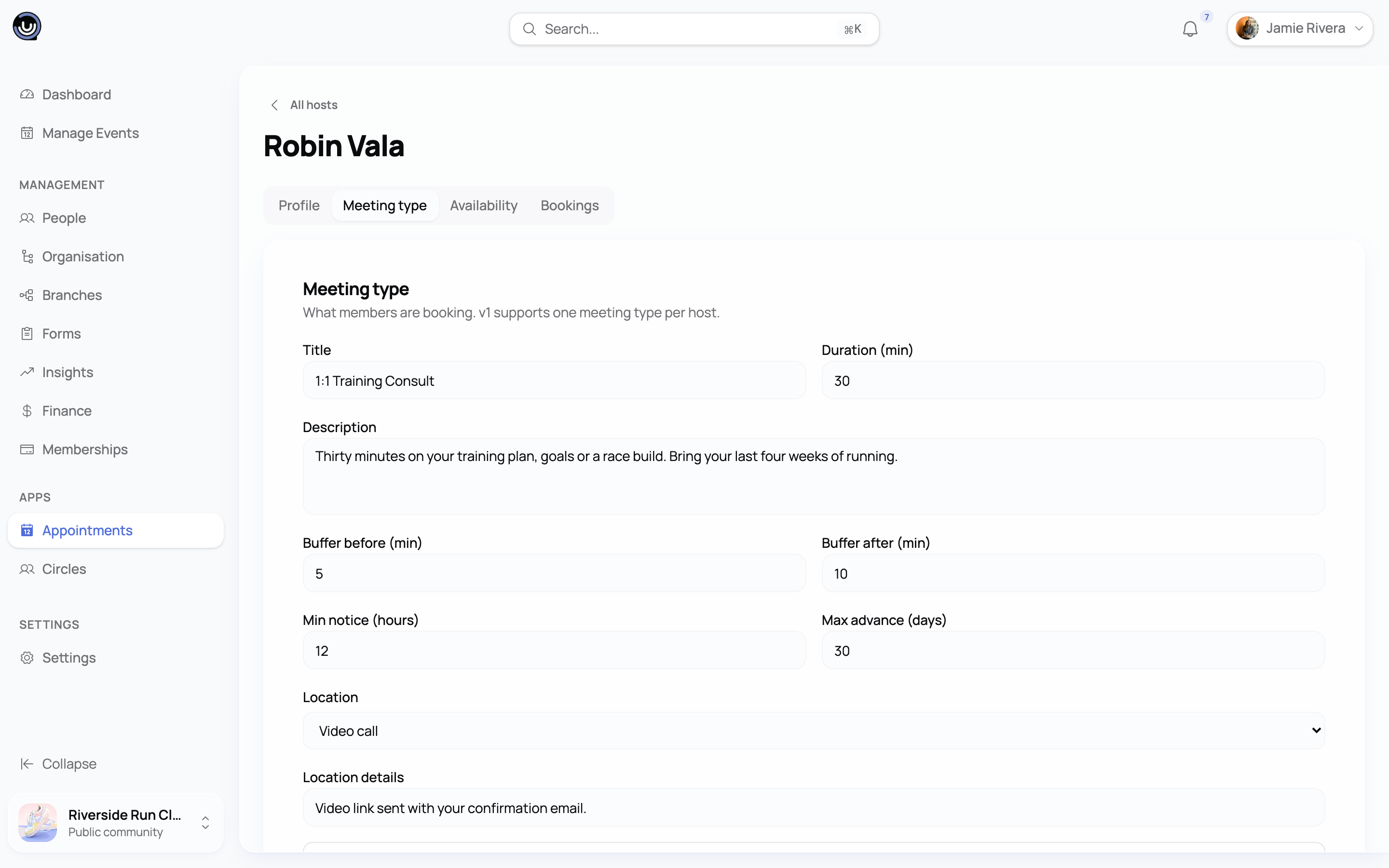
Each host has one active meeting type at a time — the single kind of appointment people can book with them. From the host's Meeting type tab, you (or the host) set:
- Title and description — what the meeting is, shown to the booker.
- Duration — how long a slot runs.
- Buffers — optional gaps before and/or after each booking, so hosts aren't back-to-back.
- Minimum notice — how close to the start time someone can still book (default 2 hours).
- Maximum advance — how far into the future the booking calendar opens (default 60 days).
- Location — video, phone, in person, or a custom option, with details for whichever you pick.
Availability: weekly hours and date overrides
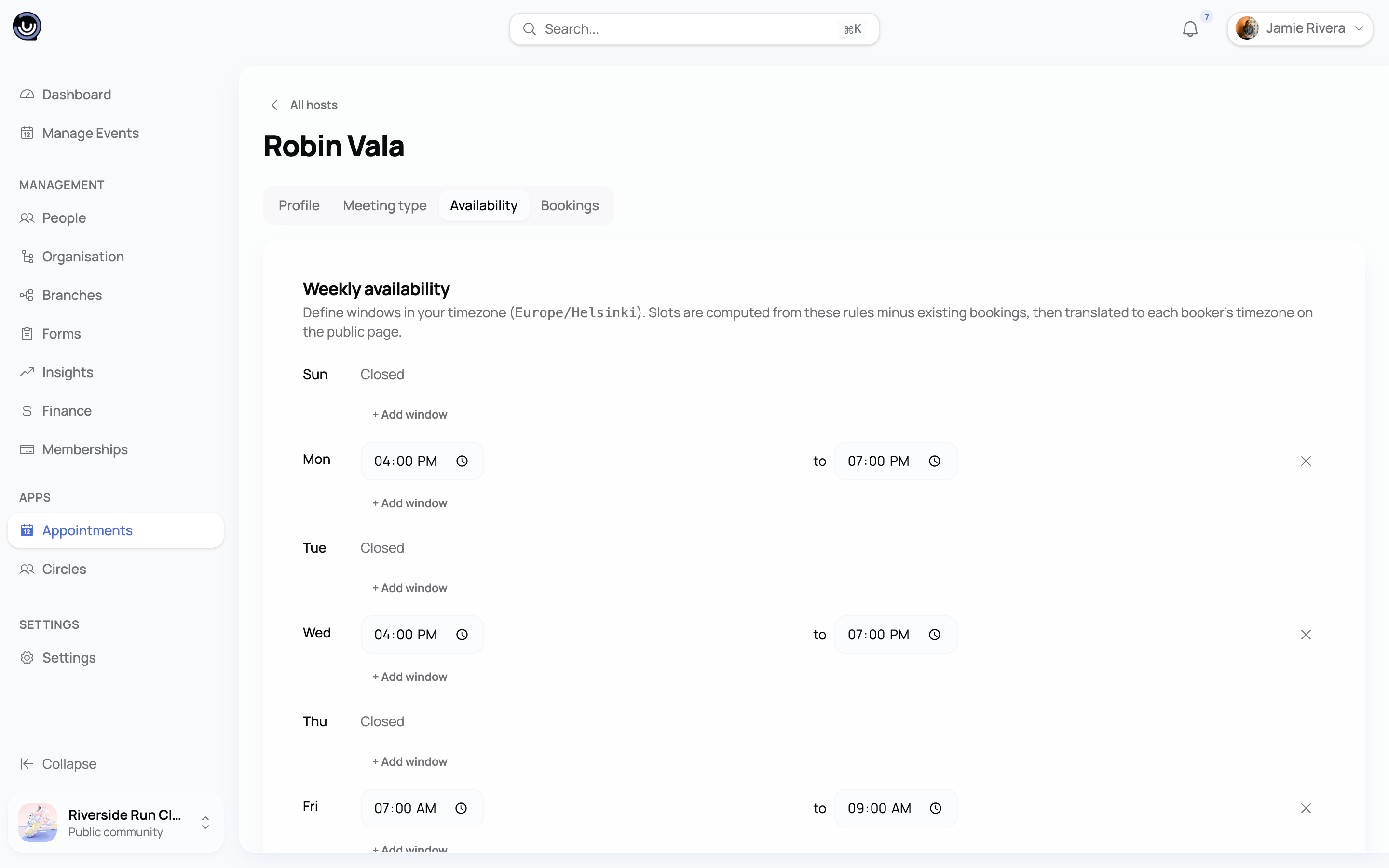
A host's bookable hours come from two layers, both on the Availability tab:
Weekly hours are the recurring pattern — for example, Tuesdays and Thursdays, 10:00–16:00. Set separate windows for each day of the week.
Date overrides handle exceptions on a specific date: block the day entirely (for a holiday or a day off), or set custom hours that replace the weekly pattern just for that date. If the override window would conflict with bookings people have already made, you're shown how many before you save.
If a host has no weekly hours and no overrides set, their booking page simply shows no available slots.
The public booking page
Each host gets a shareable link — yourapp.com/book/your-community/host-slug — that you can post anywhere: your website, an email footer, a social bio. Anyone who opens it sees the host's available slots, converted into their own timezone, with no sign-up or login required.
To book, someone enters their name, email, and an optional note, then confirms a slot. They immediately get:
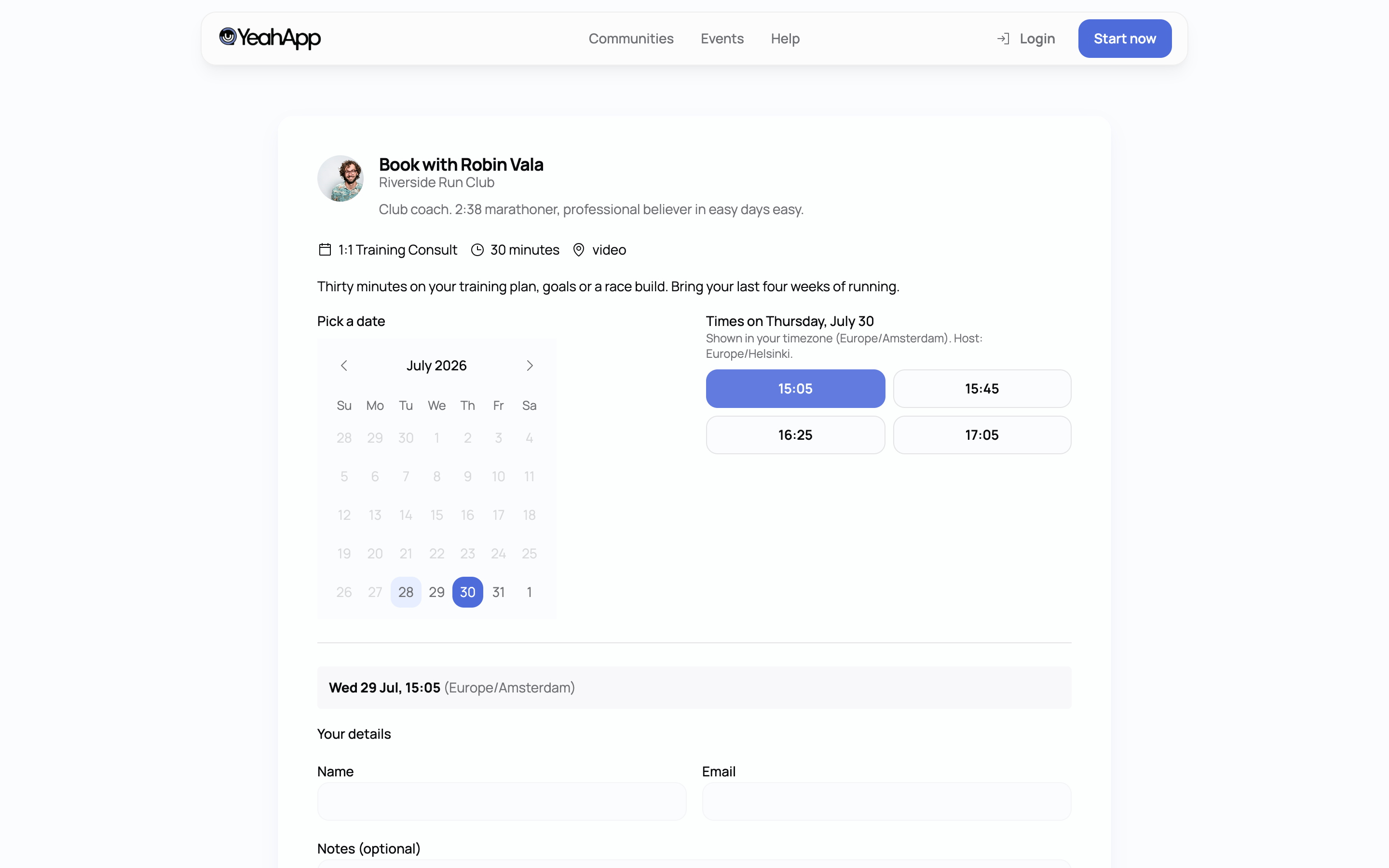
- A confirmation email with a calendar file (.ics) attached, so the meeting drops straight into Outlook, Google Calendar or Apple Calendar.
- A confirmation link, carrying a private token, that lets them manage the booking afterwards — without ever needing a YeahApp account.
The host gets a notification email for every new booking too.
Cancelling or rescheduling
The booker's confirmation link doubles as a self-service page. From there they can:
- Cancel — the host is notified by email, and the calendar invite is cancelled on their end automatically.
- Reschedule — they pick a new slot. Behind the scenes this cancels the original booking and creates a fresh one, so the booker lands on a new confirmation link with a new token; the old link stops working. Both the booker and the host get an email reflecting the change, with an updated calendar file.
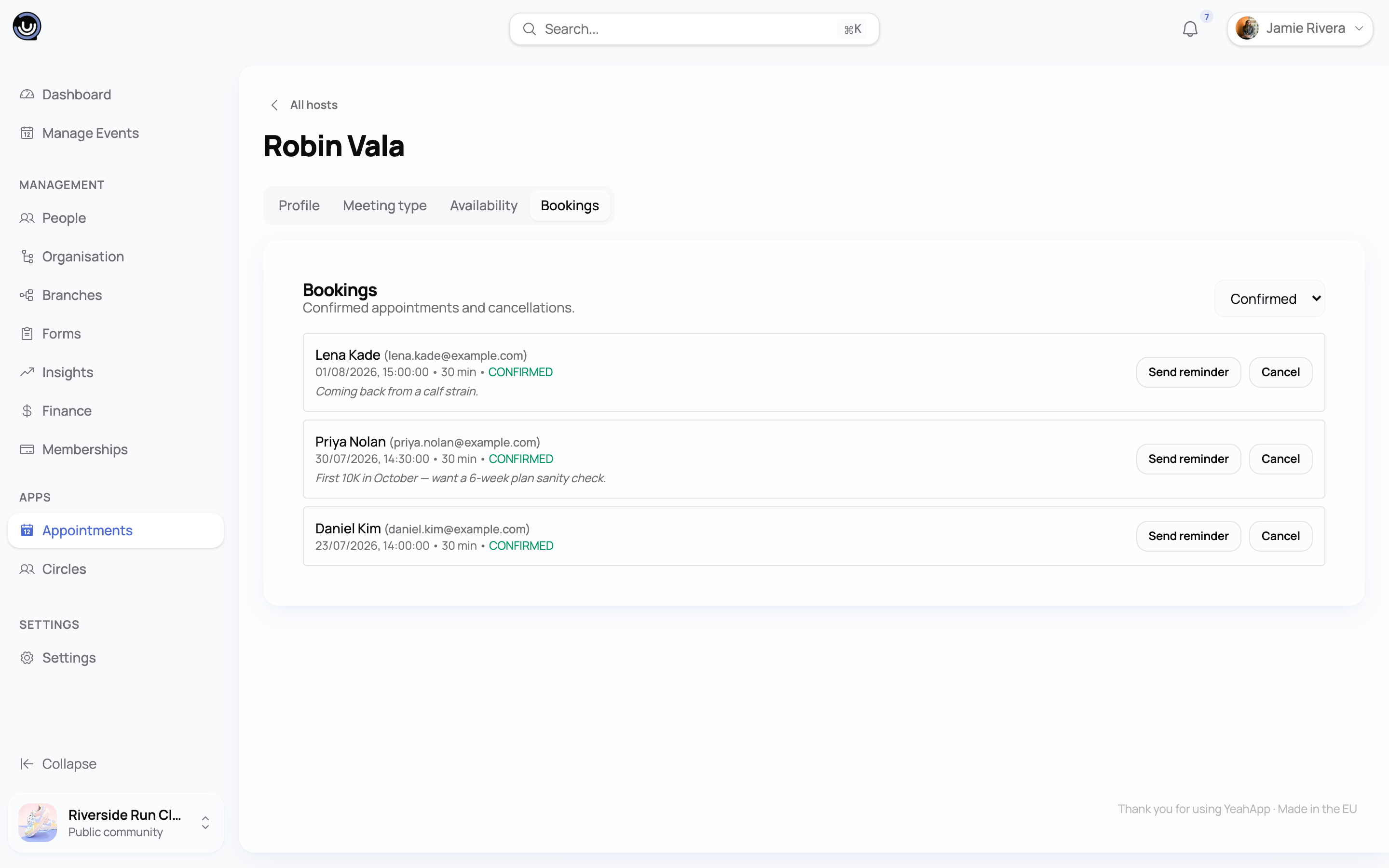
Hosts and Admins can also cancel a booking from their side, with an optional reason, from the host's Bookings tab.
Reminders
Automatic reminder emails are off by default — turn them on per meeting type and choose how many hours ahead they go out (from 1 hour up to a week, defaulting to 24 hours before the meeting).
Whether or not automatic reminders are on, a host or Admin can send a one-off reminder for any confirmed booking at any time from the Bookings tab.
Managing bookings
The Bookings tab lists everything for a host, filterable by Confirmed, Cancelled or All. Admins see bookings across every host in the community; a host who isn't an Admin only sees their own.
Related guides
- Extending your community with apps — how marketplace apps like Appointments get installed and billed
- Circles: recurring groups — the other member-facing marketplace app, for recurring sessions rather than 1:1 slots
- Billing & Cancellation Policy — what happens to installed apps if your subscription lapses
- Community Roles & Permissions — what Owners, Admins and Moderators can each do