
Building your committee (organisation chart)
How to set up positions, terms, and assignments in your community's Organisation page — and why titles like "President" don't change what someone can actually do.
Most communities have a leadership structure that exists outside of who can click which buttons: a President, a Treasurer, a Secretary, a set of Board Members. YeahApp's Organisation page lets you publish that structure — who holds which position, and for how long — as a proper org chart on your community's public page.
Heads up. Organisation is a record of titles, not a permissions system. Giving someone the "President" position doesn't change what they can do in your community. What someone can actually manage is still controlled entirely by their role — Owner, Admin, Moderator, or Member. See Community Roles & Permissions for that side of things.
What it's for
Organisation gives your community a public, transparent record of its leadership: the positions that exist, how they relate to each other, and who currently — and previously — held each one. It's built for things like:
- A club or association that elects officers each year and wants that reflected on its page.
- A board that wants members to be able to see who's who without asking around.
- Any community that wants a historical record of who has served in which position over time.
It's available on every YeahApp plan, including communities without an active subscription. There's no upgrade required to use it.
Setting up positions
Positions are the titles in your structure — President, Vice President, Treasurer, Secretary, Board Member, and so on. You define these yourself; there's no fixed list.
Each position can have:
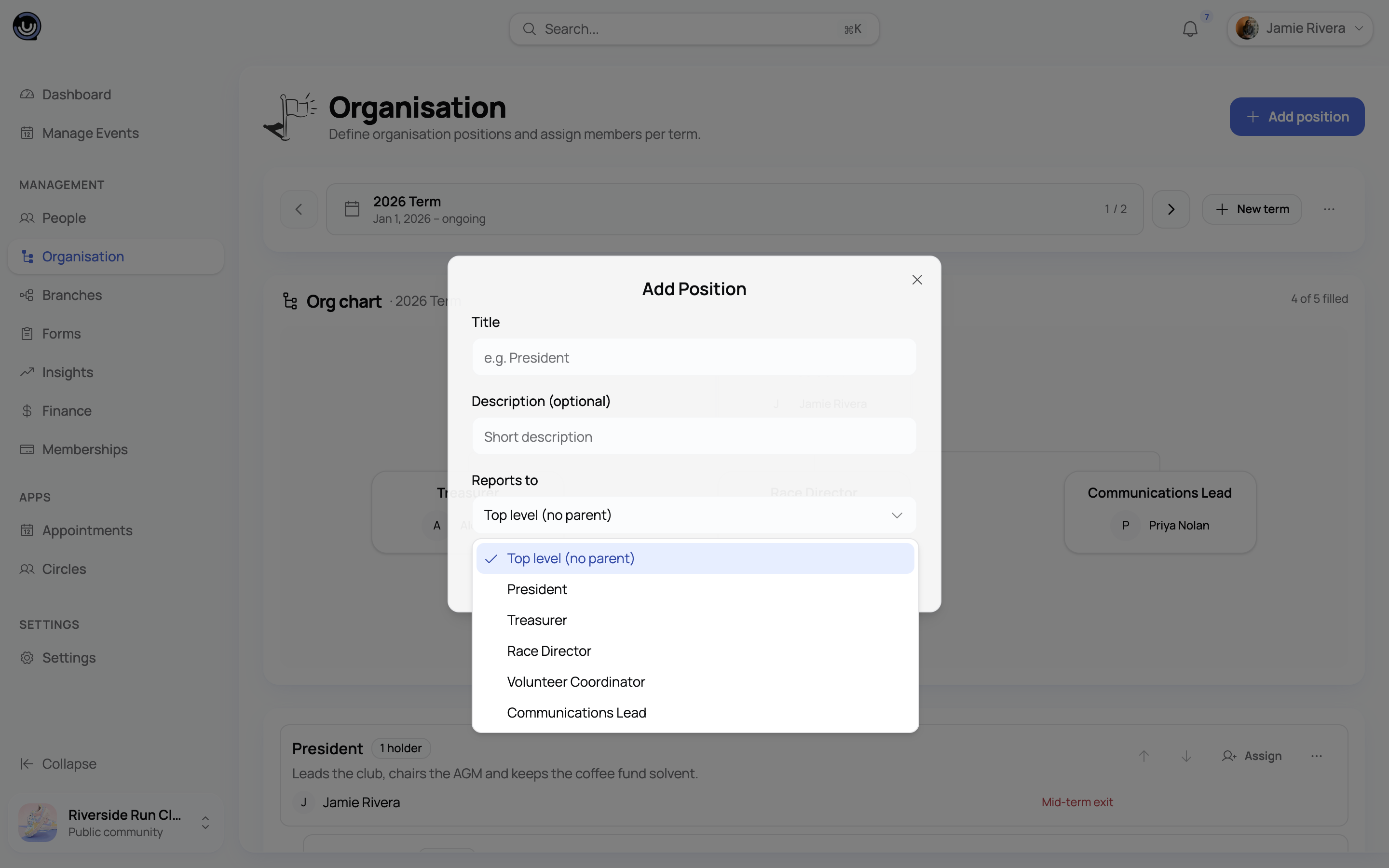
- A title and an optional description.
- A reporting line — which position it sits under. This is what builds the hierarchy: a Board Member position, for example, can report to President, so it appears nested beneath it on the chart.
Positions with no reporting line sit at the top level. You can reorder positions among their siblings with the up and down arrows, and change a position's title, description, or reporting line at any time.
Heads up. Deleting a position removes its entire history, across every term, and can't be undone. Any positions that reported to it move up to the top level instead of being deleted with it.
Terms
A term is a named window of time — "2026 Term," "Founding Term" — with a start date and an optional end date. Leave the end date blank for an open-ended term that's still ongoing.
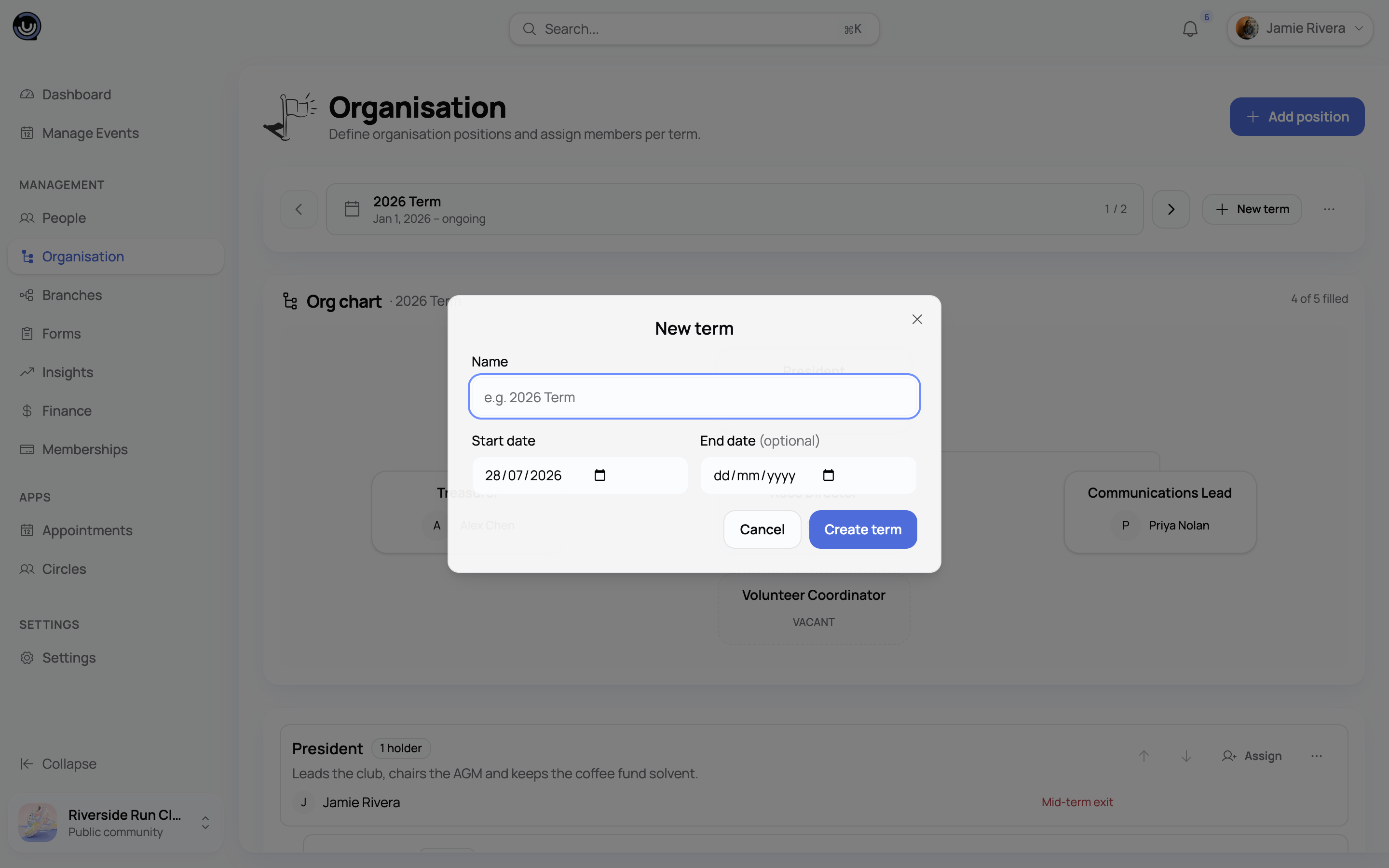
You need at least one term before you can assign anyone to a position — assigning without one prompts you to create a term first.
When a leadership cycle ends, create a new term rather than editing the old one. Previous terms and their assignment history stay exactly as they were, so your organisation's record builds up over time instead of getting overwritten. The page automatically shows whichever term is currently running; if none is running, it falls back to the most recent one.
Heads up. Deleting a term removes every assignment recorded under it, across all positions, and can't be undone.
Assigning members to a position
With a term selected, click Assign on any position and search your member list to put someone in that role. A few things to know:
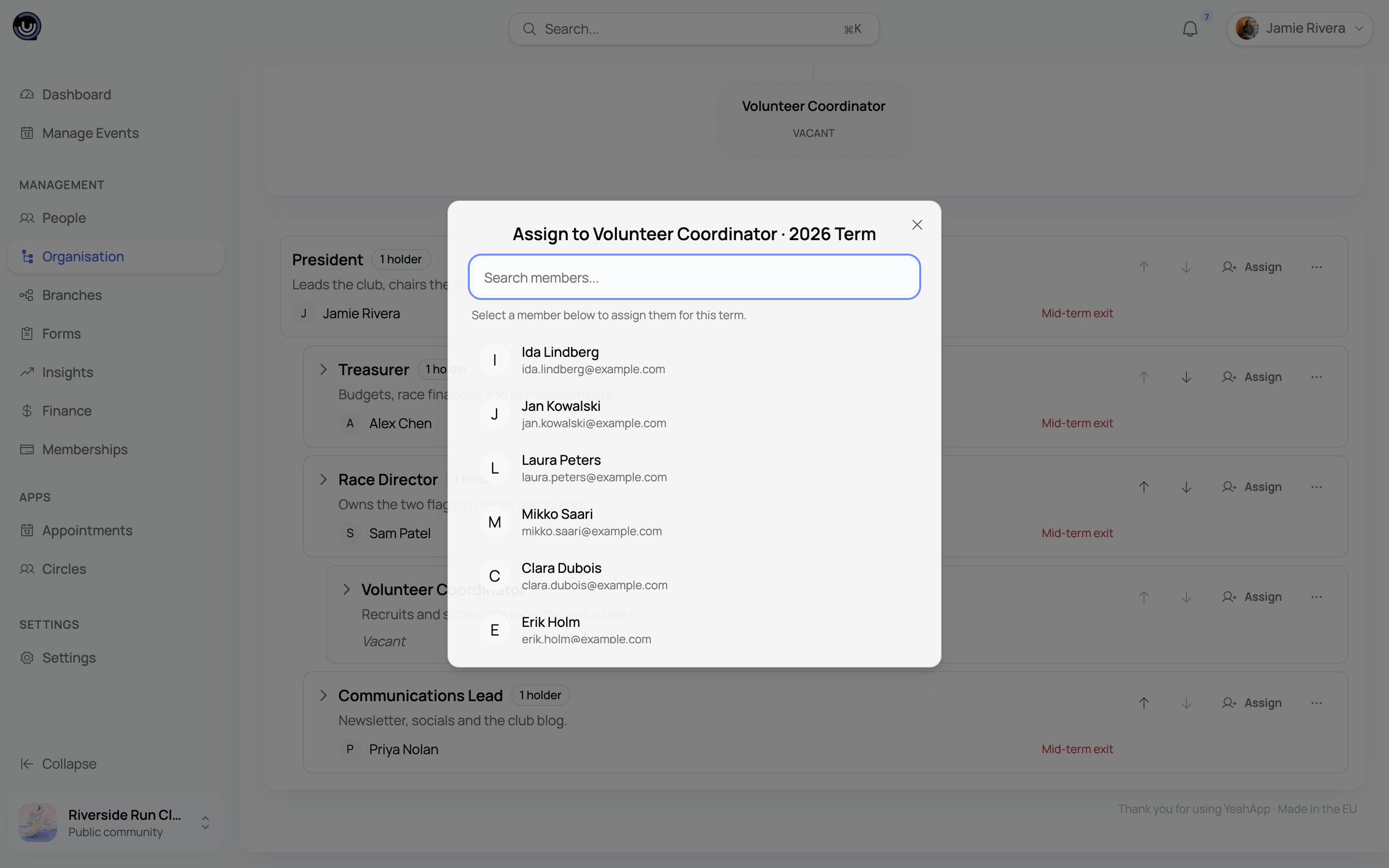
- More than one member can hold the same position at the same time — useful for co-chairs or a board with several equal seats. The position shows how many current holders it has.
- The same member can't be assigned to a position twice while both assignments are active.
- A position with nobody currently assigned shows as Vacant.
Mid-term exits and history
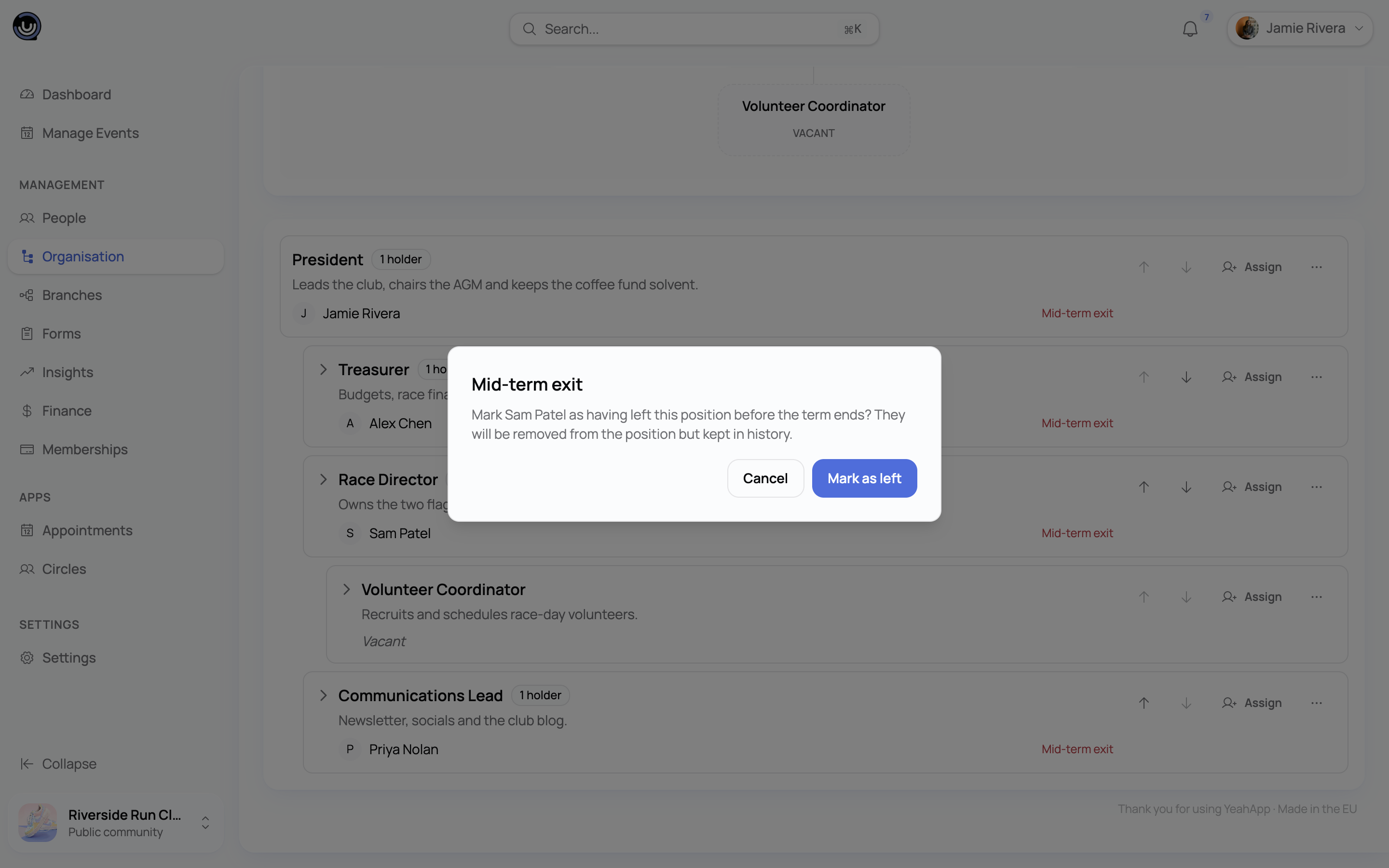
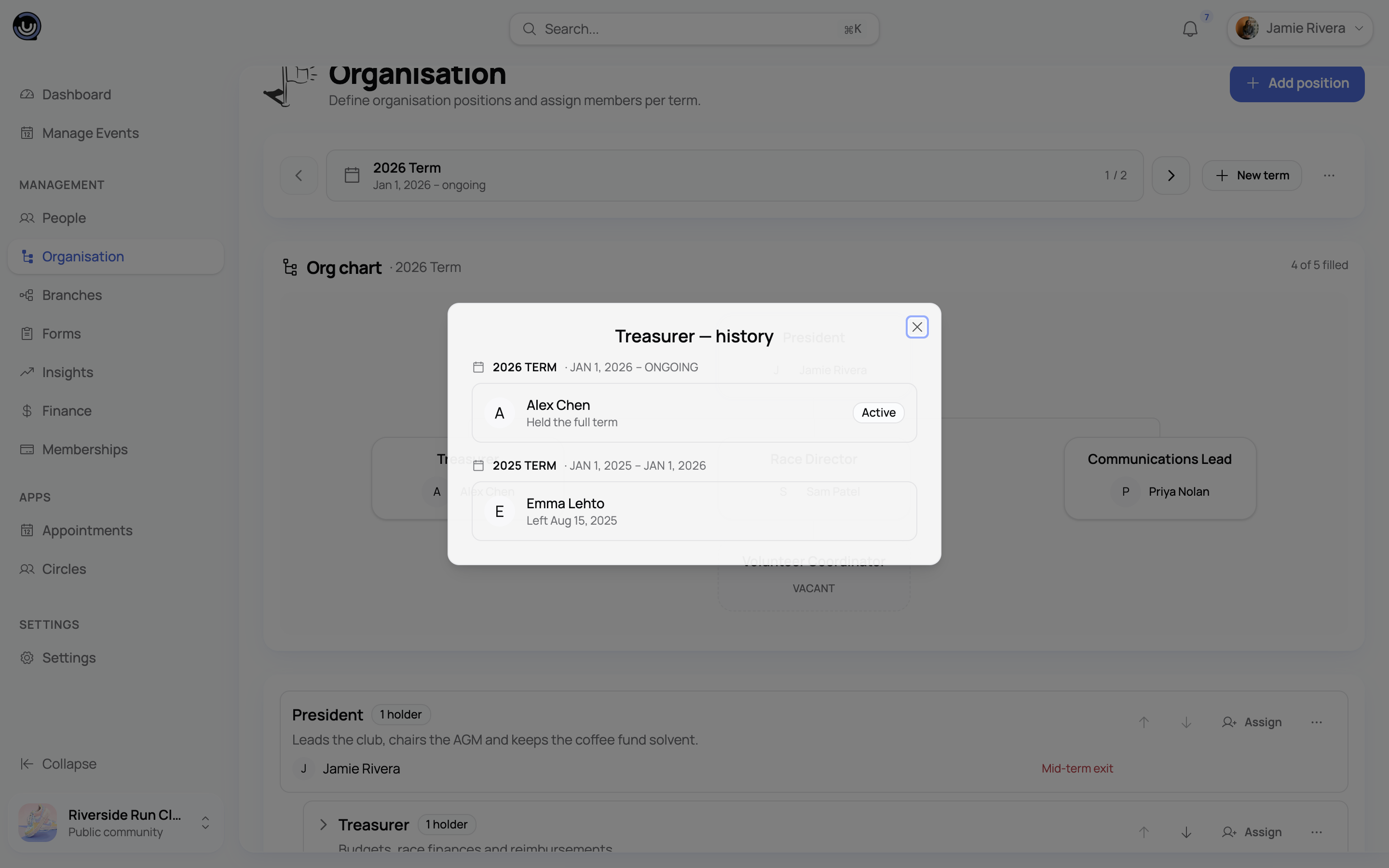
People step down before a term ends. Rather than deleting the assignment, use Mid-term exit to record when they left. The record stays intact — the member simply drops off the current holders shown for that position and reappears in its history, labelled with the date they left.
Every position has a history view showing everyone who has ever held it, grouped by term, with each entry marked either "Held the full term" or "Left [date]." This is the easiest way to answer "who was Treasurer in 2024?" without digging through old records.
The public organisation chart
As soon as a community has at least one position, an Organisation tab appears automatically on its public community page — no separate step to publish it. Anyone visiting your community, member or not, can see:
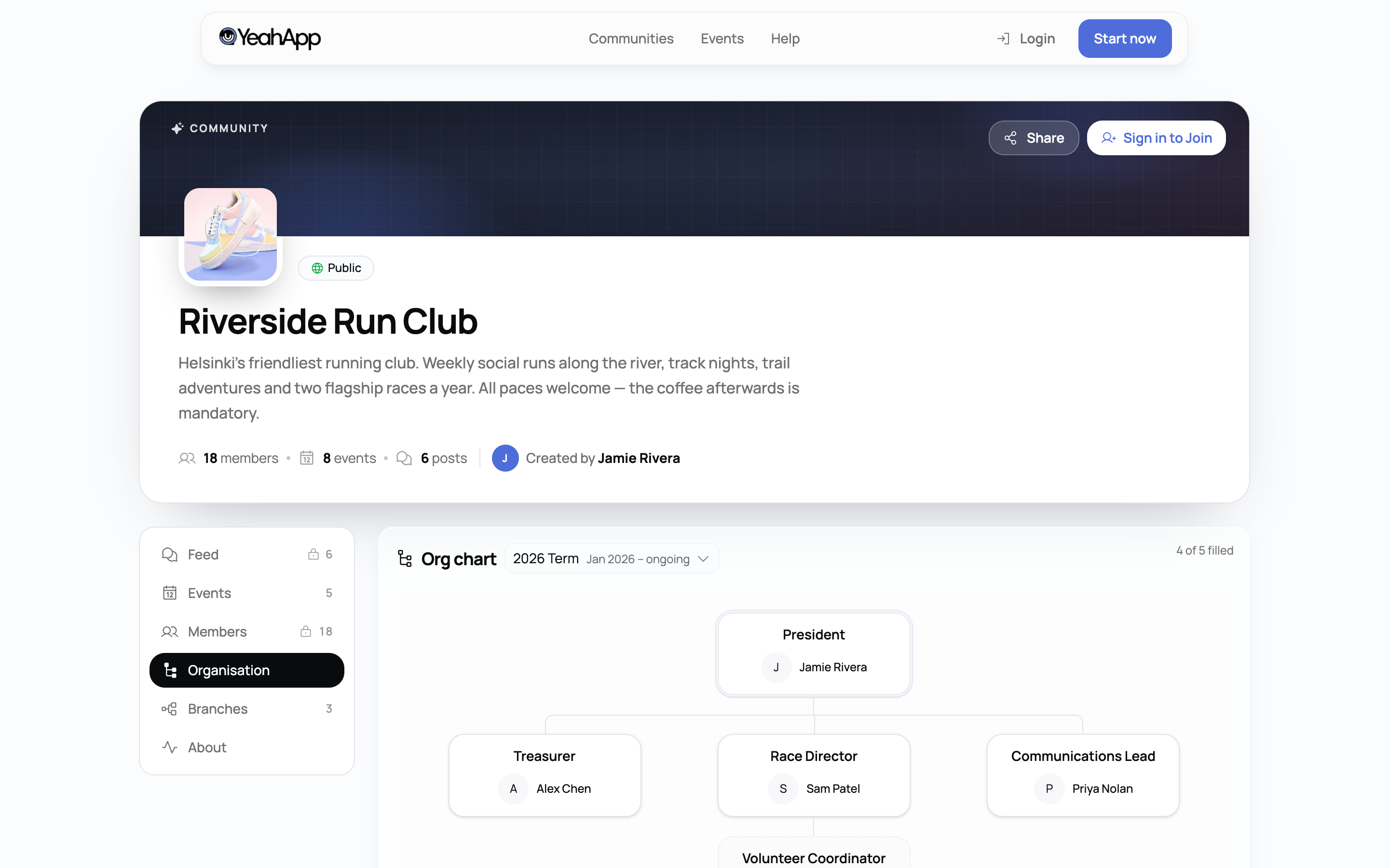
- The full position hierarchy, laid out as a tree.
- Who currently holds each position (name and photo), with a count if a position has more than one holder.
- Positions with nobody assigned, shown as vacant.
- A term selector, if your community has recorded more than one term.
Heads up. This structure is public by design — it's meant to be seen. Member photos and names appear on it, but email addresses never do.
How the whole process fits together
The diagram below walks through the full committee lifecycle on YeahApp — from creating a term and positions, through assigning members and handling mid-term exits or new terms, to what a visitor sees on the public org chart.
Who can manage it
Owners, Admins, and Moderators can create and edit positions, terms, and assignments. Members can view the public chart but can't make changes. If you're not seeing the option to manage Organisation, check your role in Community Roles & Permissions.