
Circles: recurring groups
How the Circles marketplace app runs small recurring study and discussion groups — schedules, auto-generated sessions, attendance, discussion notes, and the member-facing My Circles area.
Circles is a marketplace app for running small recurring groups inside your community — study circles, discussion groups, or any group that meets on a regular schedule. An Admin sets each circle up and assigns members to it, but day-to-day running is handed to an ordinary member: the circle's Mentor.
This guide covers how circles are set up, how sessions appear automatically, how attendance and notes are recorded, and where members go to see their own circles.
Adding Circles to your community
Circles is a marketplace app, so it needs to be installed before you can use it. Once installed, a Circles section appears in your community's admin sidebar, and a Circles area appears for members.
The four roles in a circle
Circles has its own small permission structure, layered on top of your usual community roles:
| Who | Can |
|---|---|
| Owner / Admin | Create, edit, and archive circles; manage categories; assign, transfer, and remove members; set who's the Mentor; appoint Assistants; and see every circle's attendance and notes, for oversight. Admins oversee rather than run: setting the schedule, adding or cancelling sessions, and recording attendance or notes are the Mentor's and Assistant's job. |
| Mentor | An ordinary member assigned to run one specific circle. Manages that circle's schedule, sessions, attendance, and discussion notes — and can appoint an Assistant to help. |
| Assistant | A second member the Mentor (or an Admin) promotes to help run the circle day to day — see below. |
| Member | Sees the circles they belong to, upcoming sessions, discussion notes, and their own attendance record. Read-only. |
Heads up. Neither Mentor nor Assistant is a community-wide role — both belong to one specific circle. Someone can be the Mentor of one circle, an Assistant in another, and an ordinary member of a third.
Assistants: a second person to help run a circle
Running a busy circle on your own is a lot, so a Mentor can hand a second member the Assistant role. An Assistant is a co-mentor, not an observer: they can set and change the schedule, add one-off sessions, reschedule or cancel sessions, record attendance, write discussion notes, see the members list along with each member's membership-fee status, and send fee reminders.
There's exactly one thing an Assistant can't do: appoint or remove another Assistant. That stays with the circle's Mentor and with Owners and Admins.
To appoint one, open the circle and use Make assistant next to the member's name — Remove assistant demotes them again. Owners and Admins can also set the role from the circle's member list in the admin area, where the options are Member, Assistant, and Mentor.
You can't use the assistant control to change who the Mentor is. If you try, YeahApp will tell you the circle's mentor is managed by community admins — swapping the Mentor is an Owner or Admin job.
An Assistant sees an Assistant mentor badge at the top of the circle page, and an Assistant label on their My Circles card, on the circle's member list, and on their profile in your member directory.
Creating a circle
From the admin Circles area, an Owner or Admin creates a circle with:
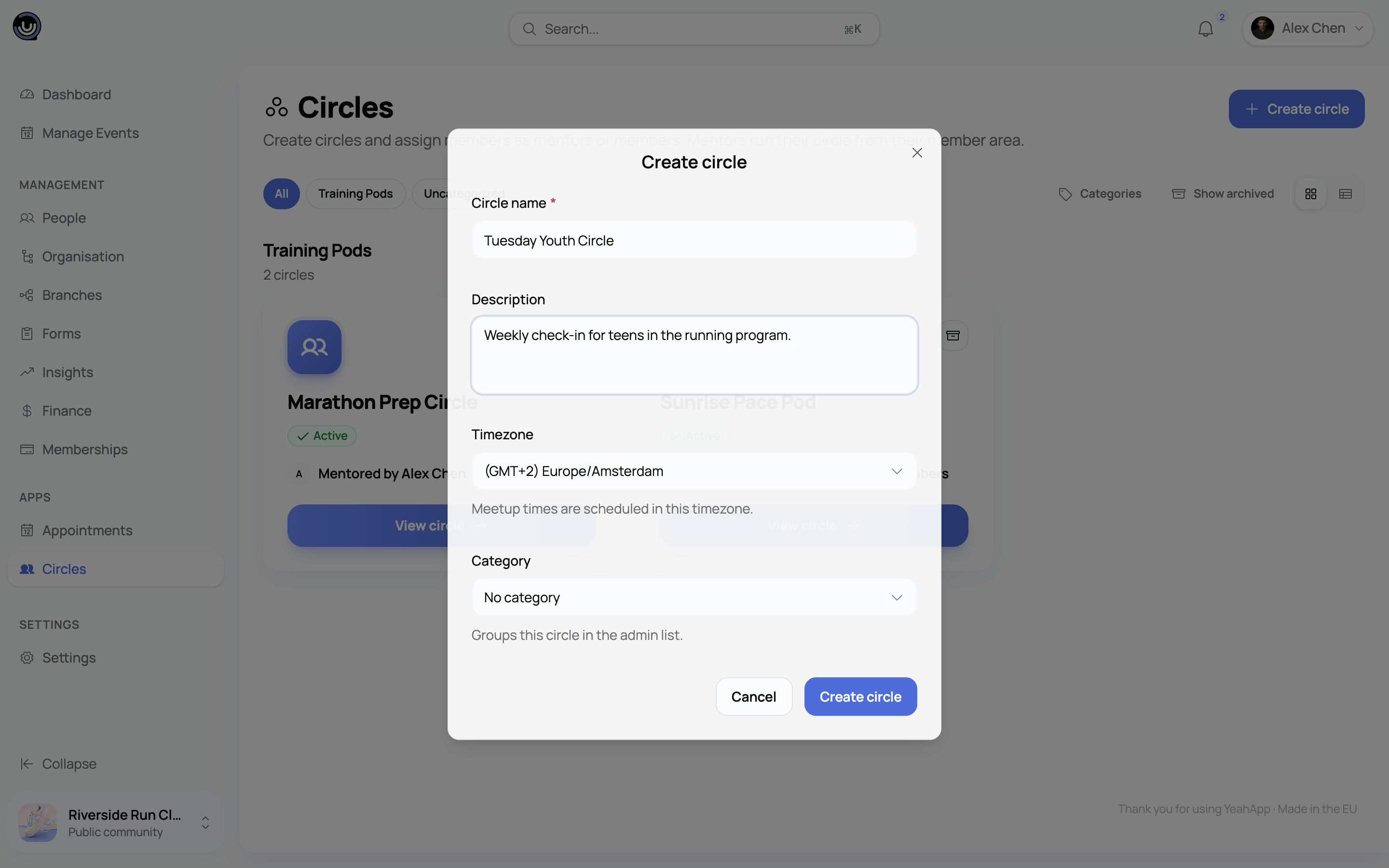
- A name and optional description
- An optional category — a simple grouping label you define per community, useful once you have several circles running (each circle has at most one category)
- A timezone, which anchors every session the circle holds
Once the circle exists, you assign members to it and pick who's the Mentor. From there the Mentor can appoint an Assistant themselves, without coming back to you. A member can be moved between circles, or removed from one, at any time — removing someone keeps their history rather than deleting it, so past attendance stays intact.
Setting the schedule
Each circle has one active schedule: a day of the week, a start time, and a duration, plus whether it meets online (with a meeting link) or in person (with a location). Circles can repeat weekly or every other week.
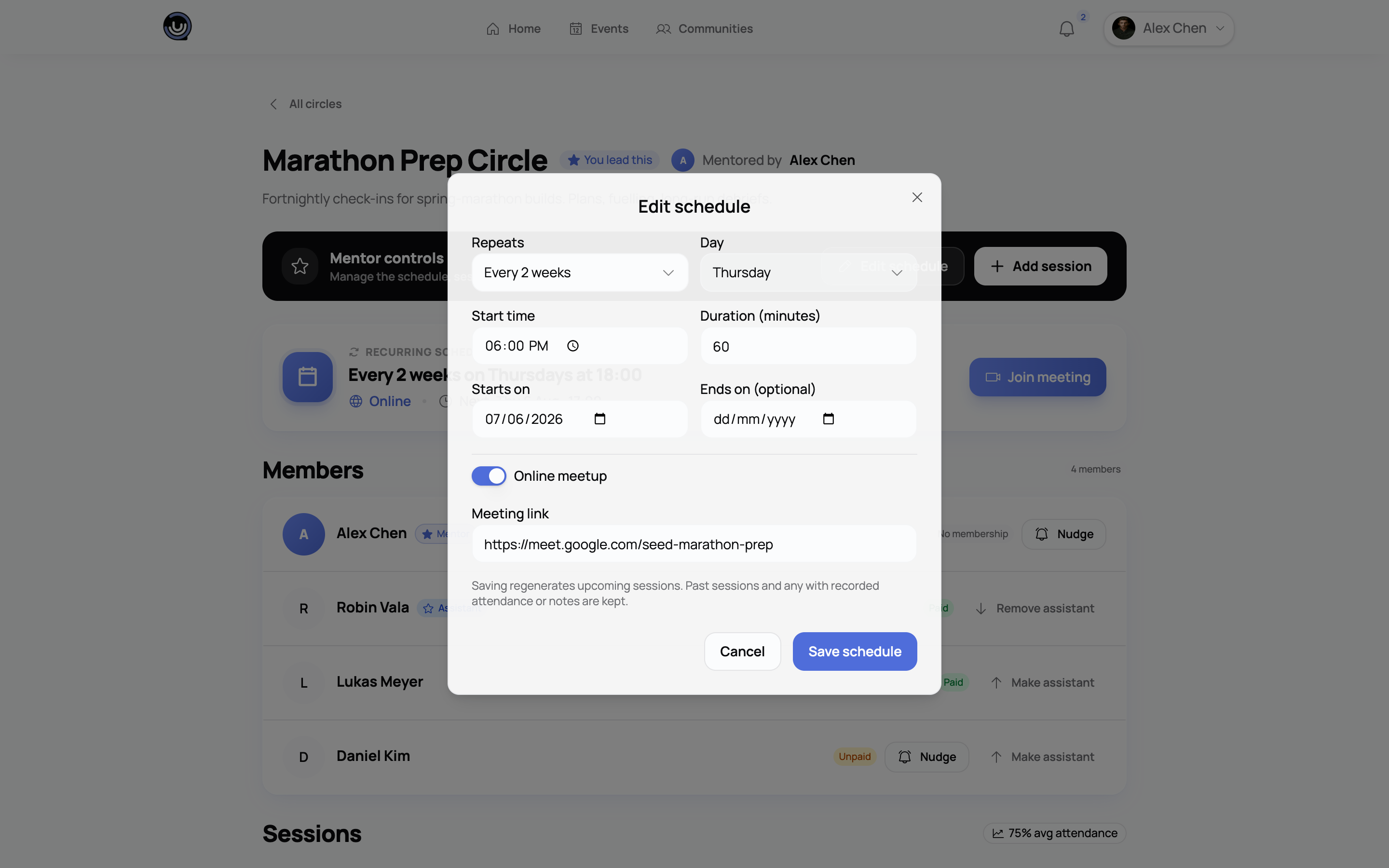
This schedule is what actually produces sessions — nothing else needs to be entered by hand once it's set.
Heads up. If you change a circle's schedule or timezone, YeahApp re-anchors its upcoming sessions to match. Sessions that have already happened, been cancelled, or already have attendance or notes recorded are left alone — only untouched future sessions get regenerated.
Sessions appear automatically
You don't create sessions one at a time. Once a schedule is set, YeahApp automatically generates the individual meeting occurrences — sessions — that follow from it, on a rolling 90-day horizon. As time moves forward, the window rolls forward with it, so there are always sessions visible roughly three months out without anyone having to top it up manually.
A Mentor or Assistant can also add a one-off session outside the regular schedule — useful for an extra meetup or a makeup session — without it affecting the recurring pattern.
Attendance and discussion notes
Circles don't use RSVPs. Being in a circle is membership, not a per-session response — you're either in the circle or you're not, and there's nothing to confirm before a session happens.
After a session takes place, the Mentor (or an Assistant) opens it and:
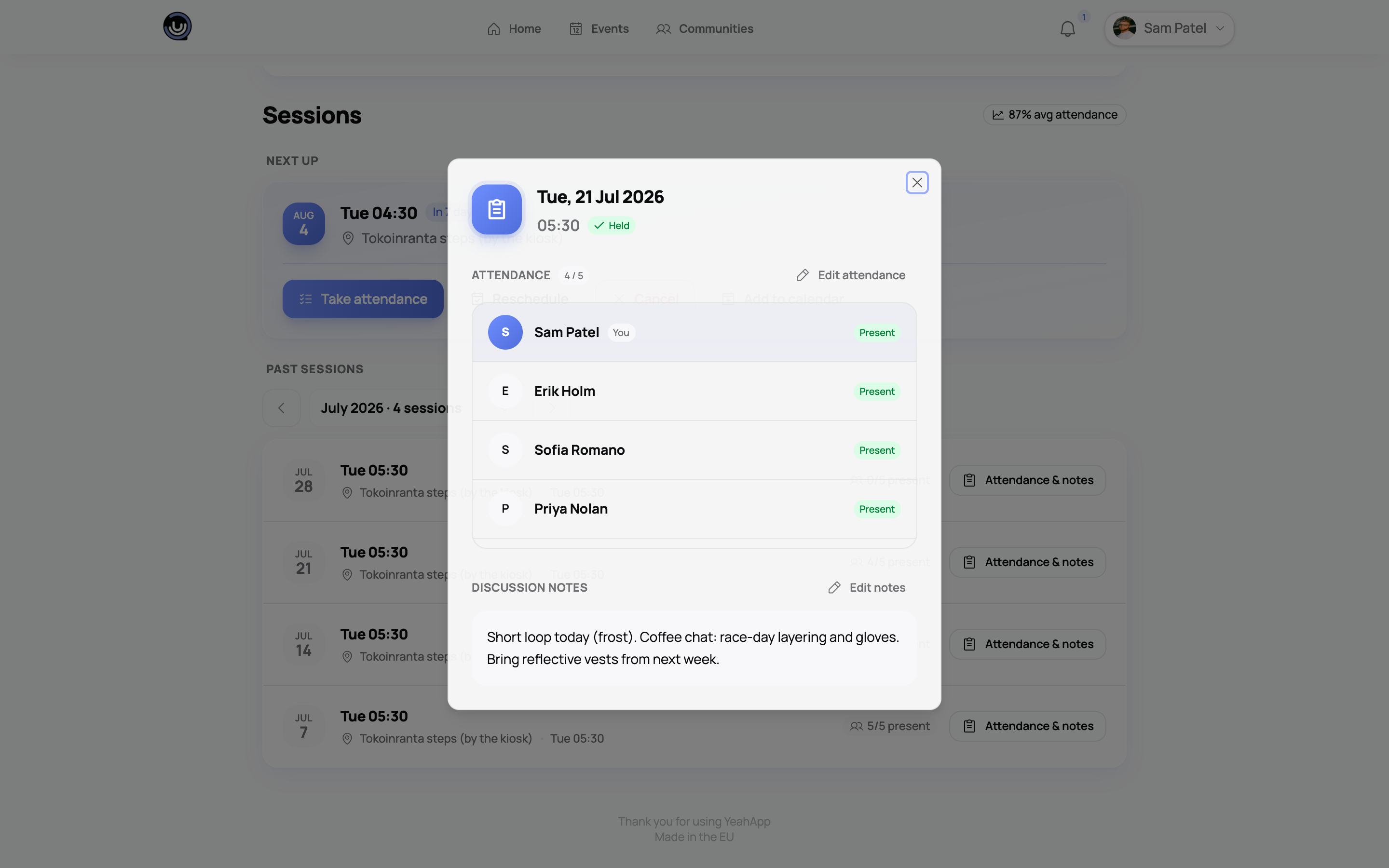
- Marks each member present or not
- Optionally writes up discussion notes for that session
Recording attendance or saving notes marks the session as held. Members can see their own attendance record and any notes for sessions in their circles, but not their co-members' contact details.
Membership fees and reminders
If your community charges a membership fee, the circle's member list also shows where each member stands on it — so the person closest to them can follow up, rather than everyone waiting on an Admin. If you don't have any active membership plans, this doesn't appear at all: the list is just names.
Each member shows one of four simple labels:
| Label | What it means |
|---|---|
| Paid | Their membership is current. |
| Trial | They're on a trial. |
| Unpaid | Their membership isn't currently in good standing — pending, in a grace period, suspended, expired, or cancelled. |
| No membership | They've never taken a plan. |
That's all a Mentor or Assistant sees. They don't see which plan someone is on, what they pay, or when it renews — that detail stays with Owners and Admins in the membership area.
Sending a reminder
Next to anyone marked Unpaid or No membership, there's a Nudge button. It sends that member an in-app notification and an email with a direct link to pay — "Pay membership fee" if they already have a plan, "Choose a plan" if they don't.
A few guardrails:
- One reminder per member every 7 days. Inside that window the button is disabled and reads "Nudged today" or "Nudged 3d ago".
- It's disabled for members who don't have a real account on YeahApp, since there's nowhere to send the reminder.
- If someone is already Paid or on a Trial, YeahApp won't send a reminder at all.
Owners and Admins get the same member list and the same reminder button from the admin circle page, so you can nudge on a Mentor's or Assistant's behalf.
Heads up. The reminder email tells the member which plan they're on, because it's their own membership. Mentors and Assistants never see that — only the four labels above.
Adding a session to your calendar
Any upcoming session can be exported as an .ics file and added to a personal calendar app, so members, Mentors and Assistants don't have to keep checking YeahApp to remember when the next meeting is.
Where members find their circles
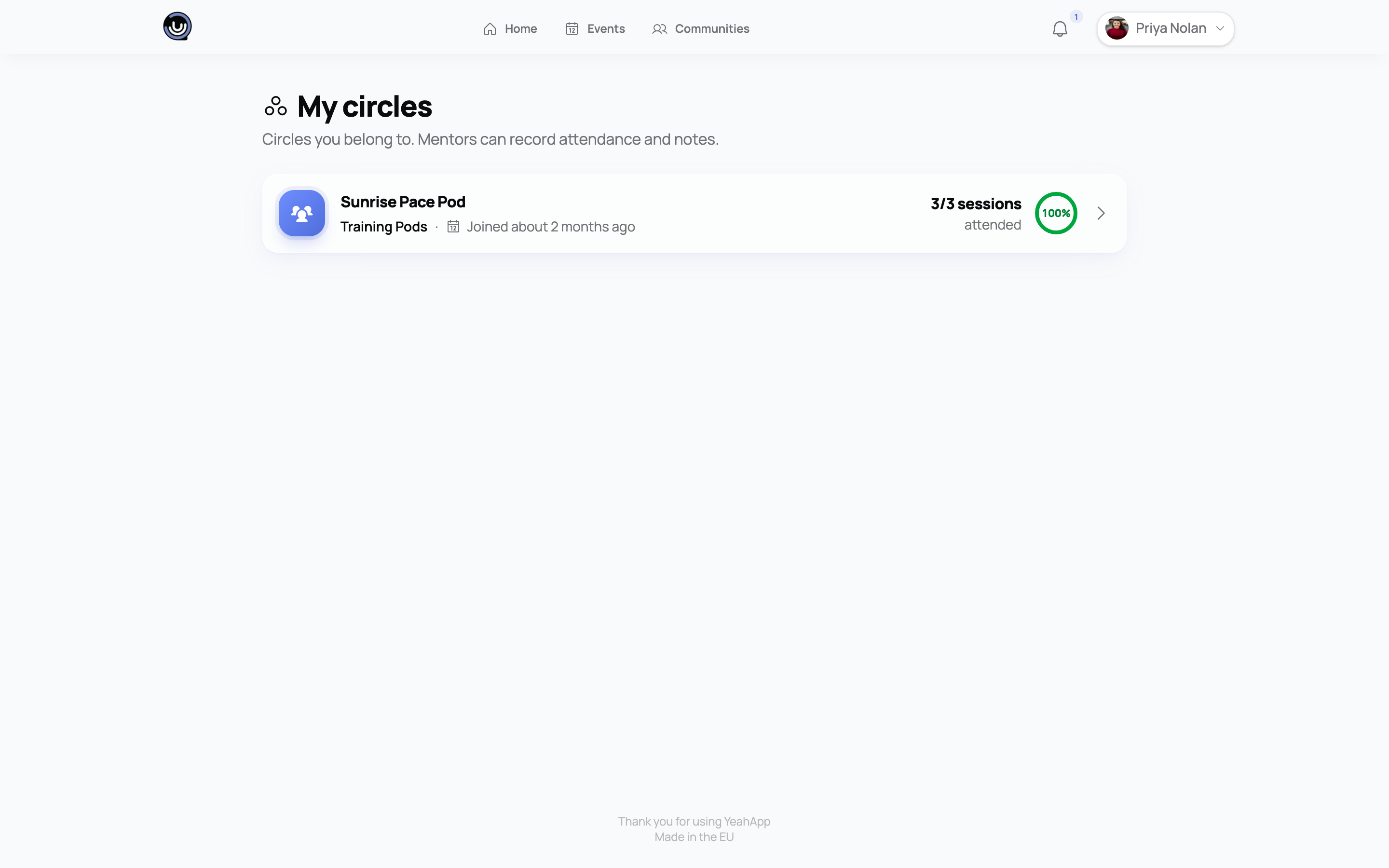
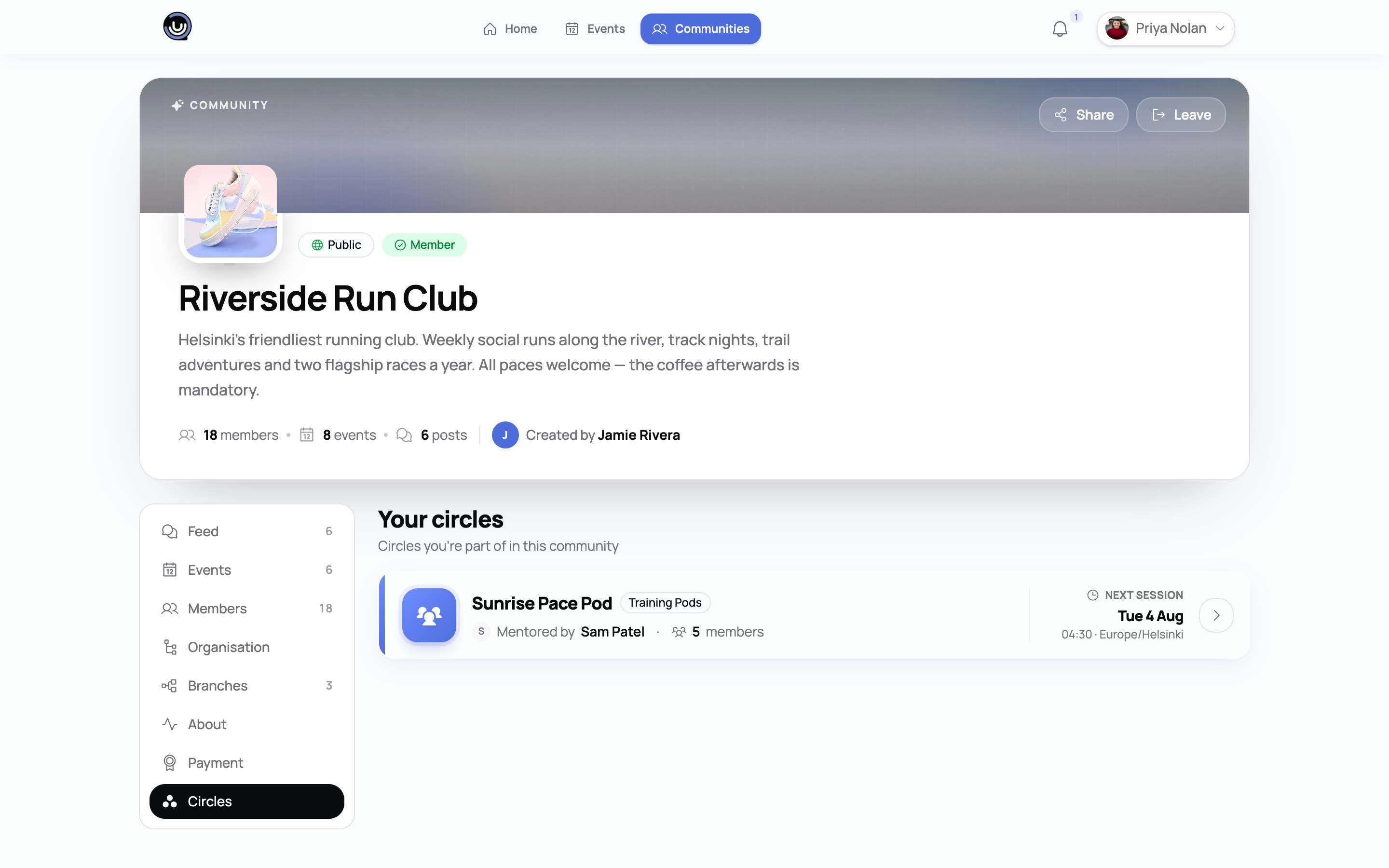
Members see their circles from My Circles, which shows each circle they belong to, its next session, who the Mentor is, their own attendance record, and a badge if they're the circle's Mentor or Assistant. Opening a circle shows the full schedule, upcoming and past sessions, discussion notes, and — if you're the Mentor or an Assistant — the members roster (with each member's membership-fee status) and the attendance tools.
There's also a Circles tab on the events page that pulls together upcoming sessions across every community a member belongs to, so someone in circles in more than one community can see them all in one place. That tab only appears for members who are actually in a circle somewhere.
Keeps working even if billing lapses
Unlike other marketplace apps, Circles keeps working if your community's billing lapses. As long as the app is installed, Mentors and Assistants can carry on creating sessions, recording attendance, and saving notes, and Admins can carry on managing circles and members — a lapsed subscription won't interrupt an ongoing circle.
For Mentors, Assistants and members
If you've been made a Mentor — or an Assistant helping one — your job is mostly two things: keep the schedule accurate for your circle, and after each session, mark who showed up and jot down what was discussed. Sessions appear on their own — you don't need to create them. The one thing only the Mentor (or an Owner or Admin) does is decide who the Assistant is.
If you're a member of a circle, check My Circles to see when your next session is and add it to your calendar. You can see your own attendance history and any notes shared for your circle, but not other members' details.
Related guides
- Extending your community with apps — how marketplace apps like Circles get installed
- Appointments: one-to-one booking — a sibling app for one-to-one, rather than group, bookings
- Your member directory — where a member's circle participation shows up on their profile
- Community Roles & Permissions — what Owners, Admins, and other roles can do