
Your account and privacy settings
A tab-by-tab guide to your personal settings page — profile, organisation verification, billing, notifications, privacy, security, and language — plus exactly what happens if you delete your account.
Your account settings are personal to you. They sit apart from any community you belong to or run — no one else can see or change them, and your community role (Owner, Admin, Moderator, or Member) has no bearing on what you can do here. You'll find them by opening Settings from your account menu.
The page is split into tabs: Account, Billing, Notifications, Privacy, Security, and Preferences — and if you signed up with an organisation account, an extra Organisation tab appears second in the row, right after Account. This guide walks through them in that order.
Account
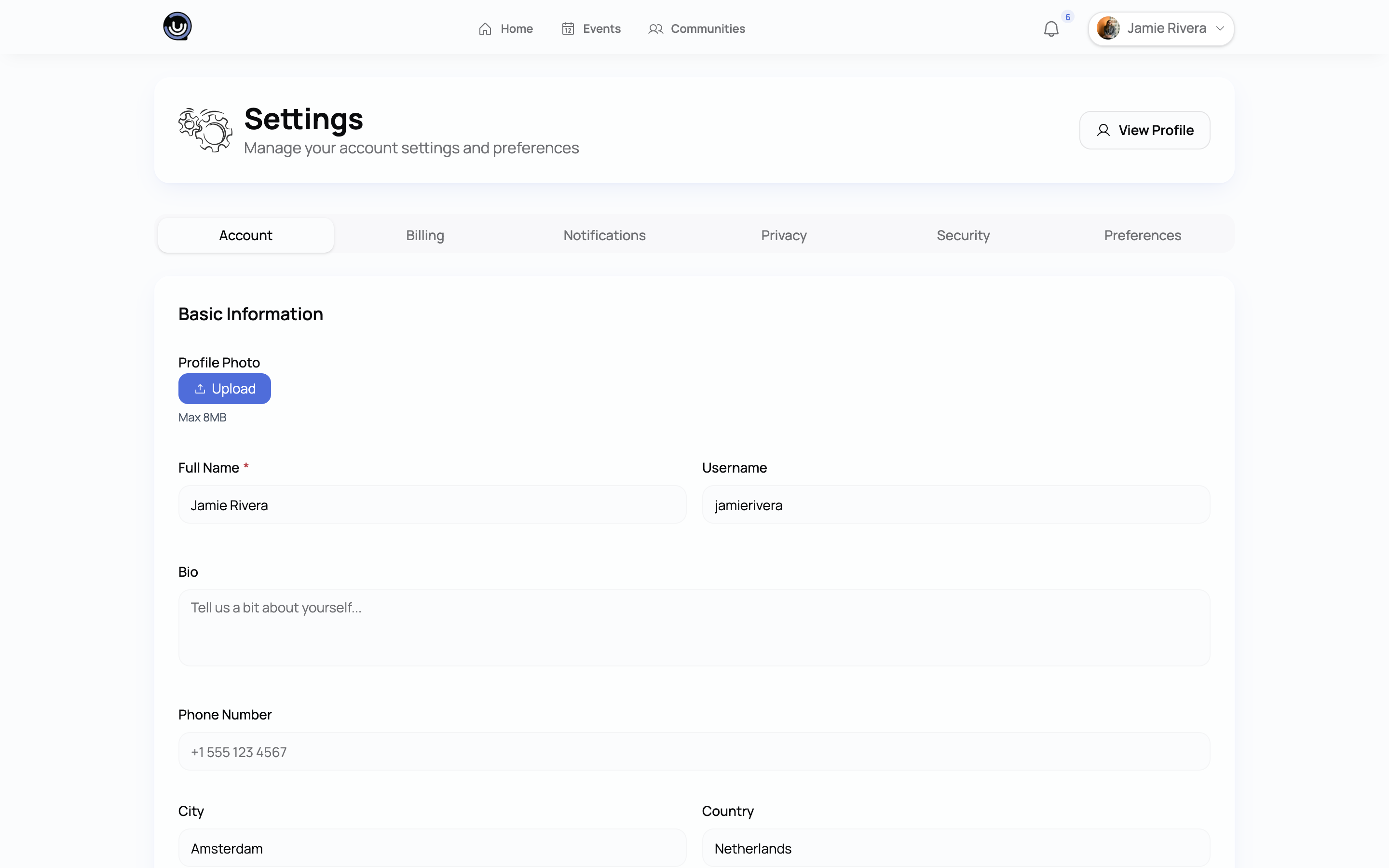
This tab has two parts.
Basic Information is an inline form you edit directly on this tab: your profile photo, full name, username, and phone number. Your email address is shown but can't be changed here — it's managed by your login. Your bio, gender, and location live on your Profile page instead: open Profile and select Edit Profile. Filling all of these in — username, bio, phone, gender, city, country — along with a profile picture is what marks your profile as complete.
Account Actions is where you'll find Delete Account, in a clearly marked danger zone.
Deleting your account
Deleting your account is permanent and can't be undone from the app. To confirm, you'll be asked to type DELETE exactly. Once confirmed, you're signed out immediately and redirected to the sign-in page.
Heads up. You can't delete your account while you own a community. If you're the Owner of any community, deletion is blocked and you'll be told which one(s) you need to deal with first — either transfer ownership to someone else or delete the community itself. See Transferring community ownership.
What actually happens when deletion goes through:
- Your account isn't erased outright. Instead, it's anonymised: your name is replaced with a placeholder, your email is replaced with a randomised address you can't sign in with, and your profile details, photos, username, and saved preferences are all cleared. This keeps other people's history — posts you commented on, events you attended — intact without leaving your personal details attached to it.
- You're marked as having left every community you were a member of, rather than that membership history being deleted outright.
- Things tied only to you — your sessions, notifications, event RSVPs, post likes, and any pending invitations or join requests — are removed for good.
If you're planning to leave and you currently own a community, start with Transferring community ownership — you'll need to do that before account deletion will go through.
Organisation (organisation accounts only)
If your account is registered as an organisation account rather than an individual one, an extra Organisation tab sits directly after Account. This is where you submit account-level verification — uploading a registration document for admin review. Once approved, every community your account owns gets a Verified badge, and any new community you create afterwards inherits it too, though branches you add later don't.
This is separate from verifying an individual community. See Getting your community verified for the full picture, including how the badge behaves for branches.
Who gets this tab
You only see it if your account was created as an organisation account — that's the I'm signing up as an organisation checkbox on the sign-up form. It's a one-time choice: you can't switch an individual account to an organisation account from your settings later on. If you're on an individual account, you verify each of your communities separately instead.
Organisation accounts also have to use a custom company-domain email address. Free consumer providers — Gmail, Outlook, Hotmail, Yahoo, iCloud, Proton and the like — are rejected. That's checked when you sign up and checked again when you submit a verification request, so an account on a consumer address can't submit even if the tab is visible.
What you'll see in the tab
| Where you are | What the tab shows |
|---|---|
| Nothing submitted yet | The submission form: your registered legal name, registration number, and the certificate of registration to upload. |
| Submitted | Verification under review, with the date you submitted, your legal name and registration number, and a link to the document you uploaded. |
| Approved | Organisation verified, with the date it was approved. The badge is now live on every community you own. |
| Declined | The reason the reviewer gave, plus the form again — you can submit a fresh request straight away. There's no waiting period. |
What happens to your uploaded document
Your certificate is kept only while a verification is under review or currently active. If your request is declined, or a verification you already held is later revoked, the document is deleted from storage.
Heads up. You'll always be emailed the outcome — approved, declined, or revoked. These aren't optional notifications, so nothing on the Notifications tab switches them off. Declines and revocations carry the reviewer's reason, which is exactly the thing you need in your inbox.
Billing
Note. This tab covers subscriptions you pay for as a member of communities you've joined — not the Starter, Pro, or Business subscription a community itself pays for. If you run a community, that billing lives in the community's own settings.
Community Memberships lists any paid membership plans you're subscribed to, with the community name, status, plan and price, and your renewal or cancellation date. Select Manage on any row to view or change that subscription. See Managing your membership and subscription.
Payment Methods takes you to a secure Stripe-hosted portal where you can update the card or payment method on file for your subscriptions.
Notifications
Notification settings are grouped into three channels — in-app, email and push — each with a master switch that turns the whole channel on or off.
In-App Notifications — toggle these individually once the channel is enabled:
| Notification | Default |
|---|---|
| New Events | On |
| Event Updates | On |
| Event Reminders | On |
| Post Likes | On |
| Post Comments | On |
| Comment Replies | On |
| Community Invitations | On |
| New Members (for communities you manage) | Off |
Email Notifications — a master switch, plus separate toggles for event reminders and event cancellations.
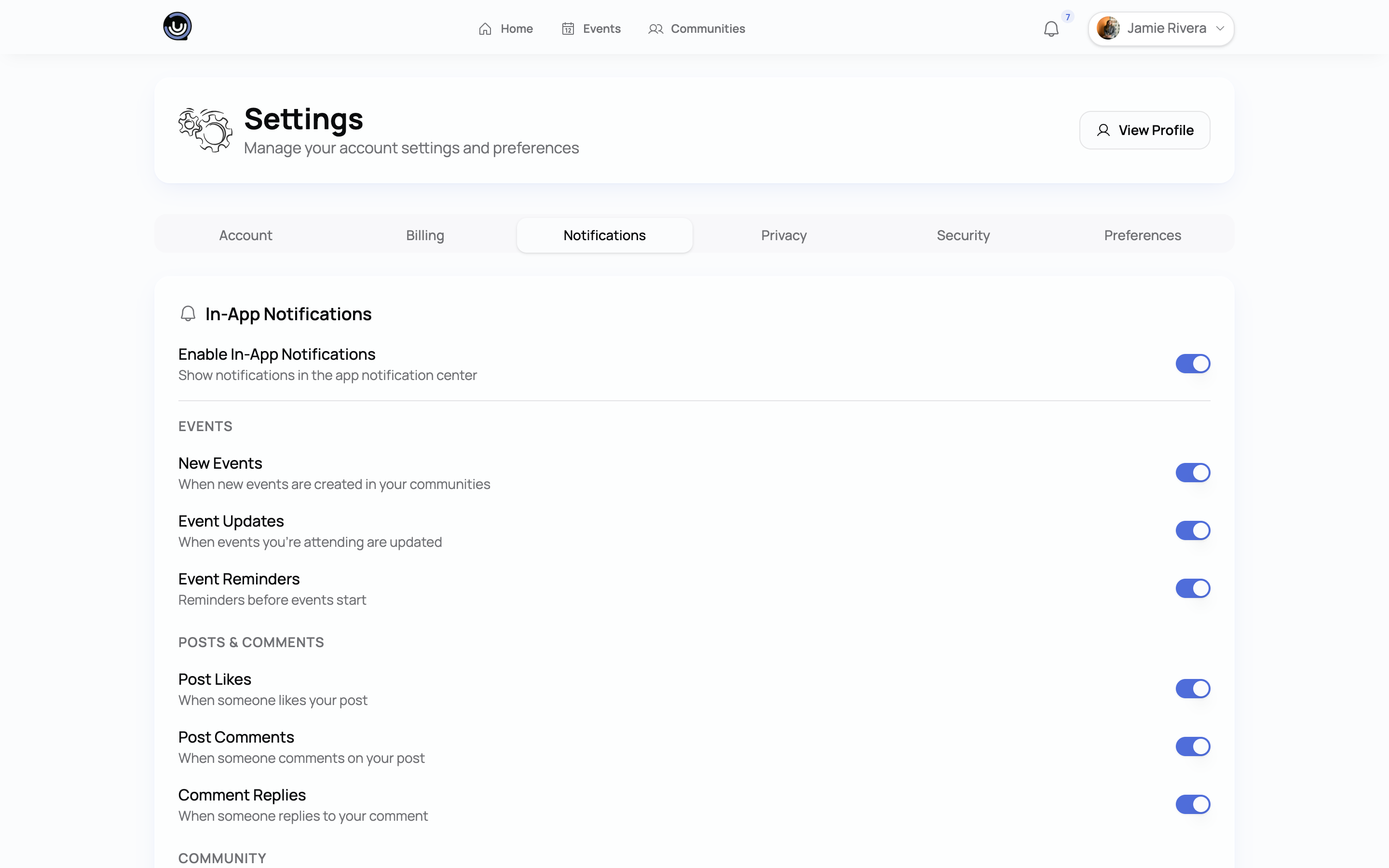
Push Notifications — a master switch, off by default, with toggles underneath it for event reminders and for comments and replies. Your choices here are saved to your account, but push delivery to your device isn't switched on yet, so nothing actually arrives this way for now.
Heads up. Transactional and security emails — ticket confirmations, invitations, a failed payment, a completed password reset — are always sent regardless of your notification settings. These toggles only control the optional, non-essential emails. A sign-in from an unfamiliar device shows up in your in-app notifications rather than in your inbox.
Privacy
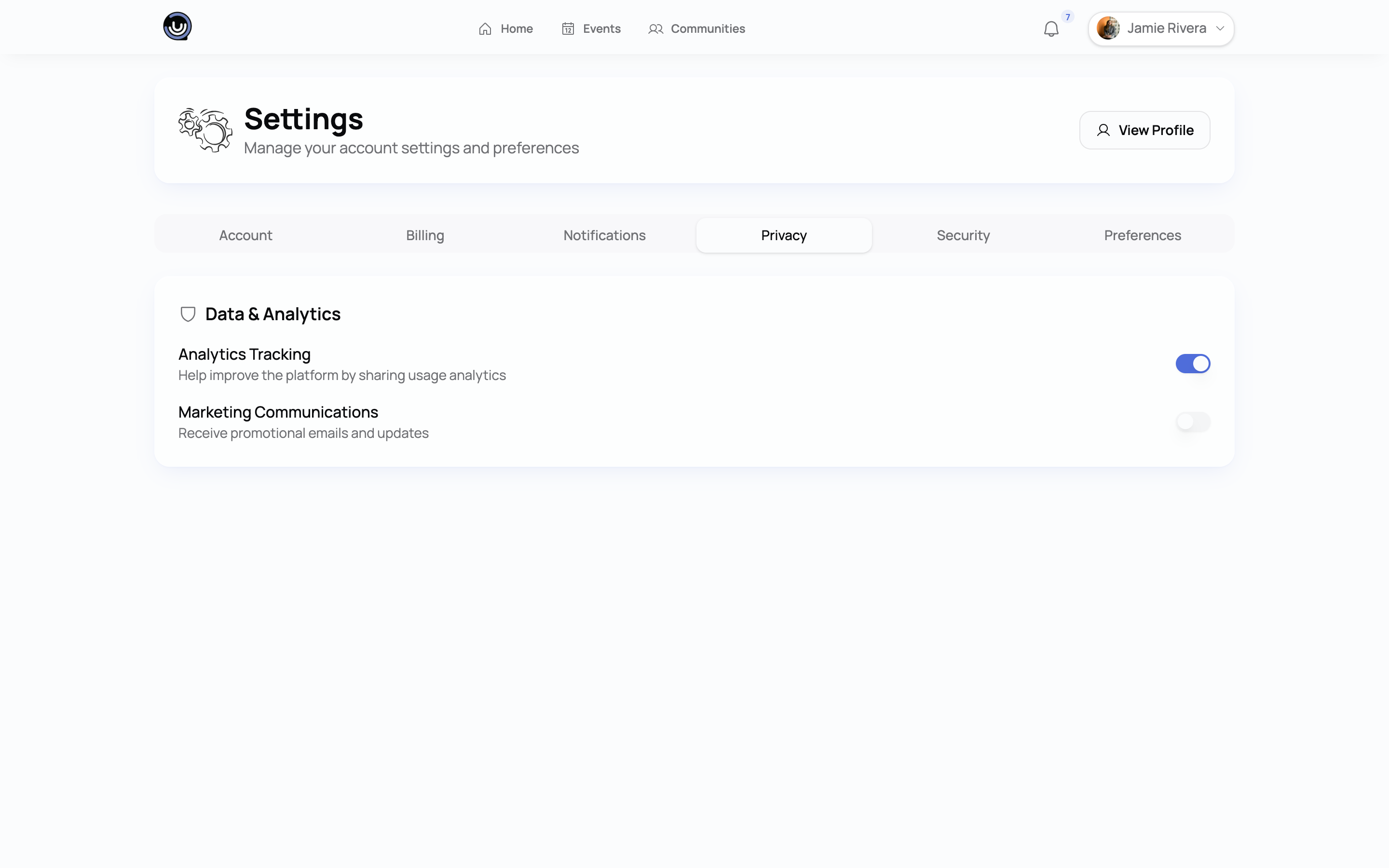
One card, Data & Analytics, with two switches:
| Setting | Default |
|---|---|
| Analytics Tracking | On |
| Marketing Communications | Off |
Analytics Tracking covers general usage data that helps us understand how the product is used. Marketing Communications controls whether you receive promotional emails separate from the transactional ones mentioned above.
Security
Change Password sits at the top of this tab. Type your current password, pick a new one, and confirm it. A strength meter runs underneath the new password and you have to clear it before Save will go through, so a password that's too weak is turned away on the spot rather than after saving. One that has turned up in a known data breach is refused too, however long it is.
Saving signs out every other session on your account. Whatever device you're using stays signed in; anything else still logged in as you is kicked out. That's deliberate — if someone else had your old password, changing it ends their access immediately.
If you signed up with Google or another social login, you don't have a password on the account to change, and you'll be told as much when you try.
Forgotten your current password? You can't change it from here without it — sign out and use the Forgot password link on the sign-in screen instead, which emails you a reset link. Completing a reset that way also emails you a security alert; changing your password from this tab doesn't, so the other devices being signed out is the confirmation you get.
Two things on this tab aren't finished yet: the Enable 2FA button is greyed out, so there's no two-factor authentication to turn on, and Active Sessions only lists the device you're on right now rather than every place you're signed in.
Preferences
Language — choose a preferred language from the dropdown. This is saved to your account, though the interface itself is currently English only.
Timezone — set your timezone from a standard list. This is what "your time" labels use across event pages, so event start and end times display correctly for you regardless of where an event's organiser is based.