
Managing your membership and subscription
How to subscribe to a paid membership plan, switch or cancel it, and keep track of your payments, invoices and payment method.
Some communities on YeahApp charge a subscription for access to certain content or benefits — a membership plan. If you've joined one, this guide covers how to subscribe, switch plans, cancel, and find your payment history whenever you need it.
Subscribing to a membership plan
Membership plans live on the community's own membership page. Most plans are open to any member; some are invite-only and only appear if you've followed an invite link sent by the community.
Each plan shows its price, the community's currency, and how often you're billed — monthly, quarterly, semi-annually, annually, or as a single lifetime payment for permanent access. When you're ready:
- Choose a plan and select Subscribe.
- You're taken to a secure checkout page hosted by Stripe — YeahApp never sees or stores your card details.
- Enter your payment details and confirm.
- Access is granted as soon as payment goes through, and you're redirected back to the community.
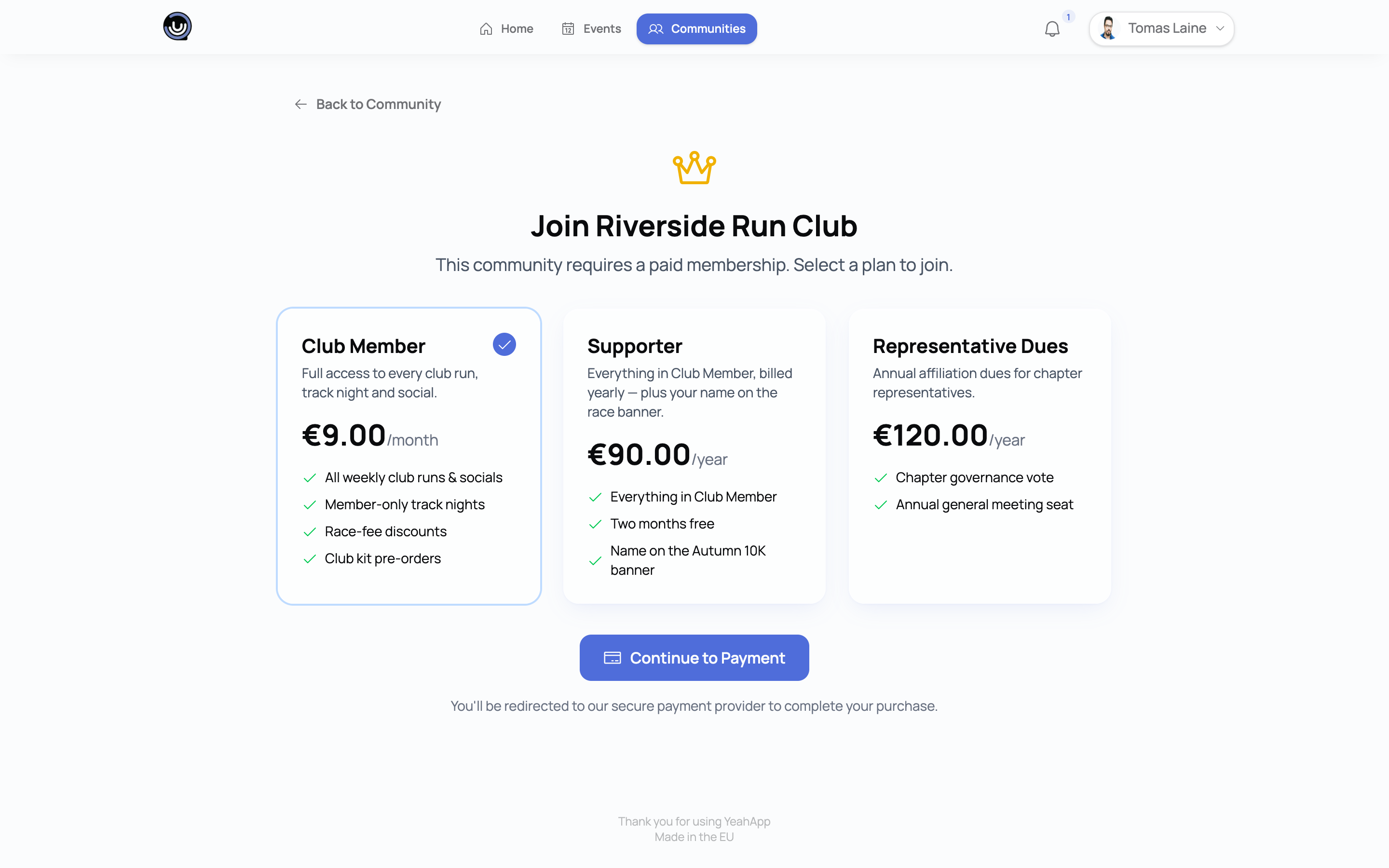
Some communities set up a plan priced at €0 as an easy way for members to join a tier without paying. Those skip Stripe entirely — no card needed, and access is granted the moment you join.
You can hold at most one active membership plan per community at a time. If you subscribe to a new plan, it replaces your existing one (see "Switching plans" below).
Contribution plans and promo codes
Alongside paid membership plans, some communities also run an open contribution plan — a way to make recurring donations. Contributions don't unlock or gate anything; they're purely voluntary support. Because of that, you can back a contribution plan in addition to a paid membership, or on its own. Some contribution plans let you choose your own amount above a set minimum, rather than a fixed price.
If a community is running a discount, you'll see a promo code field at checkout. Enter the code before completing payment to apply it — it won't apply retroactively to a subscription you've already started.
Switching plans
If a community offers more than one plan, you can move from one to another without cancelling first. Open your subscription and choose to switch plans. The change takes effect immediately, and Stripe prorates it automatically — any unused time on your old plan is credited against the new one, so you're only charged the difference.
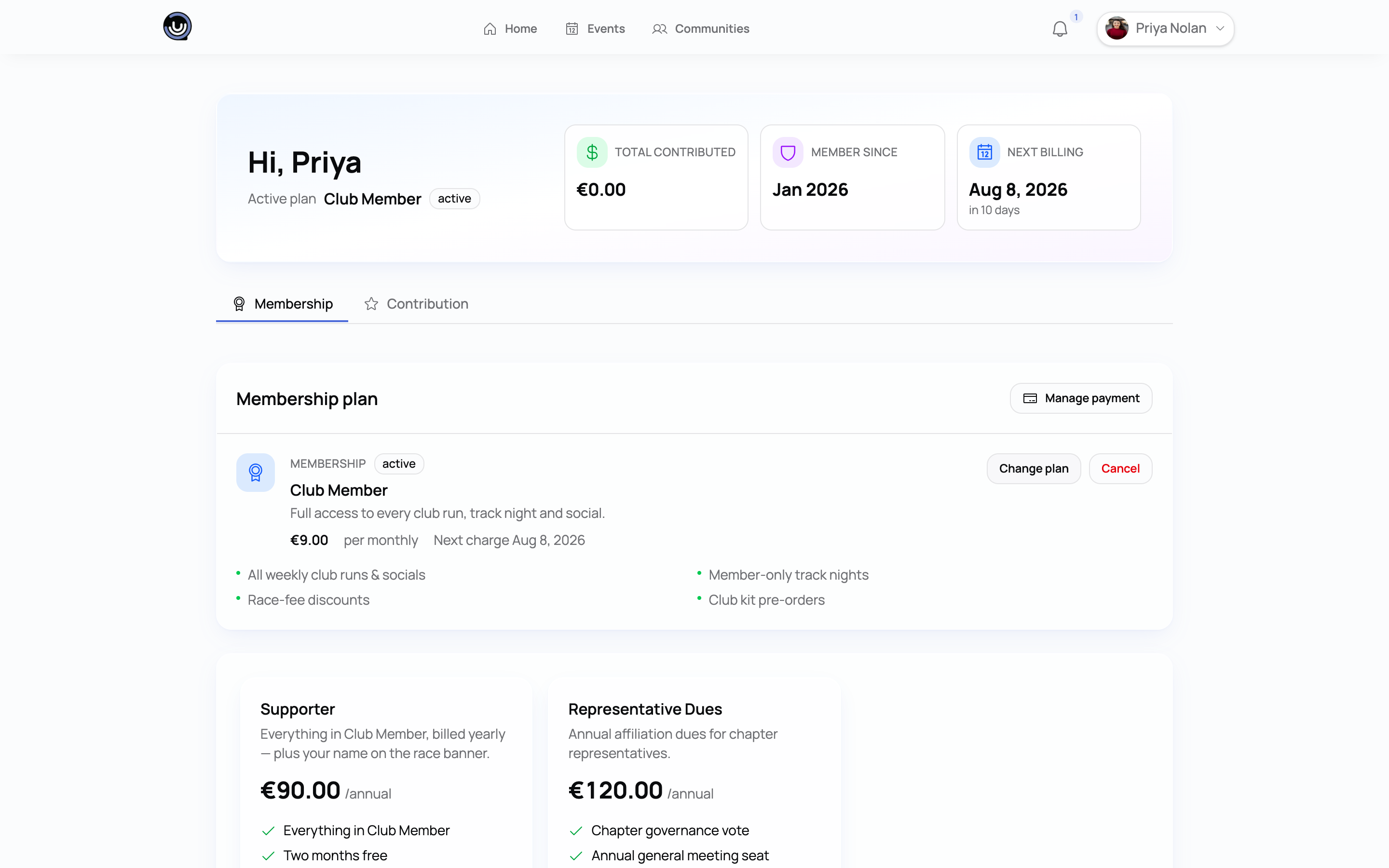
A few things worth knowing:
- You can only switch between paid plans in the same community, of the same type (membership or contribution) and currency.
- You can't switch into or out of a lifetime plan.
- You can't switch to a plan priced at €0 — that only works as a fresh subscription.
Cancelling your membership
You can cancel a paid subscription at any time from your subscription details.
Heads up. Cancelling doesn't end your access straight away. You keep full access until the end of the period you've already paid for, and you won't be charged again after that. Once the period ends, the subscription closes and any access it gated ends with it.
If a payment fails — an expired card, for example — you're not cut off immediately. Most communities set a short grace period (a few days is typical) during which Stripe retries the charge and you keep your access. If the payment still hasn't gone through once the grace period ends, the subscription lapses.
To pick the membership back up later, you can resubscribe to the same plan (or a different one) the same way you did the first time.
Viewing your subscription, transactions and invoices
Two places show your membership activity:
- Your account's Billing tab (in your account settings) lists every community where you have a paid subscription, with its status, plan name, price, billing cycle, and your next renewal or cancellation date. Select Manage on any row to open the full details for that subscription.
- The community's own membership page shows your recent transactions and invoices for that subscription. From there you can download an invoice as a PDF or open the Stripe receipt for any individual payment.
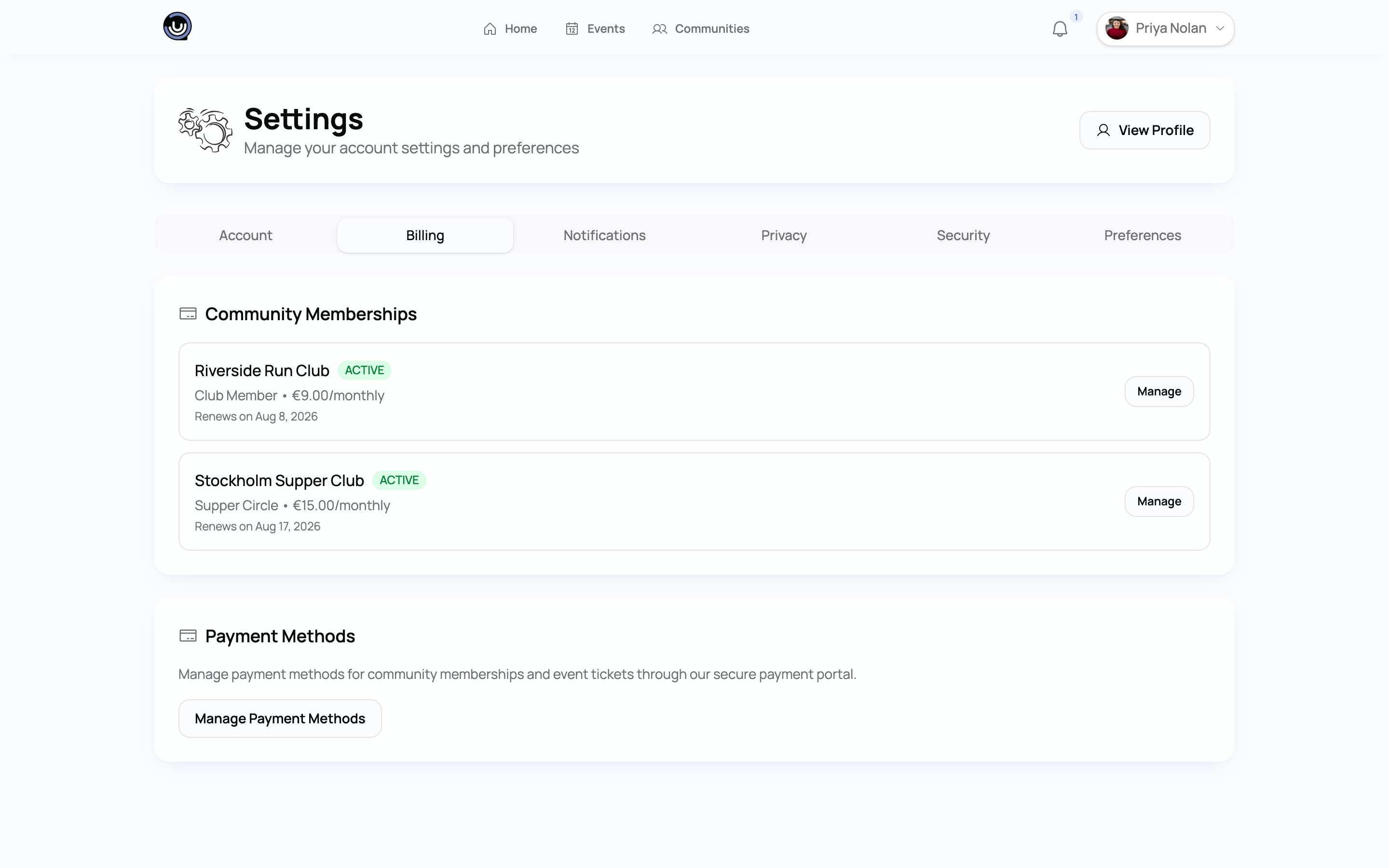
If you're not subscribed to anything yet, the Billing tab points you to discover communities instead.
Updating your payment method
Card details are never stored by YeahApp — they live entirely with Stripe. To add a new card or change the one on file, open Manage Payment Methods from your account's Billing tab, or from the community's membership page. Either takes you to the Stripe Customer Portal, a secure page hosted by Stripe where you can update your card and review your billing history.
Because each community processes payments through its own connected Stripe account, the portal is scoped to one community's subscription at a time — if you support several communities, you'll open the portal separately for each one.
Related guides
- Creating a membership plan on YeahApp — how communities set up the plans you subscribe to
- Your account and privacy settings — where the Billing tab lives, alongside your other account settings
- Joining a community — for communities where you need to join before a plan is visible to you
- Buying a ticket and your tickets wallet — a separate kind of payment, for one-off event tickets rather than recurring membership