
Sub-communities and branches
How branches work on YeahApp — what a branch inherits from its root community, who's automatically in charge of it, the branch and member limits by plan, and how members move between branches.
A branch is a smaller community nested under a larger one — a regional chapter, a language group, a sub-team — anything that benefits from its own space while still belonging to a bigger organisation. This guide covers what a branch inherits from the community it sits under, who can manage it, the limits that apply as you grow, and how a member moves from one branch to another.
What a branch is
When you create a branch, you're creating a new community that sits one level below another. The community it sits under is the root, and the root plus all of its branches together form a cluster.
Nesting only goes one level deep. A branch can't have branches of its own — if you're inside a branch already, you won't see the option to create one under it.
A branch's page works exactly like any other community page. It has its own events, forms, posts and members. What makes it a branch is what it inherits from the root, and who's automatically in charge of it.
What a branch inherits from the root
When you create a branch, it's automatically set up with:
- The root's plan. A branch doesn't carry its own subscription — it runs on the root community's plan (Starter, Pro or Business). You're never billed separately for a branch.
- The root's Stripe Connect account. Ticket sales, membership payments and payouts for a branch all go through the same connected Stripe account as the root. There's nothing extra to connect.
- The root's apps. Any app installed on the root community — Appointments, Circles, whatever you've added — is automatically available in every branch, and shows up in the branch's Apps tab as inherited. You can't install an app on a branch directly: YeahApp will tell you to install it on the parent community instead, and it becomes available in the branch straight away. Apps bill on the root's subscription, and a branch doesn't have one of its own, so there's nothing for a branch-level install to attach to. See Extending your community with apps.
- The root's owner. Whoever owns the root community automatically owns every branch too. The person who creates the branch is added as an Admin of it, not the owner.
- The root's country. This is tied to the shared Stripe Connect account, so it always matches the root.
You can also choose, at creation:
- Inherit settings from the root — copies the root's privacy setting (public or private), whether new members need approval to join, and its category into the new branch.
- Auto-join the root community — when someone joins the branch, they're automatically added to the root community too, as a Member. If they'd previously left the root, this reactivates their old membership rather than creating a duplicate.
Heads up. "Inherit settings" is a one-off copy, not an ongoing link. It copies the root's settings once, at the moment you create the branch. If you change the root's privacy setting or category later, your existing branches keep whatever they were given at creation — they don't update automatically.
How many branches you can create
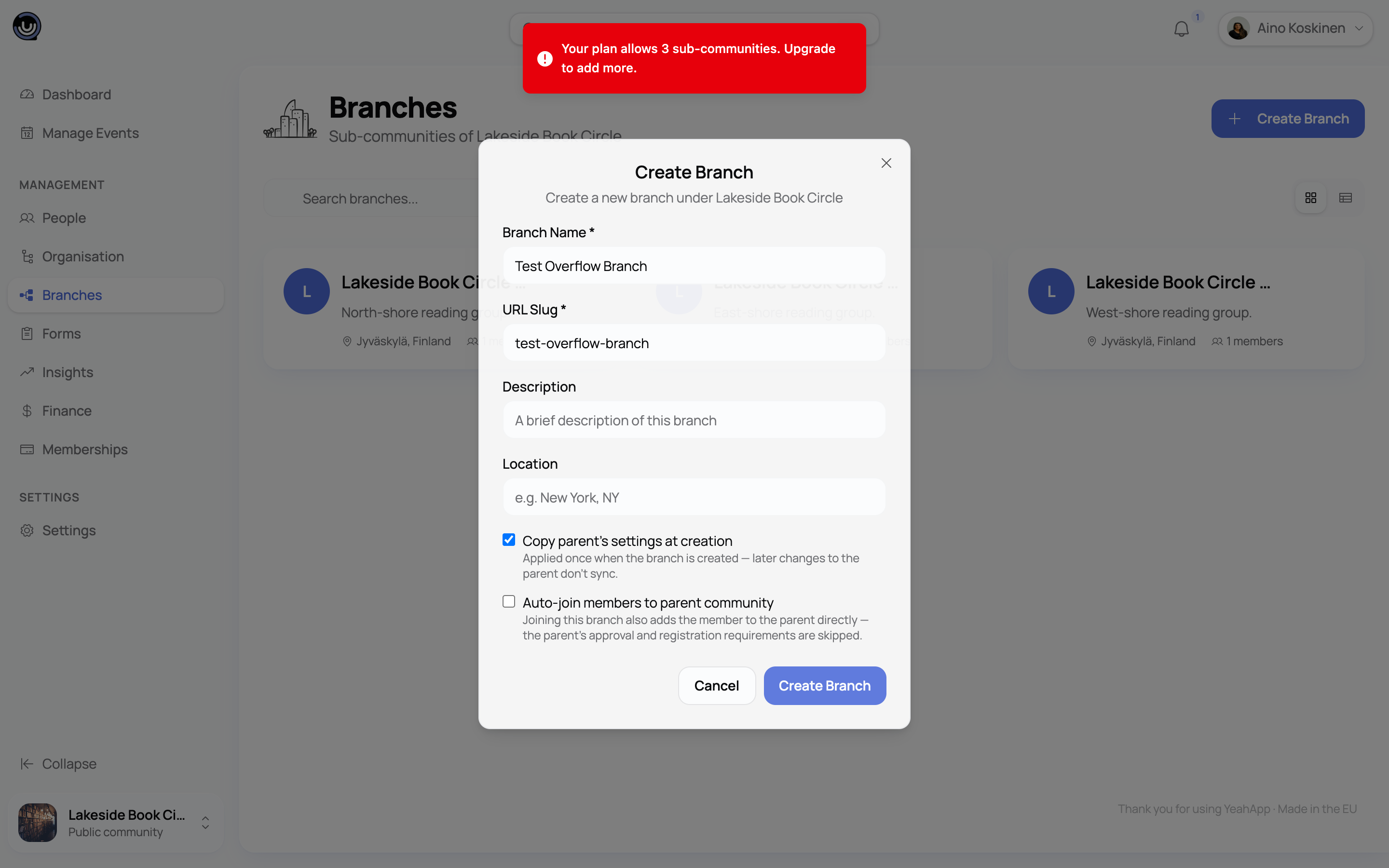
Your plan sets how many branches you can have under one root community:
| Plan | Branches you can create | Platform fee |
|---|---|---|
| Starter | 3 | 6% |
| Pro | 12 | 3% |
| Business | Unlimited | 1.5% |
Creating a branch requires an active paid plan on the root community — every plan supports branches once it's active.
If you delete a branch, it stops counting towards this limit, so you can create a new one in its place.
The member cap is shared across the whole cluster
Your plan's member limit isn't per-branch — it's one shared cap across the root and every branch under it.
| Plan | Member cap (root + all branches combined) |
|---|---|
| Starter | 200 |
| Pro | 500 |
| Business | Unlimited |
So on a Pro plan, that's 500 members total across the root and all of its branches combined, not 500 for each one. Anyone who joins any branch counts against this same shared total. If your root community is sitting at 480 of its 500-member cap, a branch with plenty of room left still can't accept new members until the cluster as a whole has space.
Heads up. If you want to cap membership below your plan's normal limit, set that override on the root community. Setting a member limit on an individual branch doesn't affect the cluster's shared cap.
Root admins run every branch automatically
You don't need to be added as a member of a branch to manage it. If you're the Owner or an Admin of the root community, you automatically have Admin authority over every branch in the cluster — managing its members, events, forms and finances — without holding a separate role there.
This flows one way only: someone who's only an Admin or Moderator on a branch doesn't get any special access to the root community or to other branches in the cluster.
It also means ownership transfers apply to the whole cluster. Transferring ownership of the root community hands over every branch at the same time — you can't transfer a single branch on its own. See Transferring community ownership.
Creating a branch
You need to be the root community's Owner or an Admin to create a branch.
- Go to the Branches page from your (root) community's management dashboard.
- Click Create Branch.
- Fill in the branch's name, URL slug, description and location.
- Choose whether to inherit the root's settings and whether members should auto-join the root.
- Submit.
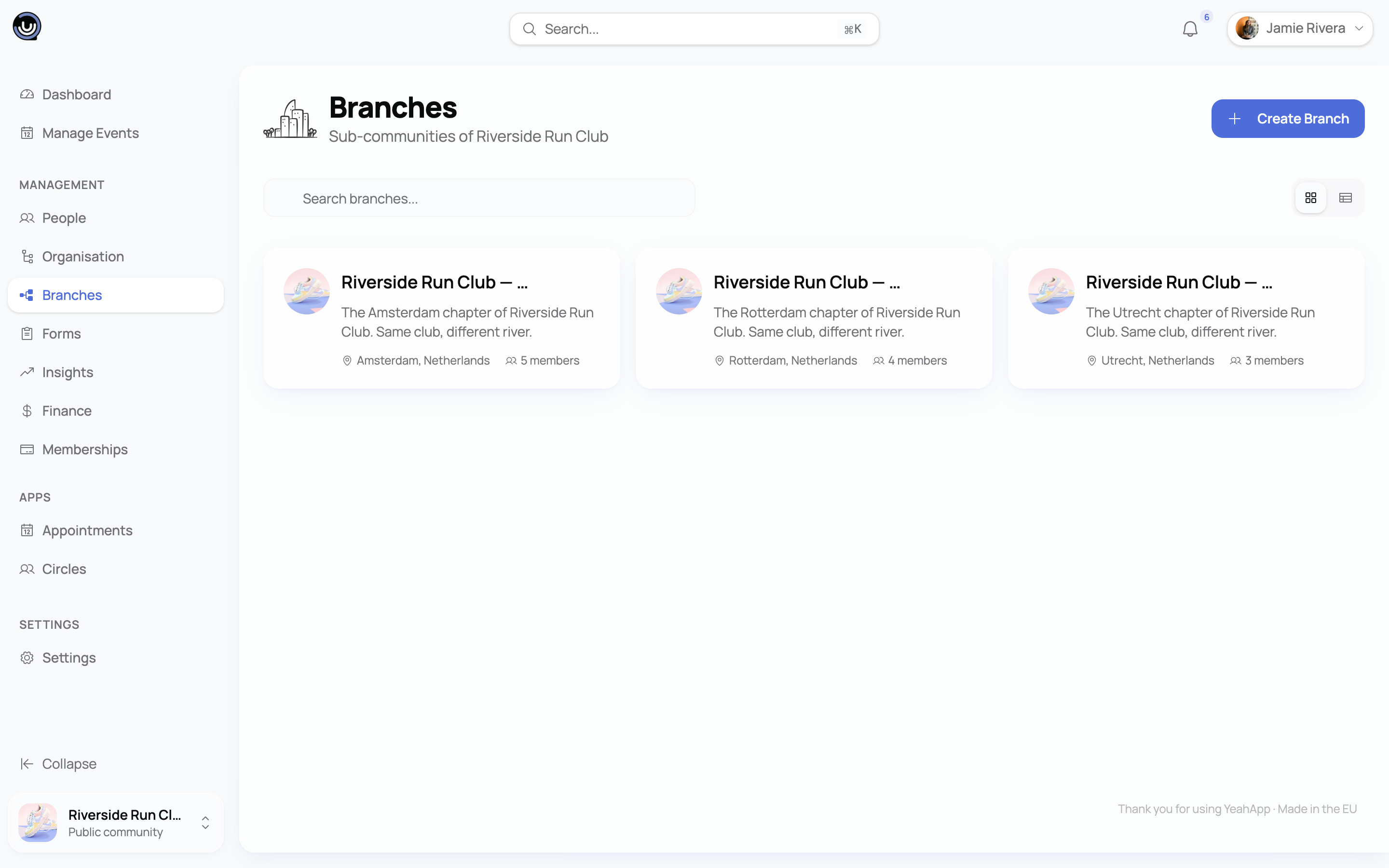
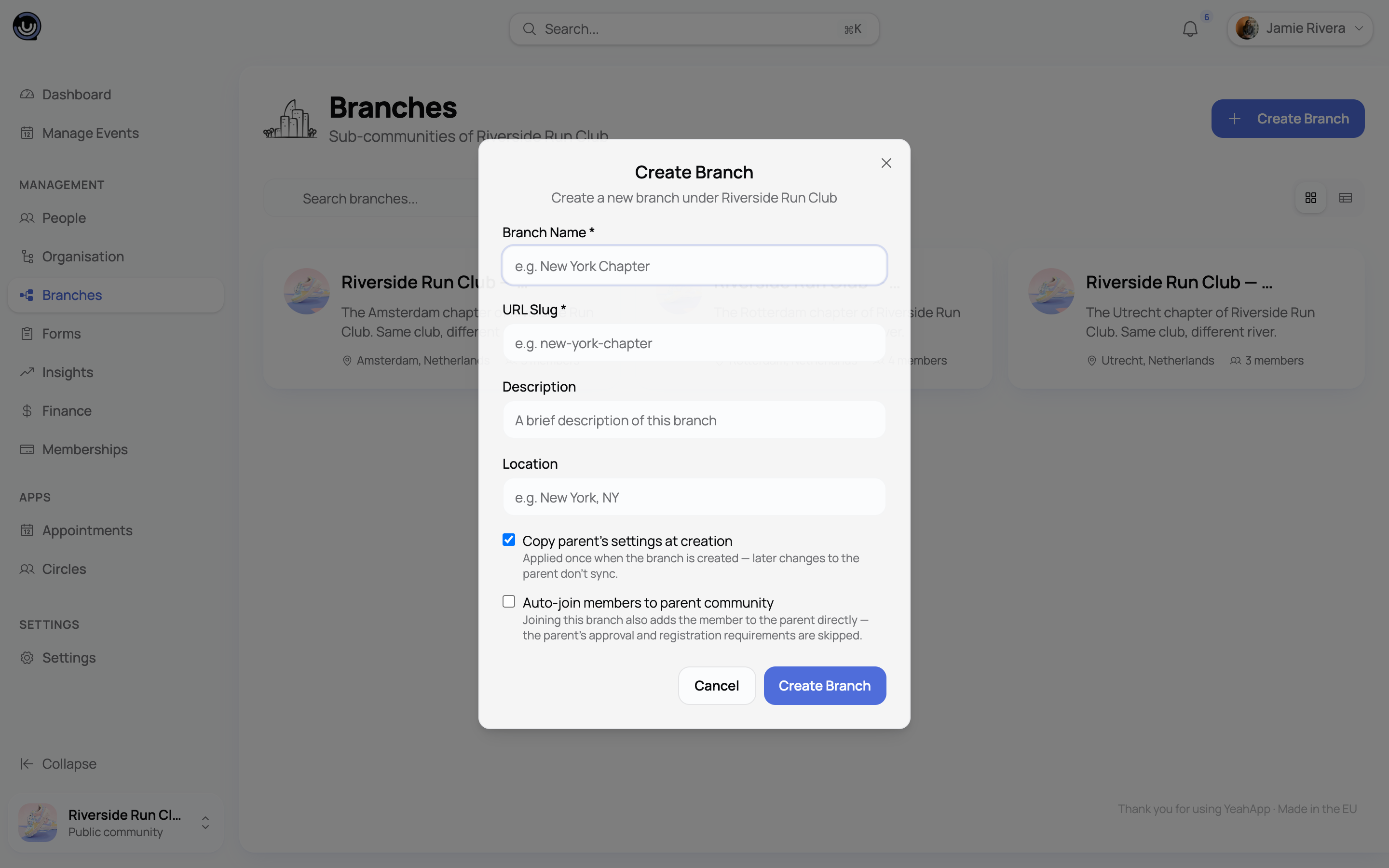
Your slug has to be unique across all of YeahApp, not just within your own communities — if it's taken, you'll be asked to pick another. If you've already reached your plan's branch limit, you'll see an upgrade prompt instead of the create form going through.
Where branches live and who can see them
A branch has its own address in the form yeahapp.co/{root-slug}/{branch-slug}, reached from the root's Branches page or by a direct link.
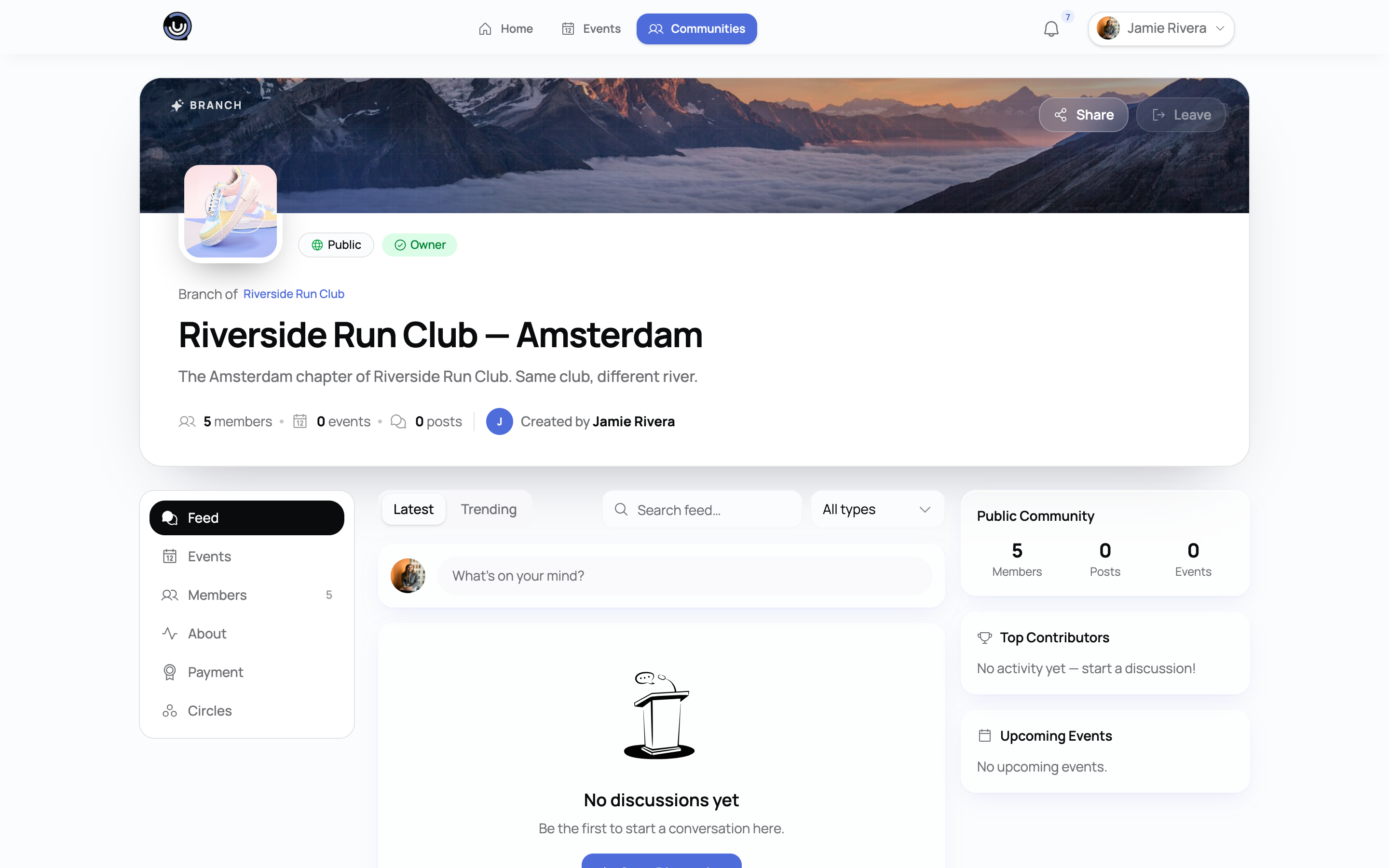
Branches don't appear in YeahApp's general community search or browse pages — they're reached through their root community rather than discovered on their own. If you mark a branch private, it's hidden from anyone who isn't already a member of the root.
Deleting a branch
Deleting a branch is a soft delete — it's archived rather than erased, and it immediately frees up a slot under your plan's branch limit.
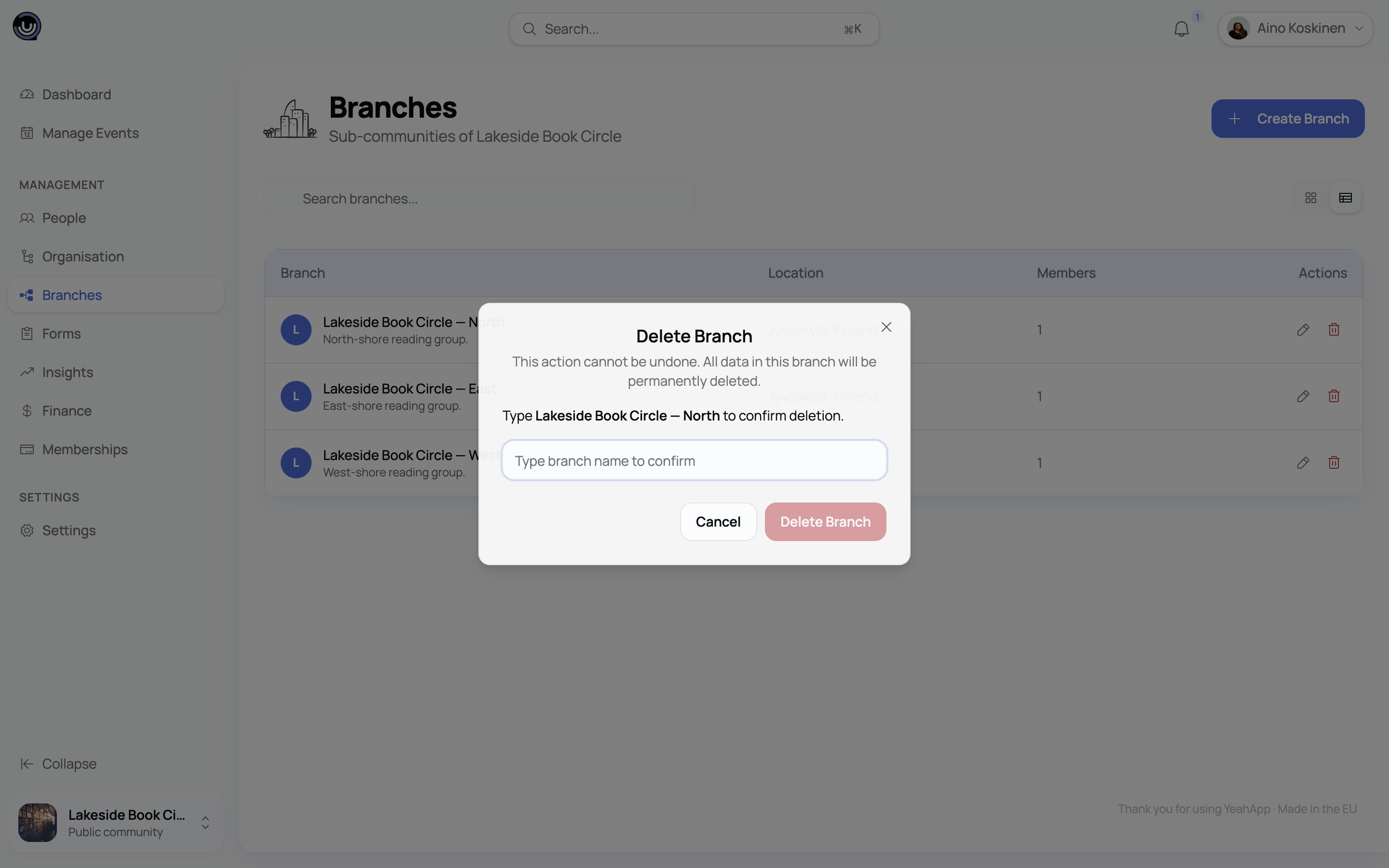
You need to remove all but one member before a branch can be deleted, and you'll be asked to type the branch's name to confirm. Only the owner can do it, and because a branch's owner is always the same person as the root's owner, that means the root owner — not a branch Admin, even one who created it or manages it day to day. YeahApp support can also delete a branch on request if you're locked out of doing it yourself.
Moving between branches
Once a community has branches, a member of one can ask to move their membership to another branch in the same family — someone who's relocated, changed chapters, or joined the wrong group to begin with. The move keeps the account and everything attached to it; only which branch the person belongs to changes.
Moves aren't automatic. A member requests one, and an Admin of the branch they want to join decides.
Requesting a move
For the member, a Transfer button sits alongside Leave in the community page's header. It only shows up when there's somewhere in the family they could actually move to — if there's nowhere, they won't see it.
- Select Transfer.
- Pick a destination from the list. Each one shows its member count.
- Optionally add a short message for the branch's admins (up to 500 characters) explaining the reason for the move.
- Submit.
The button then reads Transfer Pending until an admin decides. Opening it shows where the request was sent and when, and lets the member withdraw it if they change their mind. Each member can have one open request at a time from any given branch.
What can stop a request
- Moves only work between branches of the same community. There's no way to transfer into an unrelated community — that one has to be joined normally instead.
- Nobody can move into a branch they're already a member of, or one they've been banned from.
- Owners can't transfer out at all. A community's owner has to hand ownership to someone else first. See Transferring community ownership.
- If a branch is set to automatically include membership of the root, there's no "transferring" into it from the root — joining it directly from its own page keeps the existing root membership either way.
- A member with an active paid membership in their current branch can't move. They need to cancel it from My Membership first, then request the transfer. Paid memberships don't move between branches. See Managing your membership and subscription.
Approving a move
The decision belongs to an Admin of the destination branch — anyone who can manage that branch's members, which includes the root community's Owner and Admins.
Requests appear under Members → Requests in the management dashboard, with the member's name, which branch they're coming from, and their message. Approve or Reject; you can attach a note when rejecting, and the member sees it.
What happens when it's approved
- The member is added to the destination branch as a Member. Any role they held in their old branch, and any member group they were in, doesn't come with them — re-grant those if you need to.
- Their membership in the old branch is closed.
- If the destination branch automatically includes the root community, they're added to the root too.
- The member is notified of the decision, and the admins of the branch they left are told someone transferred out.
Heads up. A request is decided against the situation at the moment an admin acts on it, not the moment it was made — so approval can fail on something that changed after the request went in. If the member has left their old branch, or has been banned from the destination since asking, the request is turned down there and then with the reason recorded, and they'd have to ask again. If instead they've started a paid membership in their old branch in the meantime, the request isn't thrown away: the admin is told why it can't go through, and the request stays pending, so once the member cancels that membership the same admin can simply approve it again. And if the destination branch requires a paid membership of its own, the transfer is rejected outright — approving it would hand over paid access for free, so the member should join and pay for that branch directly instead.
Branch transfer is a different thing from ownership transfer: it moves one member between branches, while an ownership transfer hands the whole community — root and every branch — to a new owner.