
Member groups and access control
How to set up member groups on the Business plan, link one to a membership plan, and use them to restrict who can see an event or a post.
Member groups let you sort your members into flat categories — "Board", "Volunteers", "Premium members" — and then use those categories to control who can see a specific event or post. A member can belong to at most one group at a time, and groups carry no billing of their own; they're purely for categorising your audience and gating content.
Member groups are a Business plan feature. If your community is on Starter or Pro, you won't see the option to create groups or restrict content to them.
Heads up. Member groups are different from your community's organisation chart. A committee position is a title in a leadership hierarchy — cosmetic, with no effect on what someone can do. A member group is purely an audience bucket used to control visibility. The two aren't related.
What member groups are for
There are two uses:
- Categorising your members into simple buckets you define.
- Restricting an event or a post so only certain members can see it.
Groups are often used together with your membership plans — you can automatically funnel a plan's subscribers into a group, then restrict events or posts to that group, so pricing tier and content access travel together without manual gatekeeping. Groups can also stand alone, with members assigned by hand, for things like a volunteer team or a leadership circle that doesn't map to any plan.
Creating and managing groups
From your community's Membership dashboard, open the Groups section to create a group. Each one has:
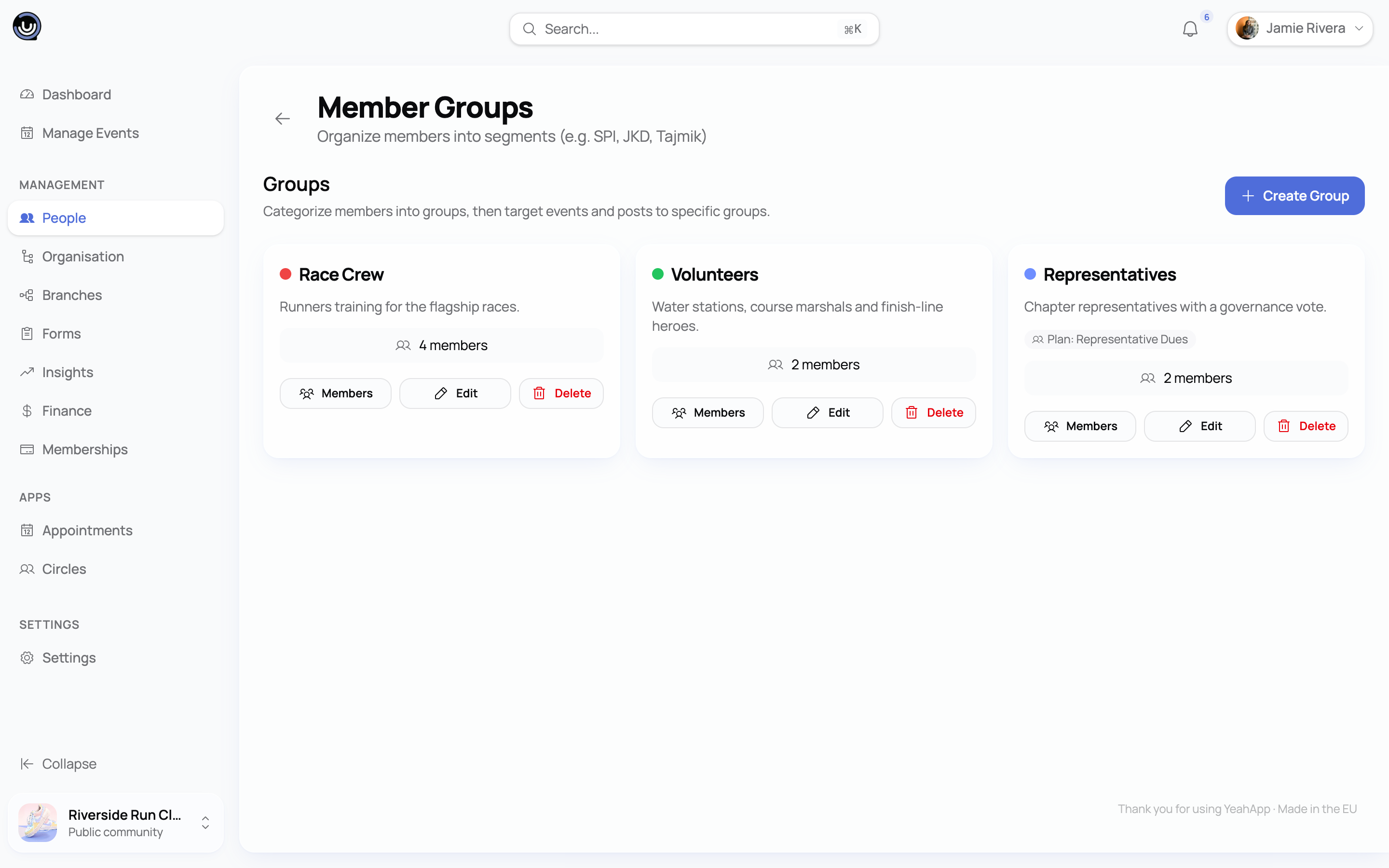
- A name, unique within your community
- An optional description
- A colour, used to tell groups apart at a glance in your member list
- A position in the list, which you can reorder
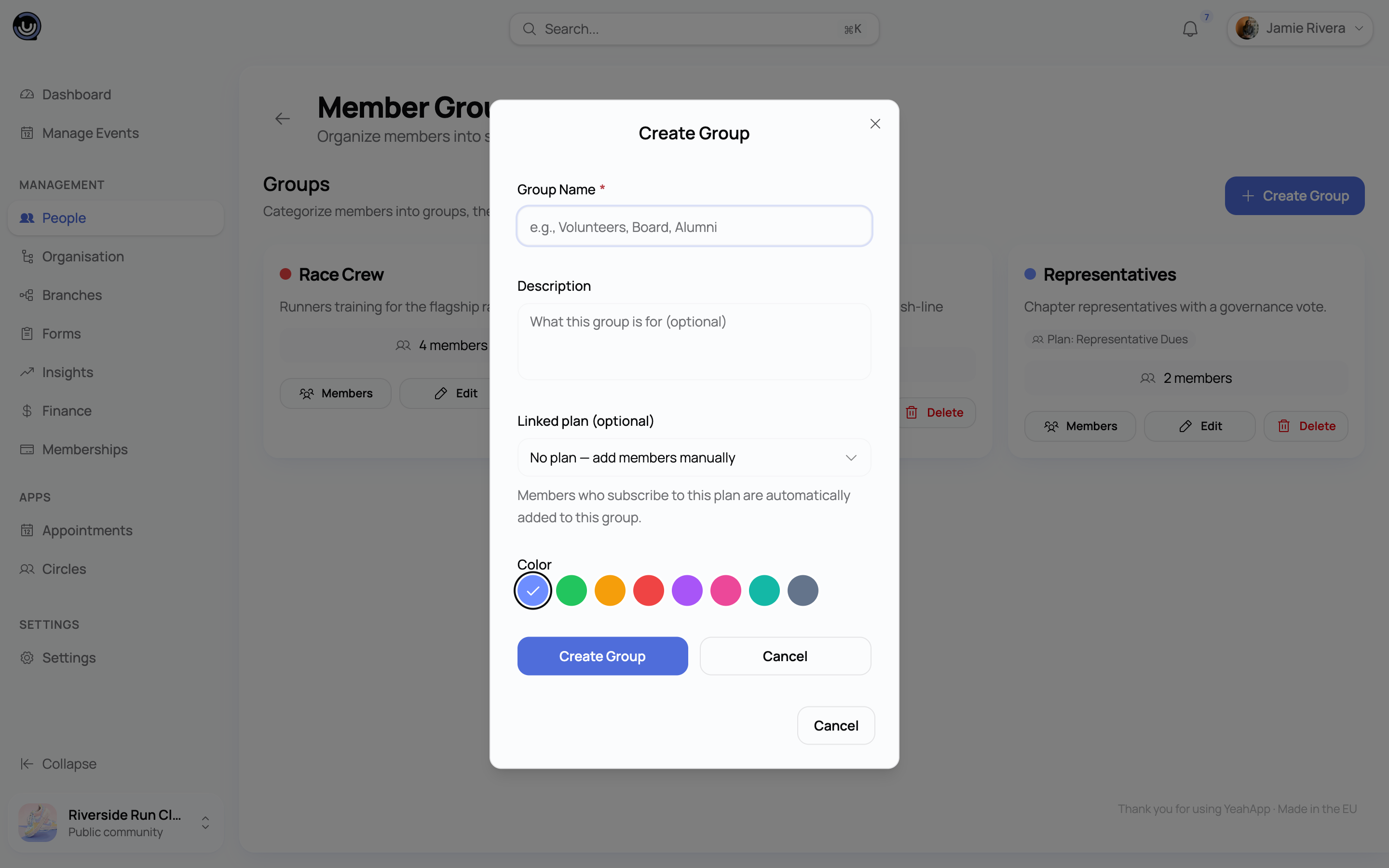
Once a group exists, assign members to it from your member list — search for a member and set (or clear) their group. Because a member can only be in one group at a time, assigning them to a new group automatically moves them out of whichever group they were in before.
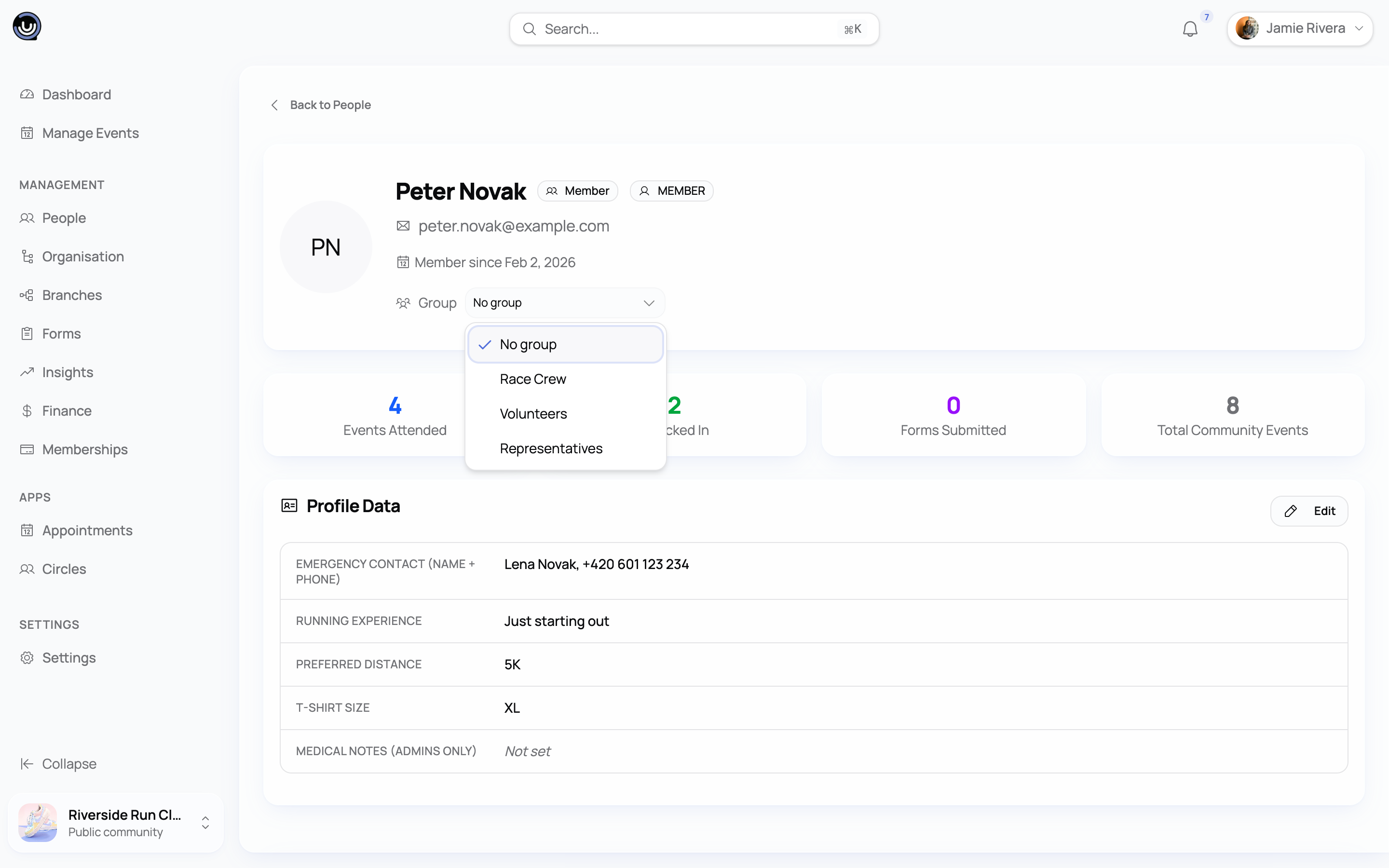
Deleting a group doesn't remove members from your community — it just clears their group assignment. Any event or post that was restricted only to that group opens back up as its group targets disappear.
Auto-populating a group from a membership plan
Instead of assigning members by hand, you can link a group to one of your membership plans. When you save that link, YeahApp moves everyone currently subscribed to the plan — active, trialing, or in their grace period — into the group straight away.
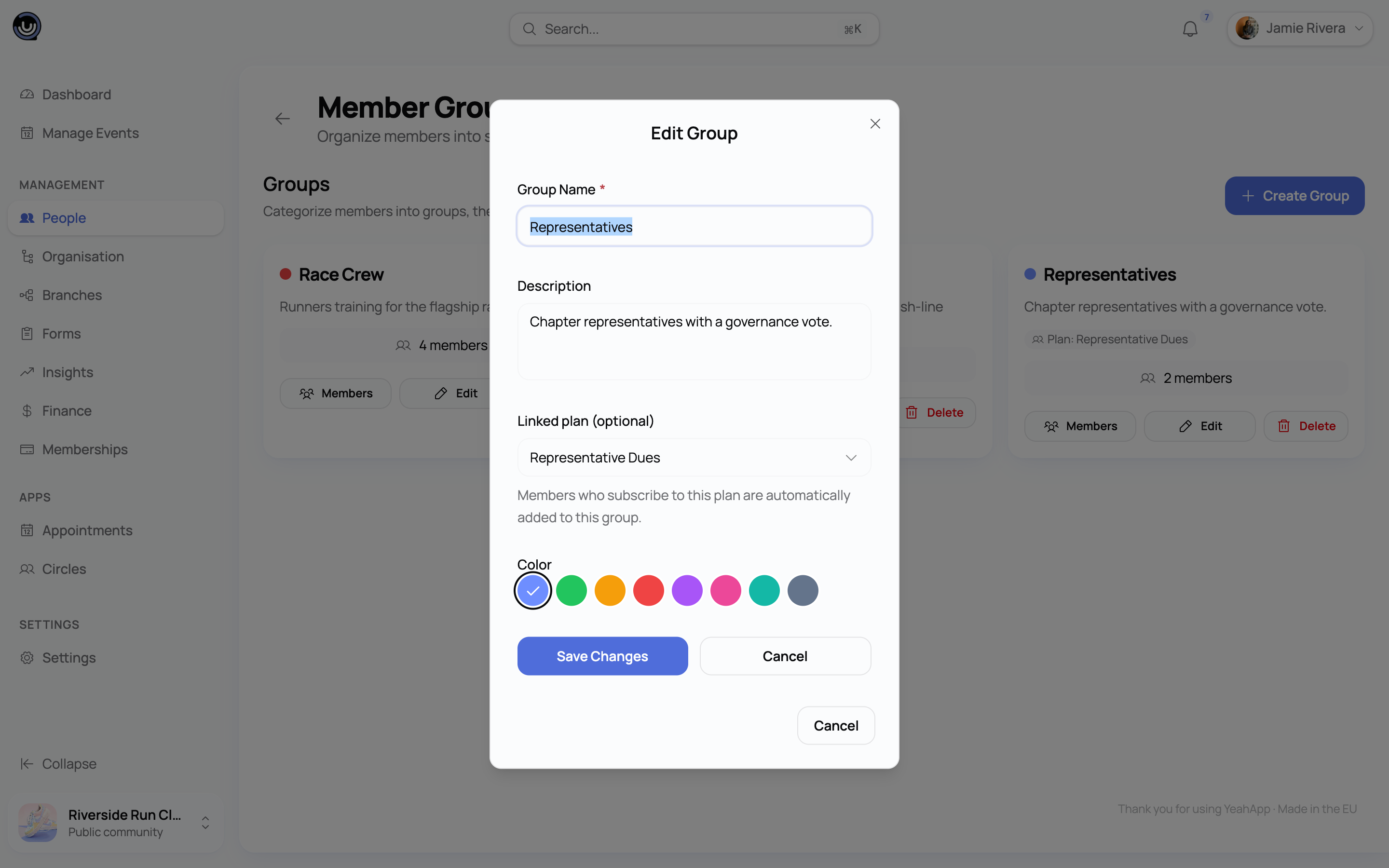
A plan can only feed one group, for the same reason a member can only sit in one group: linking a second group to a plan that's already linked isn't allowed.
Heads up. The plan link is a one-time sync, not a live feed. Members who subscribe to the plan after you create or update the link aren't added to the group automatically, and members whose subscription lapses or gets cancelled aren't removed automatically either. If you want a plan-linked group to reflect your current subscribers, revisit the link — open the group and save it again — every so often, or assign members by hand in between.
Restricting an event or a post
When you create or edit an event, or write a post, you can leave it open to your whole community, or restrict it using one of three targeting modes:
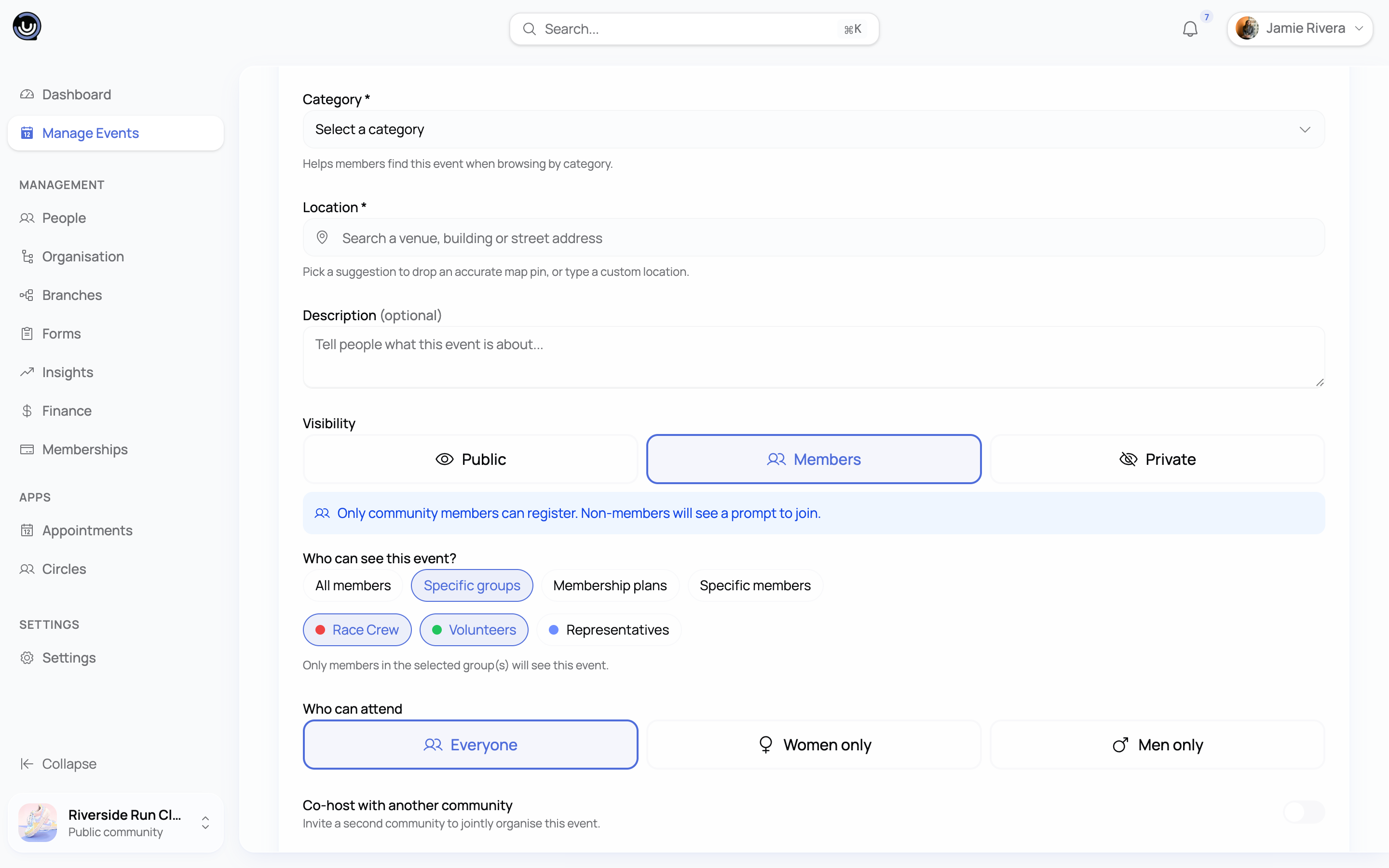
- Specific groups — visible to members in any of the groups you pick
- Specific members — visible to the individual members you pick, regardless of their group
- A membership plan — visible to members with an active, trialing, or in-grace-period subscription to that plan
You choose one mode at a time for a given event or post — modes aren't combined. Within whichever mode you pick, the rule is a union: target three groups, and a member sees the content as soon as they're in any one of the three, not all of them.
Leave an event or post untargeted and it stays visible to every member, exactly as before — restricting content is something you opt into, never the default.
A few things worth knowing about how this plays out:
- Owners, Admins, Moderators, and whoever created the event or post can always see it, even outside the targeted audience, so your team can review what's going out.
- Logged-out visitors can never see a restricted event or post. Restricted content always requires membership, at minimum.
- If a member's subscription to a targeted plan lapses, they lose access to anything targeted at that plan, the same as losing access to the plan's other benefits.
- Group, member, and plan targeting isn't available on co-hosted events — a co-hosted event stays visible to both communities' members. See Co-hosting an event with another community.
Who can manage member groups
Creating, editing, deleting, and assigning groups is limited to Owners and Admins. Moderators can't manage groups, though — like Owners and Admins — they can always see content that's been restricted to a group they're not part of. See Community Roles & Permissions for the full breakdown.
If your billing lapses or you change plans
Member groups need an active Business subscription to change. If your community's billing lapses, or you downgrade to Starter or Pro, any groups you've already created stick around and members keep their group assignment — but you won't be able to create, edit, delete, or reassign groups, or restrict new events and posts to them, until your community is back on an active Business plan.